
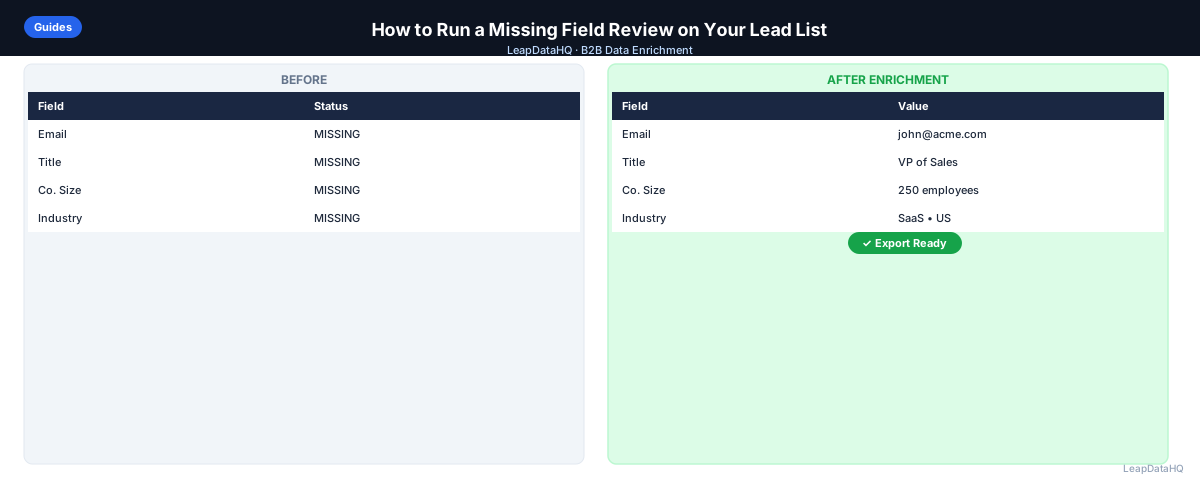
Most lead lists are not missing everything — they are missing specific fields, in specific patterns, for specific reasons. A conference export is usually missing emails. A LinkedIn Sales Navigator pull is usually missing verified company data. A CRM report is usually missing whatever field nobody was required to fill in.
A missing field review is the process of auditing a list column by column before you decide what to enrich, what to remove, and what to send to outreach as-is. Skipping this step is why teams end up enriching fields they did not need, missing fields they did need, and exporting lists with silent gaps nobody caught until a campaign underperformed.
This guide is for anyone who receives or exports a B2B lead list and needs to know, in five minutes or less, exactly what condition it is in before doing anything else with it.
What a Missing Field Review Actually Checks
A missing field review is not the same as a full data quality audit. It is narrower and faster: for each column in your list, you check what percentage of rows have a usable value, and you flag columns where the gap is large enough to affect outreach or CRM usability.
The output of a missing field review is a short list of decisions: which fields to enrich, which rows to exclude from this campaign, and which fields are complete enough to trust as-is. It is a triage step, not a full cleanup.
The Core Fields to Check
Not every field matters equally. Start with the fields that directly block outreach or CRM usability, then move to fields that affect targeting quality.
Contact-Level Fields
- Work email address — the single most common gap, and the one that blocks outreach entirely if missing
- Full name — split first/last name fields are often inconsistently filled or contain company names instead of person names
- Job title — needed for personalization and for filtering to the right decision-maker level
- LinkedIn profile URL — useful for manual verification and for multi-channel outreach sequences
Company-Level Fields
- Company domain — the most reliable lookup key; missing domains make every other enrichment step harder
- Company size or employee count — needed to filter by ICP fit
- Industry — needed for segmentation and messaging relevance
- Location — relevant for regional campaigns, compliance rules, and time-zone-aware sending
If you only have time to check three fields, check work email, company domain, and job title. These three drive most downstream outreach and enrichment decisions.
Step-by-Step: How to Run the Review
Step 1: Calculate Fill Rate Per Column
For each column you care about, calculate what percentage of rows have a non-blank, non-placeholder value. In a spreadsheet, a simple COUNTA or COUNTIF formula against blank and common placeholder values ("N/A", "unknown", "-") gives you a fast fill-rate percentage per column.
Ready to enrich your CSV list?
Upload a CSV, fill missing data, review confidence scores, and export clean records.
Upload a CSV — Start EnrichingStep 2: Set a Threshold for "Needs Enrichment"
A reasonable starting threshold is 80%. If a field is filled for 80% or more of rows, treat it as usable and spot-check a sample. If a field is filled for less than 80%, it is a candidate for enrichment, exclusion, or manual research depending on how important that field is to your campaign.
Step 3: Distinguish "Missing" From "Wrong"
A missing field review checks for blanks, but you should also scan for fields that are filled with the wrong kind of data — a company name typed into a job title column, a personal Gmail address in a work email field, or a phone number formatted inconsistently across rows. These do not show up as "missing" in a fill-rate calculation but cause the same downstream problems.
Step 4: Segment Rows by Completeness, Not Just Reject Them
Instead of a binary keep/reject decision, split your list into three groups: rows that are complete and ready, rows that are missing one or two fields and are good candidates for enrichment, and rows that are missing so much core data that enrichment is unlikely to help. This segmentation makes your enrichment budget go further because you are not paying to enrich rows that were never going to produce usable results.
Step 5: Document What You Found
Keep a short note of which fields were missing and at what rate for each list you review. Over time this tells you which lead sources consistently produce clean data and which ones need a review step every time — useful when deciding where to source future lists.
A Field-by-Field Checklist
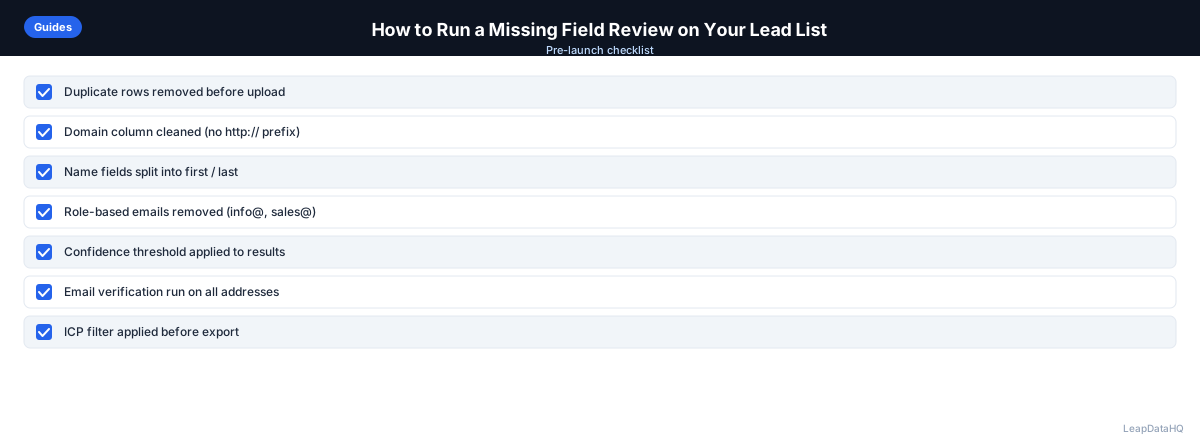
- Work email: filled for at least 80% of rows, and does not contain role-based addresses (info@, sales@) for individual contacts
- Company domain: present and free of http://, https://, and trailing slash formatting
- Job title: filled and specific enough to identify seniority (not just "Manager" with no department)
- Company size: present as a number or range, not left blank or marked "unknown"
- Industry: present and consistent with how you plan to segment (not a mix of free text and dropdown values)
- Name fields: first and last name are in separate columns and do not contain company names
- Location: present at least at the country or region level for compliance and targeting purposes
- Duplicate check: no repeated email addresses or domains across rows
Common Mistakes
- Treating every blank the same way: a missing LinkedIn URL is a minor gap; a missing email is a blocking gap. Prioritize accordingly instead of enriching everything equally.
- Skipping the review and enriching the whole file: this wastes enrichment credits on rows that were already complete and on rows that are too incomplete to enrich successfully.
- Not checking for placeholder text: values like "N/A", "TBD", or "unknown" pass a basic blank check but are functionally missing data.
- Reviewing once and never again: lists sourced from the same place tend to have the same gaps. A five-minute review before each new list saves rework later.
How LeapDataHQ Helps
LeapDataHQ is built around this exact workflow. When you upload a CSV, the platform highlights which rows are missing key contact and company fields before you spend any credits on enrichment. You can review the missing-field breakdown, decide which gaps are worth enriching, and only enrich the records that are likely to produce a usable result. See the full workflow on the /features page or start with a sample file at /sample-enrichment.
When to Use LeapDataHQ
Run a missing field review any time you receive a new lead list from a source you have not fully vetted — a conference export, a LinkedIn pull, a purchased list, or a CRM report. It is also worth running before any enrichment pass, so you enrich only the fields and rows that actually need it.
LeapDataHQ supports this workflow directly: upload your CSV, see which fields are missing across your dataset, and decide what to enrich before any credits are spent. This keeps enrichment spend focused on records that are likely to return usable data instead of paying to process rows that were already complete or too thin to enrich.
Start Enriching LeadsFrequently Asked Questions
How is a missing field review different from a full data audit?
A missing field review is a fast, column-by-column check of fill rates to decide what needs enrichment. A full data audit is broader and may include deduplication, format standardization, and accuracy verification across the entire dataset. The missing field review is usually the first step of a larger audit.
What fill-rate threshold should I use?
Eighty percent is a reasonable starting point for most B2B fields, but adjust based on how critical the field is. For work email, you may want a higher bar since a missing email blocks outreach entirely. For a lower-priority field like LinkedIn URL, a lower threshold may be acceptable.
Should I remove rows with missing fields instead of enriching them?
It depends on how much is missing and how valuable the row is. A row missing only a job title is worth enriching. A row missing email, company domain, and name is often not worth the enrichment cost and may be better excluded from this campaign and revisited later.
Can a missing field review catch incorrect data, not just blank fields?
A basic fill-rate check only catches blanks. To catch incorrect data — like a company name typed into a name field — you need a quick manual scan or a validation rule, not just a COUNTA formula. Both steps are worth doing together.
How often should I run this review?
Run it every time you bring in a new list from an external source, and periodically on your CRM if you rely on manual data entry. Lists sourced from the same channel tend to have similar gaps, so tracking this over time helps you evaluate your lead sources.