
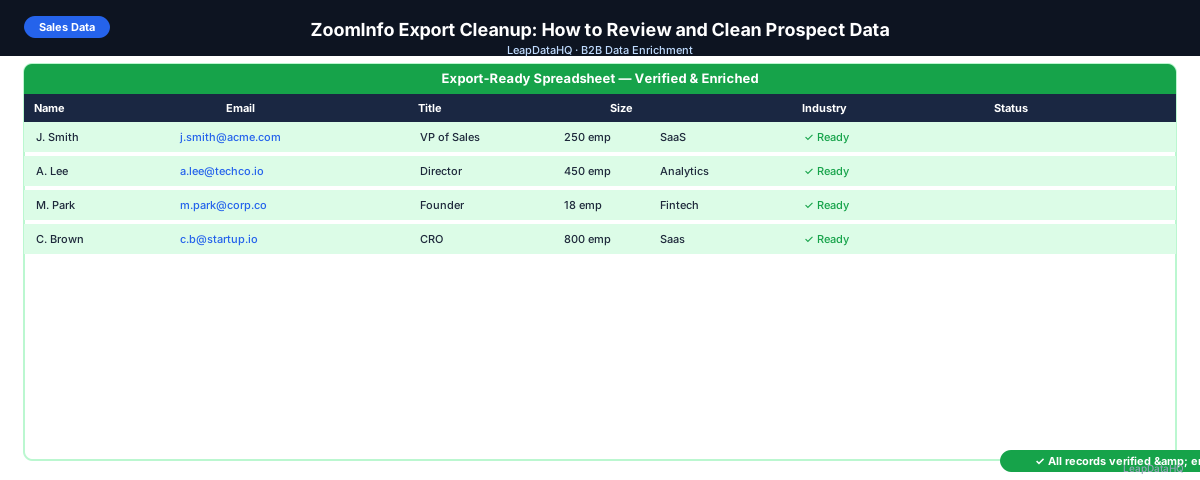
ZoomInfo is one of the most widely used B2B contact databases, but its exports require review before outreach. Data from any large database ages — contacts change jobs, companies reorganize, and email addresses go inactive between when ZoomInfo captured them and when you download the export. Additionally, ZoomInfo exports can include more contacts than you intended if search criteria weren't scoped tightly.
ZoomInfo export cleanup is the practice of reviewing and fixing these issues before loading contacts into your CRM or outreach sequences. It's not a reflection of ZoomInfo's quality as a tool — it's a recognition that no database, regardless of size, stays perfectly current, and that a review step before outreach protects sender reputation and improves campaign results.
This guide covers how to audit a ZoomInfo export, what to fix, and how to prepare the cleaned list for outreach.
The cleanup process described in this guide applies both to fresh ZoomInfo exports and to older saved lists. Fresh exports from carefully scoped searches require less cleanup but still benefit from verification and enrichment quality review. Older saved lists — exported three months ago or more — need more extensive cleanup because contact data degrades over time regardless of the original source quality. The same workflow scales up or down depending on the export age and quality.
Why ZoomInfo Exports Need Cleanup Before Outreach
ZoomInfo updates its database continuously, but the contact data you export today reflects the last time each individual record was verified — which may be weeks or months ago. People change jobs. Companies merge. Email addresses change. The larger the export and the longer the time since ZoomInfo last verified each contact, the higher the percentage of stale records.
Additionally, large ZoomInfo exports often include contacts at the edge of your ICP criteria — people who technically match your title and company filters but aren't actually your best targets. A review step lets you apply tighter filters than ZoomInfo's search UI allows, keeping only the contacts most likely to respond to your outreach.
Common ZoomInfo Export Data Problems
- Stale email addresses: contacts who left a company after ZoomInfo's last verification
- Outdated job titles: titles that were accurate a year ago but no longer reflect the contact's actual role
- Duplicate contacts: same person exported in multiple searches or list builds
- Contacts outside actual ICP: technically matching search criteria but not genuine target accounts
- Missing fields: some contacts may have partial records even in ZoomInfo
- Company data inconsistencies: company size or industry that doesn't match current company reality
Step 1: Export Your ZoomInfo List to CSV
In ZoomInfo, use the Export function to download your contact list as CSV. Include all available fields, particularly: First Name, Last Name, Email, Direct Phone, Job Title, Company Name, Company Domain, Company Size, Industry, LinkedIn URL. Save the export with a date stamp.
Step 2: Detect Missing and Problem Fields
Open the export in a spreadsheet. Check for blank email addresses, duplicate rows (deduplicate on email), and contacts where the job title or company size doesn't fit your ICP. Filter for obvious ICP mismatches: company sizes far outside your target range, industries you don't serve, seniority levels below your target buyer.
Step 3: Enrich and Verify with a Secondary Source
For contacts with missing fields, run enrichment using a CSV enrichment tool to fill gaps. For all contacts with email addresses (including ZoomInfo's), run email verification before outreach. Verification catches stale addresses that ZoomInfo didn't know had changed since its last update.
Email verification is especially important for large ZoomInfo exports. Even if verification confirms 90% of addresses, that means 10% of a 1,000-contact export — 100 contacts — have stale addresses that would bounce if sent. On a 2,000-contact export, that's 200 bounces, enough to seriously damage your sender reputation.
Ready to enrich your CSV list?
Upload a CSV, fill missing data, review confidence scores, and export clean records.
Upload a CSV — Start EnrichingStep 4: Review Confidence Scores
If you ran enrichment to supplement ZoomInfo data, review confidence scores on enriched fields. Apply your standard threshold. For fields that ZoomInfo already populated, the verification status (valid/invalid/catch-all) serves as the confidence indicator for email addresses.
Step 5: Fix Bad Rows
- Remove contacts with invalid email addresses (failed verification)
- Segment catch-all domain contacts separately for different sending approach
- Remove duplicates (same person appearing across multiple searches)
- Remove contacts outside ICP based on enriched or verified company size/industry
- Remove role-based emails (info@, sales@, support@)
- Remove contacts below your target seniority (if targeting VP+, remove Director and below)
Step 6: Export Clean List
Export the reviewed and filtered list. Keep a record of how many contacts you started with and how many passed your review — this ratio tells you the quality of your ZoomInfo search criteria and whether you need to tighten your filters next time you export.
Step 7: Load to CRM or Outreach Tool
Import the clean list to your CRM or email sequencer. In your CRM, check for contacts that already exist before importing — ZoomInfo contacts may already be in your system from previous campaigns. Use deduplication by email or name+company to prevent creating duplicate CRM records.
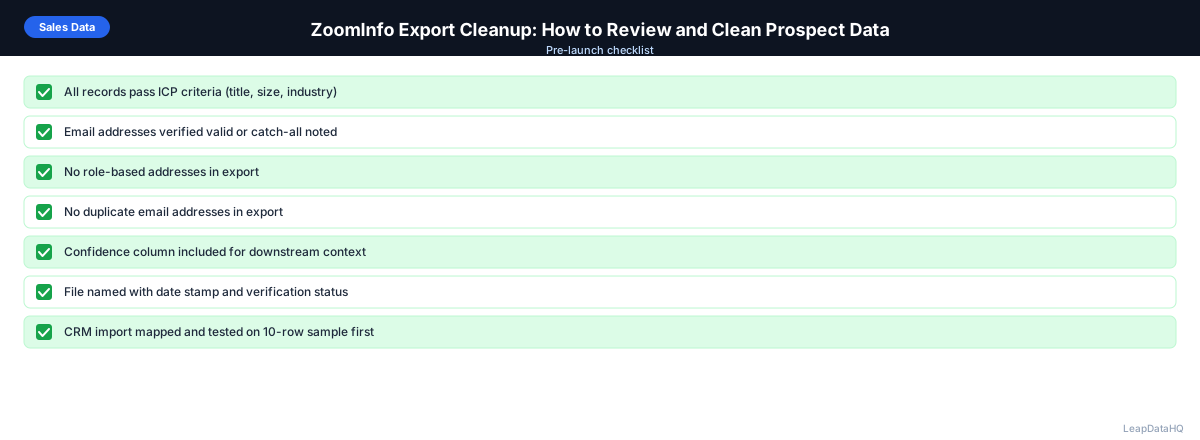
ZoomInfo Export Cleanup Checklist
- Export downloaded with all fields and date-stamped
- Deduplication run on email column
- ICP filter applied (title level, company size, industry match)
- Contacts with blank emails sent to enrichment
- All email addresses verified (ZoomInfo + any enriched)
- Invalid email addresses removed
- Catch-all domain contacts segmented
- Role-based emails removed
- Company size and industry verified against ICP criteria
- Final count recorded (contacts exported vs. contacts passed review)
- Existing CRM contacts checked before import to prevent duplicates
Comparing ZoomInfo Export Quality Across Different Searches
Not all ZoomInfo exports have the same quality profile. A search scoped to a specific industry, title range, and company size bracket typically produces higher-quality contacts than a broad search across multiple criteria. Export quality also varies by market segment — ZoomInfo's coverage is stronger for US-based mid-market and enterprise companies than for international SMBs. Tracking your cleanup pass rate (contacts surviving review after cleanup divided by total exported) by search type helps you refine which ZoomInfo searches produce the best outreach-ready contacts for your specific use cases.
For high-priority campaigns, consider running two verification passes on ZoomInfo exports: one immediately after export to catch immediately invalid addresses, and a second pass just before launch for any contacts where enrichment was used to supplement ZoomInfo's data. The dual-pass approach catches both the addresses that were already stale at export time and any that changed between export and campaign launch.
When to Use LeapDataHQ
LeapDataHQ is useful as a supplementary tool for ZoomInfo export cleanup — specifically for the enrichment step (filling fields that ZoomInfo left blank) and confidence-reviewed quality assessment. Upload your ZoomInfo export, request enrichment for missing fields, review the combined results, and export a cleaner file.
LeapDataHQ doesn't replace ZoomInfo's search and database capabilities. It handles the cleanup layer — review, enrichment, and quality filtering — between your ZoomInfo export and your outreach tool.
Start Enriching LeadsFrequently Asked Questions
How do I tell if a ZoomInfo contact is still at their current company?
The most reliable method is email verification — if the address bounces or is flagged invalid, the contact has likely moved on. LinkedIn is a secondary check for high-value targets. Enrichment tools that query recent data sources can sometimes surface more current job information, but no method is 100% reliable without real-time verification.
What percentage of ZoomInfo emails typically fail verification?
This varies significantly by list age, industry, and target seniority. High-turnover industries and lists with older verification dates see higher failure rates. A reasonable planning assumption for a ZoomInfo export that's a few months old is 5–15% invalid email rate. Fresh exports from recent searches tend to be better; older saved lists can be worse.
Should I import ZoomInfo contacts to my CRM before or after cleanup?
After cleanup. Importing dirty ZoomInfo data creates CRM records that need to be fixed later — often harder to fix in a CRM than in a spreadsheet. Clean and verify first, then import only the records you're confident in. This keeps your CRM data quality high from the start.
Can I re-use a ZoomInfo export for a second campaign?
Yes, but run verification again before the second campaign. Email addresses that were valid six months ago may have changed. Contact data ages, especially for contacts at companies with higher turnover. A fresh verification pass before each campaign maintains deliverability.
Does ZoomInfo include email verification in its platform?
ZoomInfo includes its own email quality indicators as part of its data. These indicate ZoomInfo's confidence at the time of their last verification. Running an independent verification before outreach provides a more current check — particularly for contacts who may have changed jobs or companies since ZoomInfo last updated their record.