
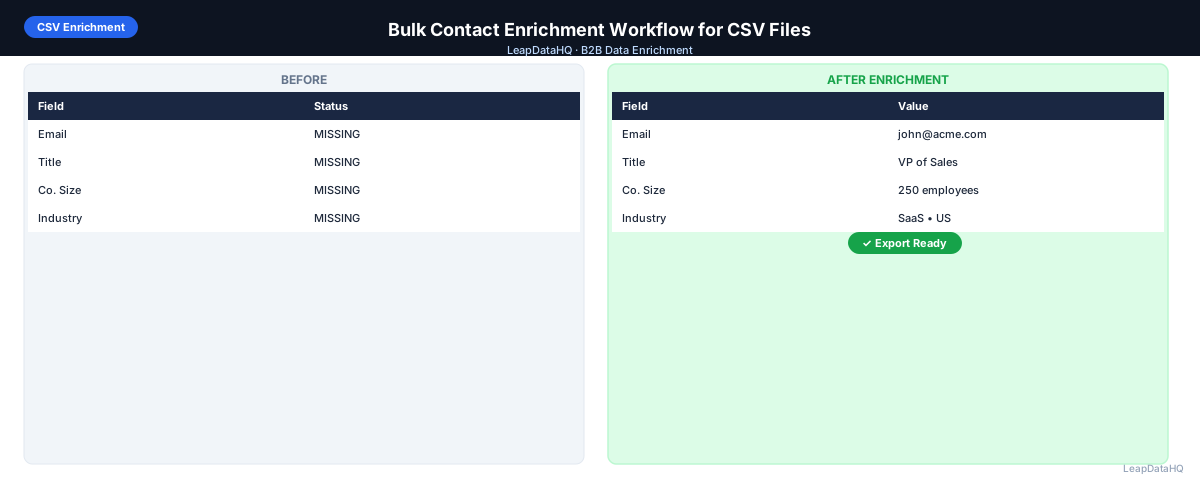
Bulk contact enrichment is the process of uploading a CSV file with many incomplete contact records and enriching all of them in a single pass — rather than looking up each contact one at a time. For teams working with lists of hundreds to thousands of contacts, bulk enrichment is what makes the workflow practical at scale.
The key distinction from one-off enrichment is that bulk workflows require more care around input preparation and output review. When you're enriching 50 contacts manually, errors are easy to spot. When you're enriching 1,000 contacts in batch, a systematic review process is necessary to catch errors that aren't obvious from a quick scan.
This guide covers the complete bulk contact enrichment workflow — preparation, processing, review, and export — designed for sales teams, agencies, and RevOps professionals working with large contact files.
The approach is deliberately structured. Bulk processing introduces systematic risk — a mistake in your input preparation or column mapping affects every row, not just one contact. By following a consistent workflow with defined review gates, you minimize the chance of large-scale errors propagating through your enrichment output and into your CRM or outreach campaigns.
What Makes Bulk Enrichment Different from One-Off Lookups
One-off enrichment (looking up a single contact) is typically a point-and-click action in a prospecting tool. Bulk enrichment processes many contacts at once through a file upload and batch processing workflow. The advantages of bulk enrichment are speed and consistency — you process hundreds of contacts in minutes instead of hours. The risk is that errors in the input file affect many records, not just one.
This is why input preparation and output review are the most important steps in a bulk enrichment workflow. A clean input file produces better results. A structured review process catches errors in the output before they become bad CRM data or bounced emails.
Step 1: Prepare Your CSV for Bulk Upload
Preparation is what separates effective bulk enrichment from a batch of mixed results. Before uploading:
- Deduplicate on email column: any email appearing twice sends the same contact through enrichment twice, wastes credits, and may produce conflicting results
- Clean domain values: remove http://, https://, www., trailing slashes, and paths — just the bare domain (acme.com, not https://www.acme.com/about)
- Standardize name fields: first and last name in separate columns, consistent capitalization, no honorifics (Dr., Mr.) unless explicitly needed
- Remove role-based entries: rows where the "contact" is info@, support@, a LinkedIn company page, or clearly not an individual person
- Remove rows with blank lookup keys: if your enrichment tool uses domain as the primary key, rows with blank domain won't match — removing them before upload prevents wasted processing
- Check column names: use clear, standard column names (First Name, Last Name, Company Domain) to make mapping easier
Step 2: Upload CSV and Map Columns
Upload the prepared file to your enrichment tool. The column mapping step is critical — correctly mapping your columns to the enrichment fields determines match quality.
- Company Domain → domain lookup key (most important for company-level enrichment)
- First Name → first name field
- Last Name → last name field
- Job Title → existing title (helps enrich missing fields)
- Company Name → company name (useful when domain isn't available)
Don't skip the mapping preview if your tool provides one. Verify that the tool is seeing the correct values in each field before submitting for processing.
Step 3: Run Bulk Enrichment
Submit the file for enrichment. Processing time scales with row count — a few hundred rows typically returns in under a minute, a few thousand rows in a few minutes. For very large files (10,000+ rows), some tools split processing into batches and may take longer.
While processing runs, don't modify the original file. Keep it as a clean reference for comparison with the enriched output.
Ready to enrich your CSV list?
Upload a CSV, fill missing data, review confidence scores, and export clean records.
Upload a CSV — Start EnrichingStep 4: Review Confidence Scores at Scale
Reviewing thousands of enriched records one-by-one isn't practical. Instead, review at the segment level:
- Sort by confidence score descending: the top rows (highest confidence) are safe to use without individual review
- Review the middle band (medium confidence) as a sample — pick 20–30 rows and spot-check accuracy
- Exclude or manually review the low-confidence rows: these have the highest error rate
- Check match rate: what percentage of rows got enriched? Very low match rates suggest input data quality problems
Step 5: Fix Bad Rows in Bulk
Apply systematic fixes to the enriched output:
- Filter out all rows below your confidence threshold in one operation
- Filter out role-based emails in one operation (email starts with info, support, admin, etc.)
- Filter out contacts with company sizes outside your ICP range (if company size was enriched)
- Standardize title formatting with a PROPER function if titles came back in inconsistent case
- Flag catch-all domain contacts as a separate export segment
Step 6: Export Enriched CSV
Export the processed, filtered file. Include both original columns and enriched columns. Include confidence score as an export column — it's useful context for anyone who uses the file later. Use a descriptive filename: "contacts-enriched-2025-08-18-high-confidence.csv".
Step 7: Use for Outreach or CRM Import
For outreach: run email verification on the enriched email column before loading into your sequencer. For CRM import: map enriched columns to CRM fields, use record ID matching to avoid duplicates, and import in update mode.
Bulk Contact Enrichment Checklist
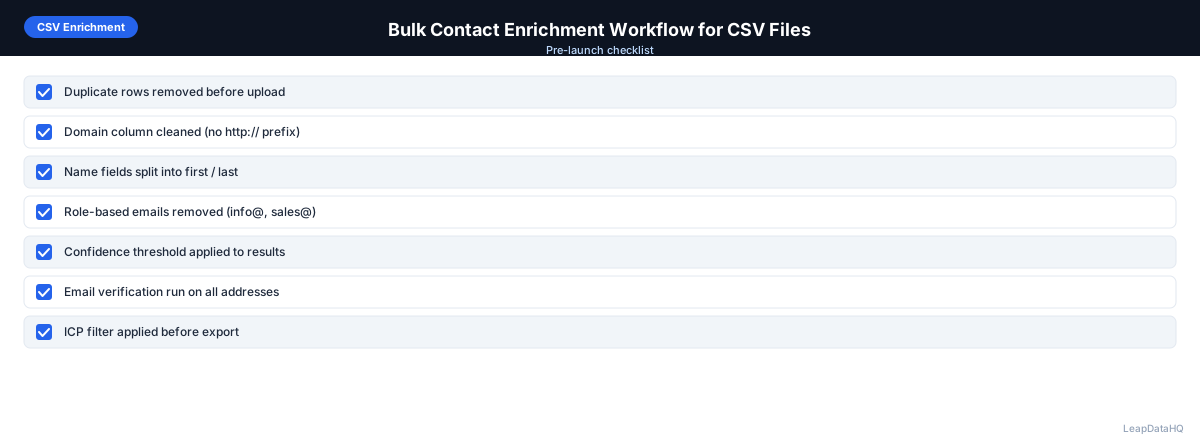
- ☐ Input file deduplicated on email column
- ☐ Domain column cleaned (no http://, www., trailing content)
- ☐ Name fields in separate columns (first / last)
- ☐ Role-based and blank-key rows removed before upload
- ☐ Column mapping verified in tool preview before processing
- ☐ Processing completed and output downloaded
- ☐ Match rate reviewed (what % of rows got enriched)
- ☐ Confidence threshold applied to output
- ☐ Sample of mid-confidence rows spot-checked
- ☐ Role-based emails filtered from output
- ☐ ICP filter applied using enriched company fields
- ☐ Catch-all domains segmented separately
- ☐ Email verification run before outreach use
- ☐ File exported with confidence score column
- ☐ CRM import uses update mode with record ID matching
Handling Large Files (1,000+ Rows)
For very large enrichment batches, consider processing in segments of 500–1,000 rows. Smaller batches make the review step more manageable and allow you to catch systematic errors in the first batch before processing the rest. They also fit within typical rate limits and credit minimums for most enrichment tools.
When to Use LeapDataHQ
LeapDataHQ is built for bulk CSV enrichment. Upload your contact file, map columns, run enrichment across all rows in a single pass, review results with confidence score filtering, and export a clean file. The built-in review interface makes it practical to apply quality thresholds and check mid-confidence records without needing to open a spreadsheet.
For agencies and RevOps teams running large batches regularly, LeapDataHQ's credit-based pricing scales with your actual enrichment volume. See the pricing page for current credit packages.
Start Enriching LeadsFrequently Asked Questions
How many contacts can I enrich in one bulk upload?
This depends on the enrichment tool. Many tools handle files of several thousand rows in a single upload. For very large files (tens of thousands of rows), some tools recommend splitting into multiple batches for better processing reliability and easier review. Check your specific tool's documentation for file size and row count limits.
What match rate should I expect for bulk enrichment?
Match rates typically range from 50–80% depending on list quality, industry, and enrichment tool. Well-formatted lists with clean domains in common business sectors see higher match rates. Lists with unusual company domains, companies in less-covered geographies, or contacts at small companies with limited data coverage see lower rates. No tool matches 100% of records.
Should I run multiple enrichment tools on the same file?
Running multiple tools can increase overall match rate — contacts not found in one database may be in another. This is worth doing for high-value lists where maximizing coverage justifies the additional cost. For standard bulk enrichment, one quality tool with a good coverage set is usually sufficient.
How do I handle the unmatched rows after bulk enrichment?
Keep unmatched rows in a separate segment. Options: manual research for high-priority targets, a second enrichment pass with a different tool, outreach via alternative channels (LinkedIn, phone) if no email is found, or a future enrichment pass when your tool updates its database. Don't delete unmatched rows — they represent contacts you haven't reached yet.
Can bulk enrichment be automated with an API instead of CSV upload?
Many enrichment tools offer API access that allows bulk processing without manual file uploads. APIs are useful for teams with developer resources who want to integrate enrichment into an automated pipeline — for example, automatically enriching new CRM contacts as they're created. The CSV workflow is better for periodic bulk passes; the API is better for continuous enrichment at scale.