
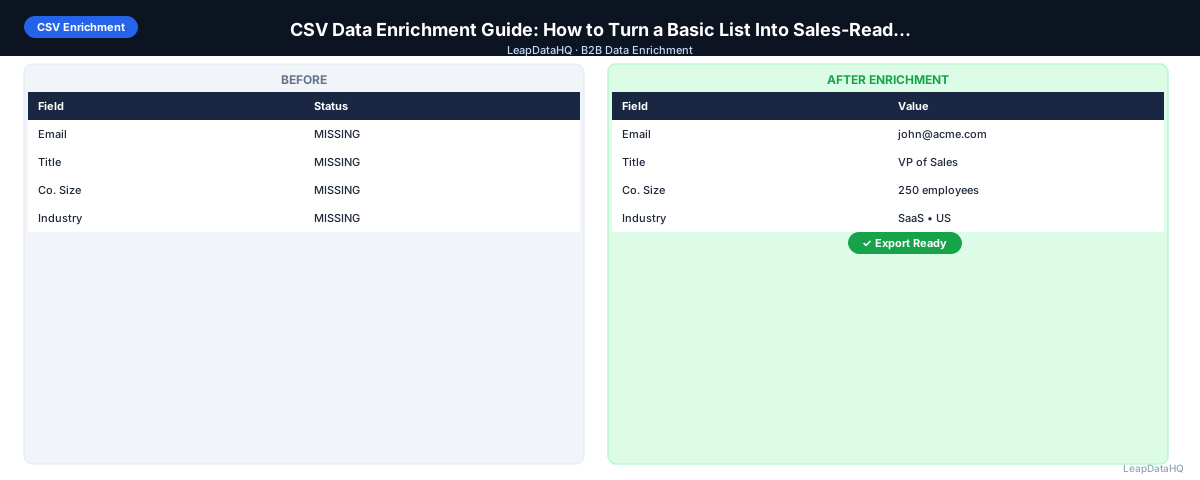
CSV data enrichment is the practice of uploading a spreadsheet of incomplete business contact or company records to an enrichment tool that fills in the missing fields. You upload a file with what you have — company names, domains, or partial contacts — and download a more complete file with email addresses, job titles, company size, industry, and other data appended.
This is the most common enrichment workflow for teams that aren't building custom integrations. It doesn't require developer support, it works with the tools most teams already use (Excel, Google Sheets, CRM import), and it scales from a handful of records to thousands in a single batch.
The challenge isn't the technology — CSV enrichment tools are generally straightforward to use. The challenge is doing it well: preparing your input correctly, reviewing results thoughtfully, and building the process into your team's workflow so it happens consistently rather than ad hoc.
This guide walks through the complete CSV data enrichment workflow, including the preparation steps most teams skip and the quality checks that separate useful enrichment from a file full of unreliable data.
What CSV Data Enrichment Does
A CSV enrichment tool takes an input file — your incomplete records — and appends missing fields by querying its database for each record. The output is your original file with additional columns added: email addresses, phone numbers, job titles, company size, industry, and whatever other fields the tool supports.
The quality of the output depends directly on the quality of your input. Better input data — cleaner company names, more complete domains, correct contact names — produces higher match rates and more accurate results. Most enrichment problems trace back to input quality issues that could have been caught before uploading.
Who Uses CSV Data Enrichment
- Sales teams and SDRs: enriching prospect lists before outreach campaigns
- Lead generation agencies: delivering complete, outreach-ready lists to clients
- Marketers: enriching event attendee lists, content download leads, and webinar registrants
- Recruiters: finding work email addresses for candidate lists sourced from LinkedIn
- RevOps and sales ops: filling gaps in CRM records during quarterly data quality reviews
- Founders: building initial outreach lists without dedicated research resources
What You Need Before You Upload
The minimum input for useful CSV enrichment depends on what you're enriching:
- For contact email enrichment: company domain + first name + last name (all three together produce the highest match rates)
- For company enrichment: company name or domain (domain is more reliable)
- For email-only lookup: company domain alone can return common contacts, but accuracy decreases without a contact name
- For contact verification: email address (verifying what you already have)
Step 1: Prepare Your CSV Input File
Remove Duplicates
Duplicate rows waste enrichment credits and can create confused records in your CRM. Use Remove Duplicates in Excel or UNIQUE in Google Sheets to deduplicate on your primary key — email address if you have it, company domain + contact name if you don't.
Standardize Domain Format
Domains should be in plain format without protocol or trailing slashes: acmecorp.com, not https://www.acmecorp.com/ or acmecorp.com/. Enrichment tools parse domains automatically, but inconsistent formatting can cause mismatches. Run a find-and-replace to strip http://, https://, www., and trailing slashes from your domain column.
Standardize Contact Name Fields
First and last name should be in separate columns. If you only have full names in a single column, split them using Text to Columns in Excel or SPLIT in Google Sheets. Check for name variations like initials, middle names in the first name field, or nickname versions that might affect matching.
Remove Obviously Bad Rows
Delete rows with placeholder company names ("Company", "N/A", "Unknown"), role-based emails (info@, noreply@, support@), obviously invalid domains (test.com, example.com), or records with no identifying information at all. These rows won't match and waste credits.
Step 2: Choose and Configure Your Enrichment Tool
Upload your cleaned CSV to your chosen enrichment tool. Most tools will prompt you to map your columns — tell the tool which column contains the company domain, which contains first name, and so on. Take time with this step: incorrect column mapping is a common cause of low match rates.
Select which fields you want to enrich. If you only need email addresses, don't select company data enrichment fields — this keeps costs down and processing time lower.
Step 3: Review Enrichment Results
After processing, review the output before exporting. Look at:
- Overall match rate: what percentage of rows returned enriched data?
- Confidence score distribution: how many records have high vs. low confidence?
- Sample of results: spot-check 10–15 rows for obvious errors (wrong company, unexpected email format)
- Low-confidence results: decide whether to manually review, exclude, or flag for verification
Step 4: Filter Before Exporting
Do not export everything by default. Set a confidence threshold and only export records that meet it. This one step separates professional enrichment from simply appending data and hoping for the best.
Low-confidence records can be moved to a separate review file for manual research on high-value targets, or archived. The goal is to export a file where you're confident in the data quality, not the largest possible file.
Step 5: Verify Emails Before Sending
Ready to enrich your CSV list?
Upload a CSV, fill missing data, review confidence scores, and export clean records.
Upload a CSV — Start EnrichingEven high-confidence enriched emails should be verified before use in a large outreach campaign. Email verification checks whether the specific mailbox exists and can receive mail, which is a different check than the pattern accuracy confidence score measures.
Run your exported file through an email verification tool. Remove invalid addresses. Treat catch-all domains as risky. This step protects your sender reputation and keeps bounce rates below the 2% threshold that triggers deliverability problems.
Step 6: Segment and Use Your Enriched Data
Your enriched file now has company size, industry, job title, and other fields that enable segmentation. Use these fields to create targeted outreach segments rather than sending one message to everyone. Even splitting by industry or company size allows you to write more relevant messaging — which measurably improves reply rates.
CSV Enrichment Workflow Checklist
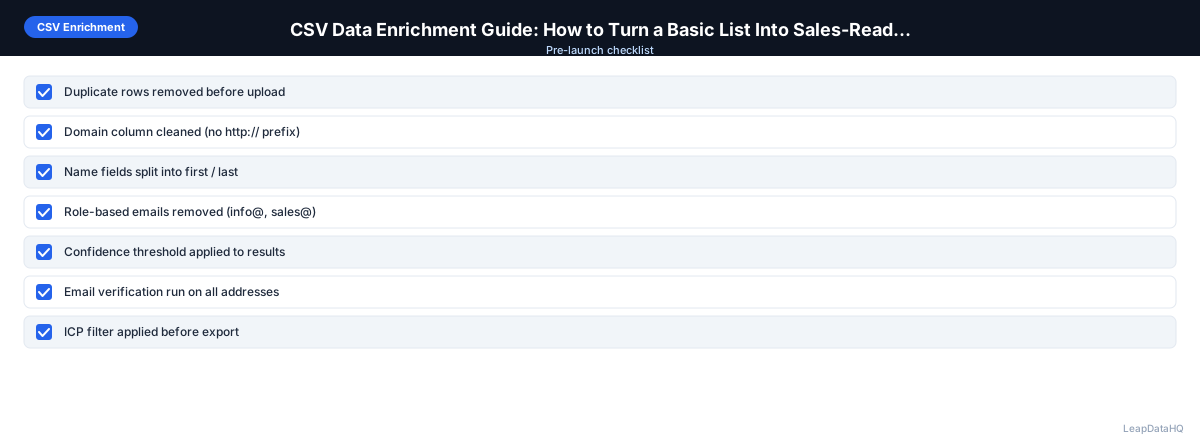
- Input CSV deduplicated on primary key
- Domains formatted as bare domain (no http://, no www.)
- Contact names in separate first/last name columns
- Placeholder and invalid rows removed
- Columns mapped correctly in enrichment tool
- Enrichment fields selected to match your needs
- Output reviewed: match rate and confidence distribution checked
- Confidence threshold applied before export
- Sample of 10–15 rows spot-checked for accuracy
- Emails verified before importing to outreach tool
- List segmented by available enrichment fields
Common CSV Enrichment Mistakes
Uploading Without Cleaning First
Duplicate rows, bad domains, and placeholder names all reduce match rates and waste enrichment budget. Always clean before uploading.
Mapping the Wrong Columns
If your "first name" column contains full names, or your "domain" column contains company names, the tool will return poor results. Verify your column mapping before processing.
Exporting Without Reviewing Confidence
Exporting all results regardless of confidence leads to a list with a mix of reliable and unreliable data. Always filter by confidence before exporting.
Skipping Email Verification
Confidence scores tell you how likely the email pattern is correct. They don't tell you whether the mailbox is live. Always verify before sending.
Ready to Enrich Your CSV?
LeapDataHQ is built for this workflow. Upload your CSV, map your columns, review confidence scores, and export clean records ready for your outreach campaigns or CRM import. See our CSV enrichment tool to get started, or review our pricing page to find the right plan for your volume.
Common CSV Data Enrichment Mistakes
One of the most frequent mistakes teams make is treating CSV enrichment as a set-and-forget process. They upload a file, accept every result the tool returns, and import the full output directly into their CRM or outreach platform. This approach ignores the confidence scores and quality signals that enrichment tools provide, and it often introduces inaccurate records that cause bounces, wasted outreach, and polluted CRM data. Taking even 10 minutes to review results before exporting significantly improves the quality of what you import.
Another common mistake is enriching without a clear plan for how the data will be used. If you don't know which fields your outreach workflow actually needs, you'll end up enriching fields that add cost without adding value. Before uploading, identify which missing fields matter most for your segmentation, personalization, or routing logic, and enrich only those fields. This keeps your enrichment spend focused and your output file clean.
A third mistake is failing to re-enrich on a regular cadence. Contact data decays continuously — people change roles, companies restructure, and email patterns shift. A CSV you enriched six months ago may have a significant portion of stale records today. Build enrichment into your recurring workflow (quarterly for active lists, before each major campaign) rather than treating it as a one-time event. For more on keeping your data fresh over time, see our CRM data cleaning guide.
Practical Examples
Example 1: SDR Team Enriching a LinkedIn-Sourced Prospect List
An SDR team exports 400 contacts from LinkedIn Sales Navigator with company names, domains, first names, and last names. They clean the file by removing duplicates, standardizing domains to bare format, and splitting full names into first and last name columns. After uploading to LeapDataHQ and selecting email enrichment, they receive 312 matches (78% match rate). They filter to high-confidence results (268 records), verify those emails, remove 14 bounces, and import 254 verified contacts into their outreach sequencer — all in under an hour.
Example 2: Agency Delivering Enriched Lists to Clients
A lead generation agency receives a client-provided CSV with 1,200 company names and no domains. They first run a domain lookup pass to add domains (achieving an 85% domain match rate), then upload the enriched file for contact email enrichment. After filtering by confidence and verifying emails, they deliver a segmented, outreach-ready list to the client with company size, industry, verified email, and job title fields appended. The client imports directly into HubSpot with no additional data work required.
Example 3: Marketing Team Enriching Event Attendee Data
A marketing team downloads an attendee list from a trade show registration platform. The export includes names, company names, and job titles, but no email addresses or company data fields. They clean the file, add domains by researching company websites, and upload for enrichment. The enriched output includes work emails, company size, and industry — enabling the team to segment follow-up messaging by company size and industry rather than sending a generic blast to all 600 attendees.
When to Use LeapDataHQ
LeapDataHQ handles the complete CSV enrichment workflow described in this guide. Upload a CSV with company domains and contact names, get enriched records back with confidence scores, filter to records you trust, and export a file ready for import.
It's designed for teams that work with spreadsheets regularly and need to enrich batches of 50–5,000 records on demand. No developer setup required, no annual contract, no per-seat fees. You upload, enrich, review, and download in a single session.
The credit-based pricing means your cost scales with your enrichment volume. Enrich a small batch for a targeted campaign this month, a large batch before a big push next month — your pricing adjusts accordingly.
For agencies delivering enriched lists to clients, the workflow maps directly to your production process: clean the client's target list, upload for enrichment, filter to high-confidence results, and format the output for import into the client's CRM or outreach tool.
Start Enriching LeadsFrequently Asked Questions
What file format does my CSV need to be in?
Standard UTF-8 CSV format works best. Ensure column headers are on the first row, values are properly quoted if they contain commas, and there are no merged cells or Excel-specific formatting. Save Excel files as CSV before uploading to avoid encoding issues.
What's a realistic match rate for CSV enrichment?
For a well-prepared list of established B2B contacts with company domains included, 60–80% email match rates are typical. Match rates are higher for contacts at larger companies in established industries and lower for very small businesses or international contacts in markets with limited data coverage.
Can I enrich a list that only has company names, not domains?
Yes, but match rates will be lower. Enrichment tools can look up domains from company names, but the match is less precise than starting with a domain directly. If you have company names only, consider adding a domain lookup step before email enrichment to improve accuracy.
How long does CSV enrichment take?
For most files under 1,000 rows, enrichment takes a few seconds to a few minutes. Processing time varies by tool and the data fields requested. Most modern enrichment tools process records in parallel, so a 2,000-row file doesn't take twice as long as a 1,000-row file.
How do I handle records where enrichment doesn't find a match?
For high-priority targets with no match, supplement with manual research on LinkedIn or the company website. For lower-priority records, accept that not every contact is publicly discoverable and focus your manual research on highest-value targets.
Should I enrich my entire CRM or just active prospects?
Focus enrichment effort on records in active use first: contacts in upcoming outreach campaigns, high-value accounts, and records with known gaps in important fields. Full-database enrichment is useful for periodic maintenance, but start with the records that will generate pipeline soonest.
Can I enrich a CSV that has a mix of company and contact records?
Yes, but it helps to separate them into two files before uploading. Company records (where you want to append company size, industry, revenue) and contact records (where you want to append email addresses and job titles) often need different enrichment fields. Splitting them lets you select the right fields for each file and avoids paying for data you don't need on every row.