
CRM contact enrichment is the practice of taking existing contact records in your CRM — records that already have some data but are missing key fields — and using enrichment tools to fill in the blanks. Unlike building new contact lists, CRM enrichment improves records you already have, preserving the activity history, deal associations, and other context that makes those records valuable.
For sales teams, this means contacts that were previously unreachable (missing email) become contactable. Contacts with blank job titles gain the field needed for personalization and lead scoring. Company size and industry fields get populated, enabling the segmentation that drives campaign targeting.
This guide covers the CRM contact enrichment workflow for any CRM system, with specific guidance on export formats, enrichment field selection, and safe re-import practices.
CRM enrichment differs from list enrichment in one important way: the records you are enriching already exist in your system with associated data — activity history, deal associations, communication logs — that would be lost if you simply replaced them with new records. The goal of CRM enrichment is to preserve existing record value while filling data gaps, which requires a more careful workflow than enriching a fresh prospect list from scratch.
Why CRM Contact Records Have Missing Fields
CRM records accumulate missing fields from several sources. Manual data entry at contact creation often skips non-required fields. Contacts imported from business cards or conference lists have minimal information. Contacts added from web form submissions may have only name and email, without title or company data. Contacts from LinkedIn exports have profile data but not work email.
Over time, even records that were complete when created become incomplete as data decays: people change jobs, email addresses change, titles change. The result is a CRM where the average contact record is substantially less complete than it would need to be for effective outreach and accurate reporting.
Which CRM Contact Fields to Prioritize for Enrichment
- Email address (highest priority): no email means no email outreach — this gap has the most direct impact on what the contact can be used for
- Job title: required for personalization tokens, lead scoring, and ICP qualification
- Company name and domain: required for account association and company-level enrichment
- Company headcount: primary ICP firmographic for most B2B products
- Industry: vertical-specific targeting and segmentation
- LinkedIn URL: enables social selling and profile-based personalization
- Direct phone: for SDR calling workflows
- Department: enables team-level routing and segmentation
Step 1: Export CRM Contacts for Enrichment
Export the contact segment you want to enrich. Common segments: contacts with blank email, contacts with blank title, contacts created before a specific date (likely to have stale data), or contacts not touched in 12+ months. Export with the CRM record ID — this is essential for re-import matching.
Include the fields you'll use as enrichment lookup keys: first name, last name, company domain, company name. Even if these fields are the reason you're enriching the contact, include whatever is populated so the enrichment tool has maximum input to work with.
Step 2: Detect Which Fields Need Enrichment
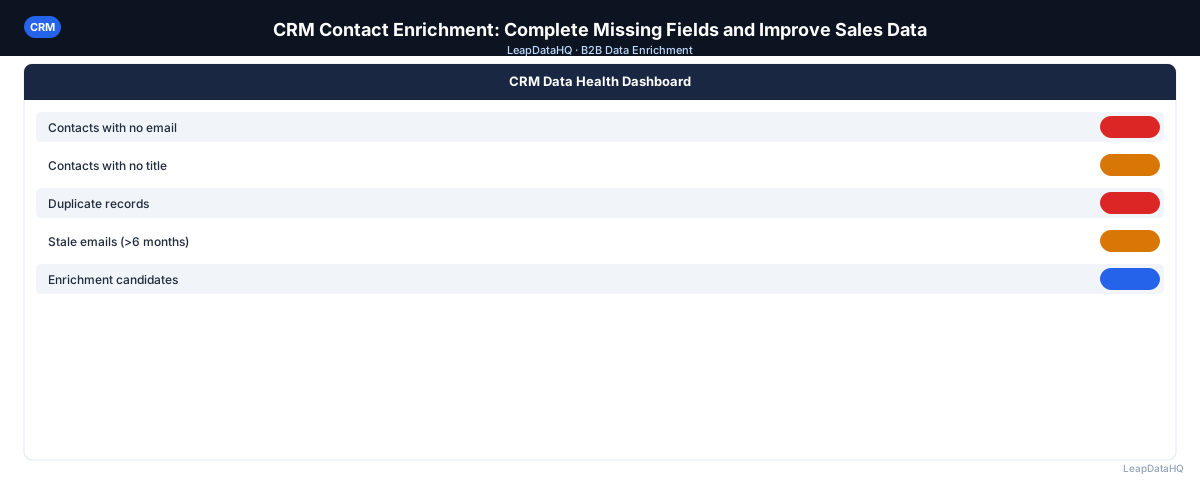
Open the export and count blanks by column. Produce a gap summary: X% of contacts have no email, Y% have no title, Z% have no company size. Prioritize fields with the most blanks and the highest impact on sales workflows. This gap analysis determines which enrichment fields to request.
Step 3: Normalize and Clean Messy Fields
Before enrichment, normalize the lookup key fields: clean company domain values, standardize name formatting, remove trailing spaces. Enrichment match rates are directly affected by the quality of the input — a domain with a "www." prefix produces worse results than the clean bare domain.
Step 4: Enrich Contact and Company Data
Ready to enrich your CSV list?
Upload a CSV, fill missing data, review confidence scores, and export clean records.
Upload a CSV — Start EnrichingUpload the cleaned export to your enrichment tool. Map columns and select the fields to enrich based on your gap analysis. Run enrichment. Review the results: match rate (what percentage of records got enriched), confidence distribution (how many are high vs. low confidence), and field-level completeness after enrichment.
Step 5: Review Confidence Quality
Apply a confidence threshold to the enriched results. For CRM updates, err on the side of stricter thresholds — updating an existing CRM record with bad enriched data is worse than leaving a field blank. Run email verification on any enriched email addresses before updating the CRM email field.
Step 6: Fix Duplicates and Bad Rows
Before re-import, remove rows where enriched data conflicts with known-good existing CRM data (enriched domain doesn't match the account the contact is associated with, for example). Merge any duplicate contacts identified during the enrichment review process.
Step 7: Export the Re-Import File
Prepare the re-import file: CRM record ID plus only the fields being updated. Don't include fields that don't need updating. Format the file to match your CRM's import requirements — date formats, field name conventions, picklist values.
Step 8: Re-Import to CRM
Import using update mode, matched by CRM record ID. After import, check the error log and spot-check 10 records in the CRM. Confirm that enriched fields landed in the correct CRM properties. Run your lead scoring model on the newly enriched contacts to update their scores with the new field data.
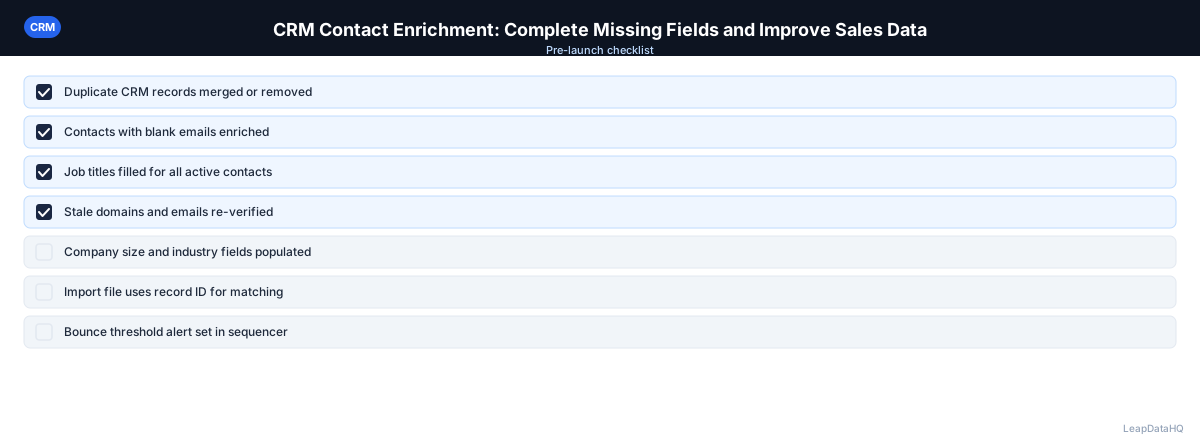
CRM Contact Enrichment Checklist
- ☐ Problem segment exported with CRM record ID included
- ☐ Gap analysis completed (blanks by column, as percentages)
- ☐ Lookup fields normalized (domain, name)
- ☐ Enrichment fields selected to match gap priorities
- ☐ Confidence threshold applied (stricter for CRM updates)
- ☐ Email verification run on enriched email addresses
- ☐ Data conflicts identified and resolved before import
- ☐ Duplicate records merged in CRM before import
- ☐ Re-import file: record ID + changed fields only
- ☐ Import run in update mode, matched by record ID
- ☐ Import error log reviewed
- ☐ 10 post-import records spot-checked in CRM
- ☐ Lead scoring updated for enriched contacts
Avoiding Common CRM Enrichment Mistakes
The most costly mistake in CRM enrichment is importing enriched data as new records rather than updating existing ones. This creates duplicate contacts — the original incomplete record remains in the CRM alongside a new enriched record, splitting activity history between the two. Always use update mode with the CRM record ID as the match key to write enriched data to the correct existing record.
Another common mistake is enriching every CRM contact in a single pass without prioritizing. Faced with a database where 60% of contacts are missing fields, teams sometimes try to enrich everything at once. The results are harder to review, import errors affect more records, and the cost is higher. A phased approach — starting with contacts associated with open opportunities, then active sequences, then the broader database — produces better results and spreads the cost over multiple billing cycles.
When to Use LeapDataHQ
LeapDataHQ handles CRM contact enrichment at the CSV layer. Export contacts from any CRM system, upload to LeapDataHQ to fill missing email addresses, titles, and company fields, review results with confidence scores, and prepare a re-import file. Works with HubSpot, Salesforce, Pipedrive, Close, Zoho, and any CRM that supports CSV export and import.
Credit-based pricing fits quarterly enrichment cycles — you pay for what you enrich rather than maintaining a monthly subscription between enrichment passes.
Start Enriching LeadsFrequently Asked Questions
How do I avoid overwriting good CRM data with enriched data?
Two approaches: (1) use your CRM's "update only blank fields" import option if available — this fills in missing data without touching populated fields. (2) If your CRM doesn't have this option, only include rows in your import file where you know the current CRM field is blank. This requires cross-referencing your export against the enriched results to identify which fields went from blank to populated.
Should I enrich all CRM contacts or just active ones?
Prioritize active contacts — those currently in sequences, associated with open deals, or being worked by sales reps. These records have the most immediate impact from enrichment. Dormant contacts (no activity in 12+ months) are lower priority; enrich them in a separate pass after active contacts are complete.
What CRM record ID should I use for import matching?
Use your CRM's native contact record ID (HubSpot Contact ID, Salesforce Contact/Lead ID, Pipedrive Person ID, etc.). This is the safest match key because it's unique and stable — it doesn't change if an email address or name gets updated. Email matching can fail if the email field is what you're trying to update.
How do I know if my CRM enrichment improved data quality?
Measure before and after. Before enrichment: export a gap summary (email completeness %, title completeness %, etc.). After enrichment and re-import: run the same summary again. The difference is your improvement. Also track campaign-level metrics after enrichment — improved email completeness should correlate with more contactable accounts and (if targeting is appropriate) higher reply rates.
Is CRM contact enrichment a one-time task or ongoing?
Ongoing. Data decays at 25–30% annually, and new contacts enter the CRM regularly with missing fields. A quarterly enrichment pass is the minimum for most B2B sales teams. High-volume teams with frequent new contact inflow may benefit from monthly enrichment of recently added contacts.