
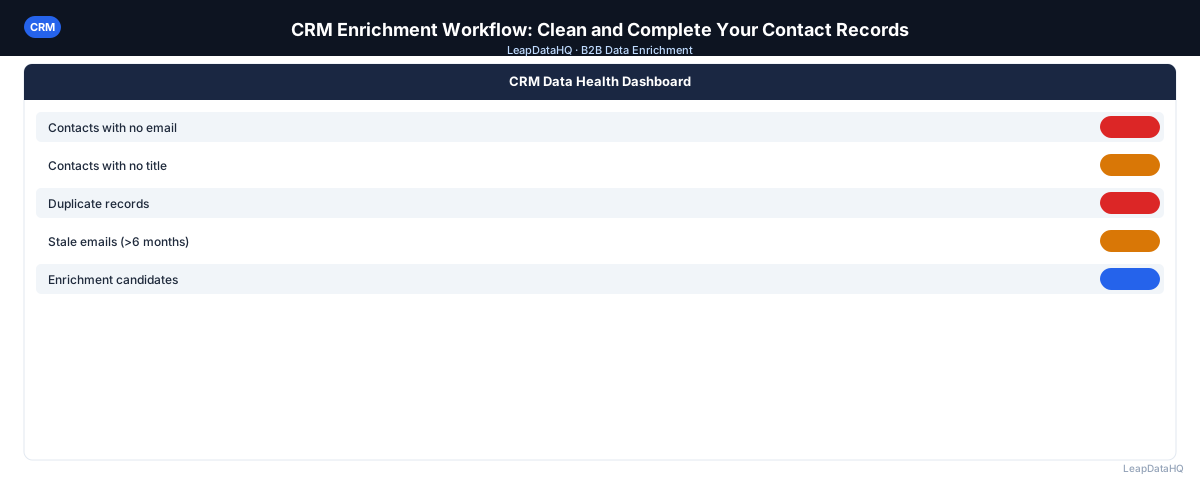
CRM records degrade over time. Contacts change jobs, companies rename, email addresses go inactive, and fields that were never filled during data entry remain blank. A CRM full of incomplete records is less useful for every team that depends on it — sales reps can't personalize outreach, marketing can't segment campaigns, and RevOps can't build accurate pipeline reports.
CRM enrichment is the process of filling missing fields and correcting outdated data in existing contact records. Unlike building a new list from scratch, CRM enrichment works with contacts you already have and improves the records you've already invested in capturing.
This guide walks through a complete CRM enrichment workflow — from exporting your contacts through reviewing enriched results and re-importing updated data — designed for sales teams, RevOps, and CRM administrators who want to keep their database useful without rebuilding it from scratch.
Why CRM Records Need Regular Enrichment
B2B contact data decays at roughly 25–30% per year. In a CRM with 5,000 contacts, that means 1,250–1,500 records per year become partially or fully outdated — people change jobs, leave companies, or change email addresses. Without regular enrichment, the CRM gradually becomes less useful as a source of truth for sales and marketing.
Enrichment also fills gaps that were never there from the start. When contacts are entered manually — from business cards, LinkedIn, or referrals — fields like company size, industry, and LinkedIn URL are often left blank. Enrichment adds these fields retroactively, making the records useful for segmentation and personalization that wasn't possible before.
What Fields to Enrich in a CRM
- Email address: the most critical field — contacts added from business cards or referrals often lack confirmed work emails
- Job title: captures current role, which may differ from the title when the contact was first added
- Company name and domain: ensures consistency across records and enables company-level deduplication
- Company size: enables ICP-based segmentation for campaigns targeting specific firmographic ranges
- Industry: enables vertical-specific outreach and reporting
- LinkedIn URL: enables social selling follow-up and account research
- Phone number: direct line or mobile, useful for sales call sequences
- Revenue range: useful for enterprise vs. mid-market vs. SMB segmentation
Step 1: Export Contacts from Your CRM
Export your contact records as a CSV. Most CRMs (HubSpot, Salesforce, Pipedrive, etc.) support CSV export from the Contacts or People module. Include all relevant fields in your export — even fields you think are complete, so you can use them as enrichment input keys.
If you're enriching a large database, consider exporting in segments: contacts added in the last 90 days, contacts not enriched in the past six months, or contacts missing specific fields. Targeted exports are easier to review post-enrichment than a single massive file.
Step 2: Detect Which Fields Are Missing or Stale
Open the export in a spreadsheet. Count blank cells in each key column — email, title, company size, industry. Identify which segment of your database has the worst gaps. This shapes which enrichment fields you request and helps you prioritize which records to enrich first.
Also look for obvious quality issues in existing fields: emails that don't match company domains, titles in all-caps, company names with inconsistent formatting. These are cleanup problems, not enrichment problems — but catching them now means you won't re-import them after enrichment.
Step 3: Enrich the Exported Records
Upload the exported CSV to a contact enrichment tool. Map columns to the enrichment fields — domain, first name, last name. Select which fields you want to enrich: email, title, company size, industry, and so on.
The enrichment tool queries its database for each record and returns the requested fields with confidence scores. Processing time depends on row count but is typically a few minutes for a few hundred rows. Larger batches of 1,000+ rows may take longer.
Ready to enrich your CSV list?
Upload a CSV, fill missing data, review confidence scores, and export clean records.
Upload a CSV — Start EnrichingStep 4: Review Confidence Scores
Before re-importing to your CRM, review the enriched results. Sort by confidence score. Apply your threshold — records below 70% confidence should be reviewed manually or excluded from the re-import.
Pay special attention to enriched email addresses. Before updating your CRM's email fields with enriched addresses, run email verification to confirm the addresses are active. Replacing a correct (but old) email address with an enriched but unverified email is a step backward.
Step 5: Fix Bad Rows Before Re-Import
- Remove rows where enriched email doesn't match the original domain
- Flag rows where enriched title doesn't match expected seniority for your database
- Correct company name formatting inconsistencies before updating records
- Handle conflicts: if your CRM has a value in a field and the enriched value differs, decide which takes precedence
Step 6: Re-Import to CRM
Import the enriched file back to your CRM using the update-existing-records mode. Match records by Contact ID or email address to ensure fields are updated on the correct records rather than creating new duplicates.
Map enriched columns to the correct CRM properties. Double-check field mapping before importing — updating the wrong CRM field is harder to undo than it is to prevent.
Step 7: Use Enriched Records for Campaigns and Reporting
After re-import, your CRM records have more complete fields for segmentation, personalization, and reporting. Update campaign segments to use the newly available fields (company size, industry), update outreach sequences to use personalization variables that were blank before, and update reports to reflect the newly complete data.
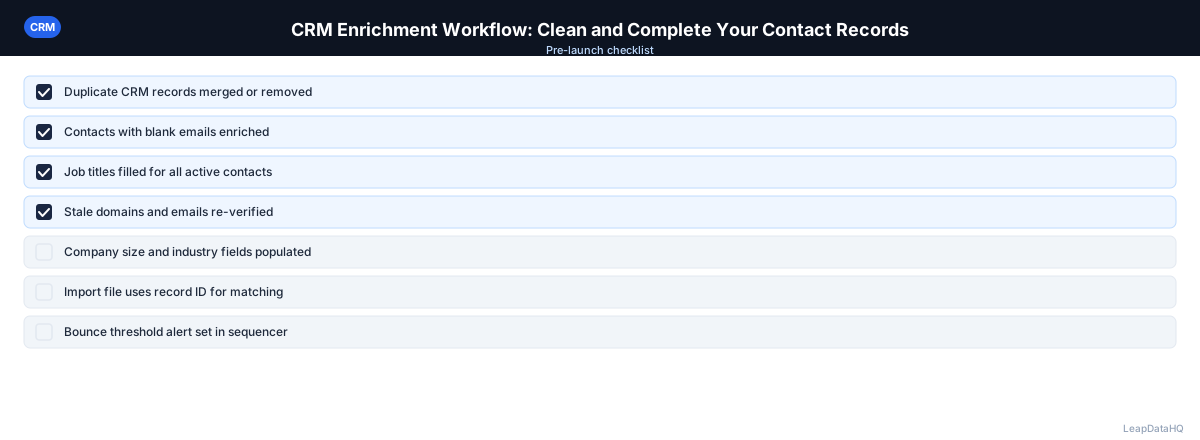
CRM Enrichment Workflow Checklist
- Contacts exported from CRM with all relevant fields
- Missing fields identified by column before enrichment
- Input file cleaned (duplicates removed, domains standardized)
- Enrichment fields mapped correctly
- Confidence threshold applied post-enrichment
- Email verification run on all enriched email addresses
- Conflicts between existing and enriched values resolved
- Import file prepared with CRM-compatible field names
- Re-import done in update mode (not create-new mode)
- Records matched by Contact ID or email for correct update
- Post-import spot-check: 10 random records reviewed to confirm data landed correctly
How Often Should You Run CRM Enrichment?
For most B2B teams, a quarterly enrichment pass keeps CRM data reasonably fresh. High-volume sales teams doing frequent outreach benefit from more frequent enrichment — monthly for active contact segments, quarterly for the full database. RevOps teams often set up a regular enrichment cycle as part of their data governance practice.
When to Use LeapDataHQ
Use LeapDataHQ as the enrichment step in your CRM enrichment workflow. Export contacts from your CRM as CSV, upload to LeapDataHQ to fill missing fields, review confidence scores in the enrichment interface, and export a cleaned file ready for CRM re-import.
LeapDataHQ works with any CRM that supports CSV export and import — HubSpot, Salesforce, Pipedrive, Close, and others. Credit-based pricing means you pay for matched records rather than a fixed monthly seat, which fits well with periodic CRM enrichment cycles rather than daily use.
Start Enriching LeadsFrequently Asked Questions
Will CRM enrichment overwrite existing correct data?
Only if you configure your import to update existing fields. When re-importing enriched data, you can choose to update only blank fields (safe, preserves existing data) or update all fields (replaces existing values with enriched values). Most teams update only blank fields on the first enrichment pass, then selectively update other fields based on confidence scores.
How do I avoid creating duplicate records when re-importing?
Use your CRM's update-existing mode and match records by a unique identifier — CRM Contact ID is the safest, email address is a common alternative. Avoid importing without a match key, which typically creates new records instead of updating existing ones.
Which CRMs support CSV import for record updates?
HubSpot, Salesforce, Pipedrive, Close.io, Zoho, and most other major CRMs support CSV import with update mode. The specific process varies — check your CRM's import documentation for how to specify that records should be updated rather than created.
What should I do if enriched data conflicts with existing CRM data?
Evaluate which source is more likely to be current. If the CRM value was entered manually years ago and the enrichment value is from a recent data source with high confidence, the enrichment value is often more accurate. If in doubt, flag the conflict for manual review rather than automatically overwriting.
Can I enrich custom fields in my CRM?
Enrichment tools can return standard fields (email, title, company size, etc.) that you then map to custom CRM properties during import. The enrichment tool doesn't need to know about your custom fields — you map the enriched output columns to the correct CRM fields as part of the import process.