
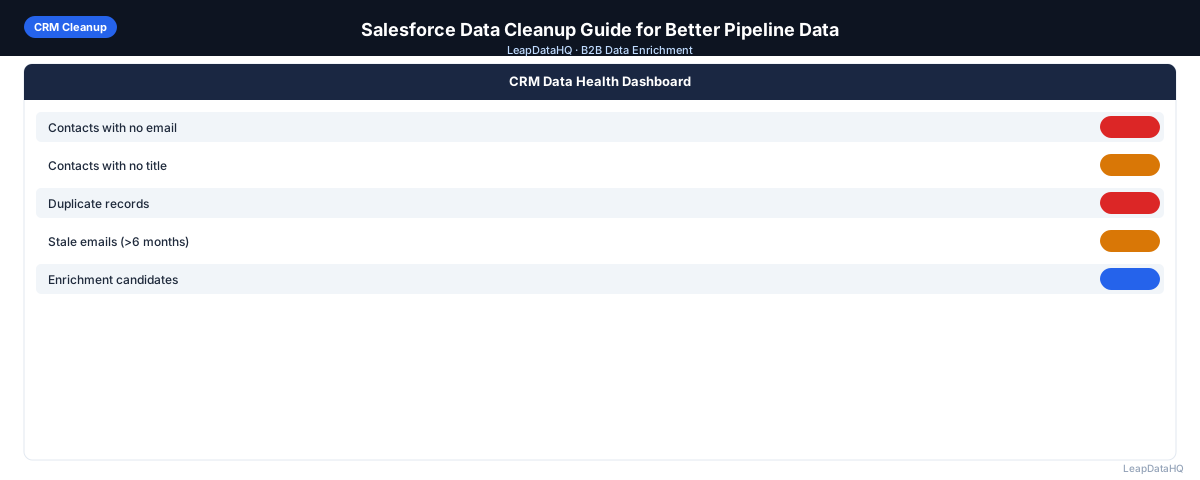
Salesforce is only as useful as the data inside it. When contact records have missing emails, outdated job titles, blank industry fields, or duplicated leads and contacts, every downstream process that depends on Salesforce suffers — forecasting, segmentation, outreach personalization, and pipeline reporting all degrade.
Salesforce data cleanup is a recurring operational task for any team serious about pipeline accuracy. It doesn't require expensive third-party tools integrated directly into Salesforce — the export-enrich-re-import workflow handles most common cleanup scenarios with a CSV enrichment tool and a spreadsheet.
This guide covers how to identify the most common Salesforce data problems, how to clean and enrich records outside Salesforce, and how to re-import the results without creating new problems.
The export-enrich-re-import pattern is intentional. Rather than connecting enrichment tools directly to Salesforce (which requires API access, administrative permissions, and ongoing integration maintenance), the CSV-based workflow keeps the cleanup process self-contained and repeatable by any team member who can export a report and use a spreadsheet.
Common Salesforce Data Quality Problems
- Leads and contacts with missing email addresses — entered from card scans, trade shows, or phone calls
- Duplicate leads and contacts — the same person appearing as both a Lead and a Contact, or multiple times in one object
- Blank job titles and department fields — critical for ICP qualification and personalization
- Outdated company data — employees who changed jobs but whose records reflect old companies
- Inconsistent company names — preventing accurate account roll-up and deduplication
- Leads that were never converted — sitting in the Lead object long after the contact became a customer
- Blank lead source — making campaign attribution reporting impossible
Step 1: Export Salesforce Records to CSV
Use Salesforce Reports or the Data Export feature to pull the records you want to clean. For contacts: include Contact ID, First Name, Last Name, Email, Account Name, Title, Department, Created Date. For leads: include Lead ID, First Name, Last Name, Email, Company, Title, Lead Source, Status.
Export as CSV. Keep the Salesforce Record ID (Contact ID or Lead ID) — you'll need it to match records during re-import. Without the record ID, you'll be matching by email, which causes problems when email fields are what you're trying to fix.
Step 2: Detect Missing and Outdated Fields
Open the export in a spreadsheet. Audit key columns: how many contacts have blank emails, blank titles, blank department? Sort by Created Date to find old records that have never been enriched. Flag contacts where email domain doesn't match company domain — often indicates stale data.
Step 3: Enrich Records with Missing Data
Upload the exported CSV to a contact enrichment tool. Map your columns and request the missing fields — email, title, company size, industry, LinkedIn URL. The tool returns enriched data with confidence scores.
For large Salesforce exports (5,000+ records), run enrichment in batches of 500–1,000 rows. This makes the review step manageable and allows you to prioritize high-value segments (active opportunities first, then dormant contacts).
Step 4: Review Confidence and Quality
Apply a confidence threshold before re-importing. High-confidence enriched data fills blank Salesforce fields reliably. Low-confidence enriched data needs manual review — especially enriched email addresses, where a wrong address is worse than a blank one.
Ready to enrich your CSV list?
Upload a CSV, fill missing data, review confidence scores, and export clean records.
Upload a CSV — Start EnrichingRun email verification on all enriched email addresses before updating Salesforce. Use only verified-deliverable addresses to populate blank email fields. For existing email addresses that are already in Salesforce, run verification to flag those that have gone inactive.
Step 5: Fix Bad Rows
- Remove or flag contacts where enriched email doesn't match the account domain
- Correct title formatting inconsistencies before re-import
- For duplicate lead/contact pairs: decide which to keep and merge in Salesforce before re-import
- For converted leads that weren't properly marked: update Lead Status before re-import
Step 6: Prepare Re-Import File
Prepare a clean re-import file with Salesforce Record ID plus only the fields you're updating. Don't include fields you're not changing — unnecessary columns increase the chance of accidental overwrites.
Format field values to match Salesforce requirements: dates in the correct format, picklist values that match existing Salesforce picklist options exactly, and no trailing spaces in text fields.
Step 7: Re-Import to Salesforce Using Data Loader or Import Wizard
For Contact and Lead updates, use Salesforce Data Loader (Update operation) or the Salesforce Import Wizard. Match records by Contact ID or Lead ID. Map columns to Salesforce field API names.
After import, check the success/error log file that Salesforce generates. Any rows that failed to update will appear in the error file with a reason. Common errors: field not updatable, picklist value doesn't exist, required field missing. Fix these before running another import pass.
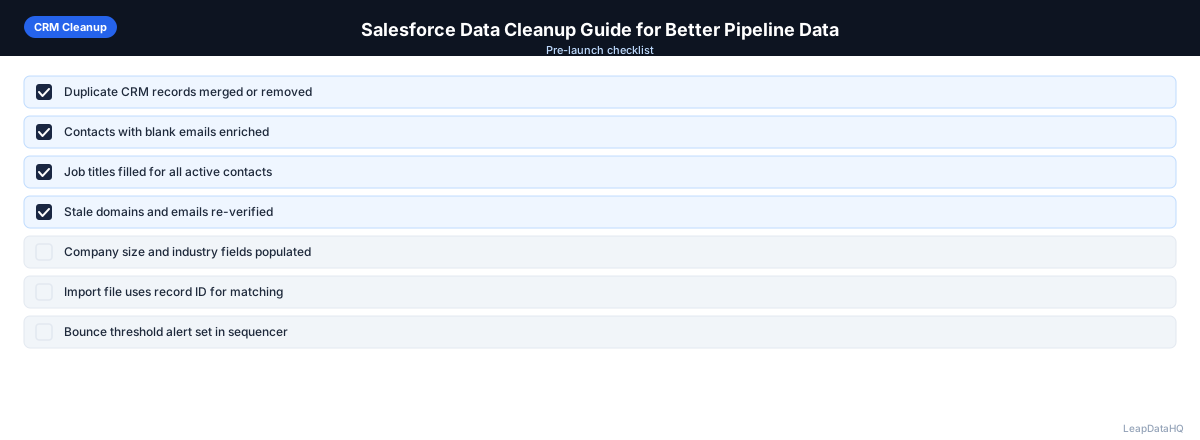
Salesforce Data Cleanup Checklist
- Records exported with Salesforce Record ID included
- Key fields audited for completeness (email, title, company)
- Duplicate contacts and leads identified before enrichment
- Enrichment run on exported CSV with correct column mapping
- Confidence threshold applied to enriched results
- Email verification run on all enriched email addresses
- Re-import file includes only Record ID + fields being updated
- Re-import uses Update operation (not Insert) to avoid creating new records
- Import log checked for errors after each run
- Post-import spot check: 10–15 records reviewed in Salesforce
- Duplicates merged in Salesforce post-import
When to Schedule Salesforce Data Cleanup
Most B2B sales teams benefit from a quarterly cleanup pass. Schedule cleanup before major campaigns, before a fiscal year-end pipeline review, and before any Salesforce migration or major configuration change. High-volume inbound lead teams may need monthly cleanup to stay ahead of bad data accumulation from form submissions and tool integrations.
When to Use LeapDataHQ
Use LeapDataHQ to handle the enrichment step in your Salesforce cleanup workflow. Export records from Salesforce, upload to LeapDataHQ to fill missing email addresses, titles, and company data, review confidence scores, and prepare a re-import file for Salesforce Data Loader.
LeapDataHQ works at the CSV layer and doesn't require a Salesforce integration — just a standard CSV export and re-import. This keeps the workflow simple and avoids the complexity of native Salesforce integrations for periodic cleanup tasks.
Start Enriching LeadsFrequently Asked Questions
Should I clean Leads or Contacts first in Salesforce?
Prioritize based on where your team spends most of its time. If your SDR team works primarily in Leads, clean those first. If Account Executives work in Contacts and Opportunities, Contacts are the higher priority. For teams with both objects actively used, clean Contacts first since they're the longer-lived records.
What's the best way to handle Lead-to-Contact duplicates in Salesforce?
Use Salesforce's Convert Lead function to convert Leads that already have a matching Contact. This creates the proper association without creating a duplicate. For cases where a Contact already exists, convert the Lead and let Salesforce merge or associate it with the existing Contact. Don't manually create Contact records from Leads — always use Convert Lead to preserve history.
Can I use the Salesforce Import Wizard for large data cleanups?
The Import Wizard works for updates up to 50,000 records per import file. For larger volumes, use Salesforce Data Loader, which handles millions of records and gives you more control over error handling. Data Loader is available for free with Enterprise and above editions.
What Salesforce fields should be required for new records?
At minimum: Email (for contacts and leads), Company (for leads), First Name and Last Name. Consider also requiring Lead Source (for attribution) and Title (for ICP qualification). Adding required fields prevents future gaps but requires team training to ensure fields are populated accurately.
How often do I need to re-clean Salesforce data?
Quarterly for most sales teams. High-volume inbound teams or teams with many integrations feeding data into Salesforce may need monthly passes. Set a calendar reminder and treat it as a standing RevOps task — data decay is continuous, not a one-time problem.