
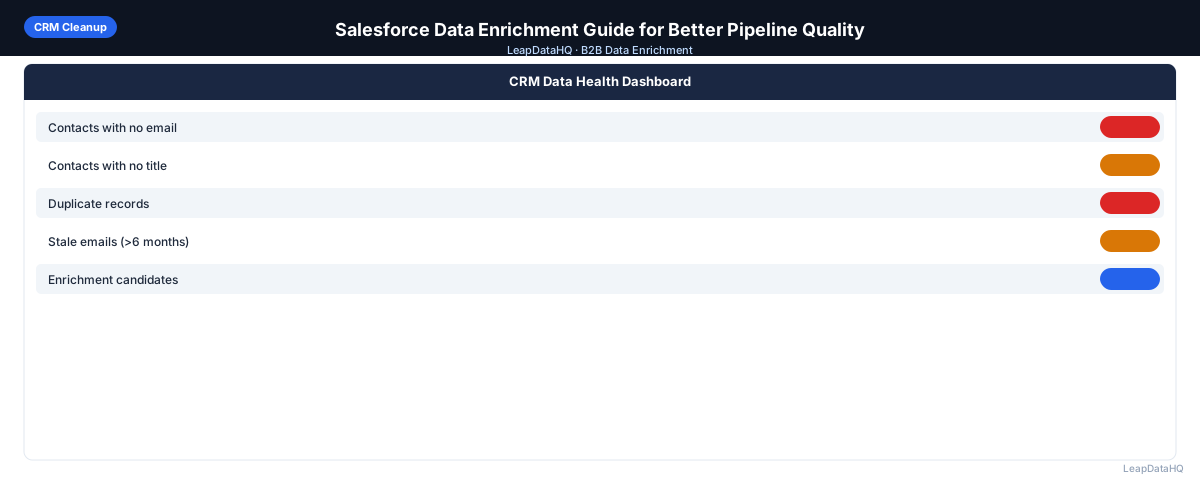
Salesforce is the most widely used enterprise CRM, but data quality inside Salesforce often doesn't match the platform's reputation for sophistication. Leads imported from events without email validation. Contacts created from list imports with missing company data. Accounts that haven't been updated in years because no one ran a re-enrichment pass. Duplicate records that slip past the native deduplication rules.
The result: reps spend time researching contacts that are already in Salesforce but incomplete. Email campaigns produce high bounce rates because addresses are outdated. Territory reporting is inaccurate because company data is missing or wrong.
Salesforce data enrichment fills those gaps. The process involves exporting incomplete or outdated records, running them through an enrichment tool to append missing fields, reviewing results for quality, and reimporting into Salesforce using Data Loader or the standard Import Wizard. Done on a regular schedule, it keeps your Salesforce database accurate enough to be genuinely useful for prospecting, reporting, and pipeline management.
The most effective Salesforce enrichment programs follow a measured approach rather than trying to fix everything at once. Starting with the records that have the highest business impact — contacts attached to open opportunities, leads assigned to active reps, accounts in the current quarter's target list — produces visible improvement quickly. Once the high-priority records are enriched, the program expands to broader segments in subsequent passes. This phased approach builds momentum and demonstrates ROI early, making it easier to justify continued investment in data quality.
Why Salesforce Data Quality Degrades
- Lead imports without required field validation allow incomplete records
- Manual entry by multiple reps produces inconsistent formats
- Contact data decay: people change jobs, titles change, emails become invalid
- Duplicate records from multiple entry paths that bypass matching rules
- Integrations that create records without mapping all available fields
- Historical records never cleaned from previous team or product eras
Step 1: Audit Your Salesforce Data Quality
Before enriching, measure what's missing. In Salesforce, create reports for:
- Leads with blank Email field
- Contacts with blank Email field
- Leads and Contacts with blank Title field
- Accounts with blank Industry or Number of Employees
- Leads and Contacts with Last Modified Date more than 12 months ago
- Contacts associated with Accounts that have blank Website
Export each report as CSV. These are your enrichment input files. Prioritize by pipeline impact — start with the records most likely to affect active outreach or reporting.
Step 2: Export Records for Enrichment
Export your target records from Salesforce including the Salesforce ID (18-digit or 15-digit Record ID). This ID is essential for reimporting enriched data back to the correct records.
For best enrichment results, include in your export: First Name, Last Name, Company (for Leads), Account Website / Domain (for Contacts), and existing Title if present. The company domain is the most important column for email enrichment accuracy.
Step 3: Enrich in Bulk and Review Results
Upload your exported CSV to your enrichment tool. Map the company domain column as the primary lookup key. Map first and last name columns for contact-level enrichment.
After processing, review the output. Check overall match rate, confidence score distribution, and spot-check a sample of results for accuracy. Filter to records meeting your confidence threshold — typically 75%+ for production use.
Step 4: Reimport Into Salesforce
Reimport enriched data using one of these approaches:
- Salesforce Data Loader (for large files, 1,000+ records): use the Update operation with Salesforce ID as the match key
- Salesforce Import Wizard (for smaller files, under 1,000 records): available for Leads, Contacts, and Accounts
- Third-party data tools: some tools have native Salesforce integrations that can write enriched data directly
Always use Update (not Insert or Upsert) when reimporting enriched data to existing records. This prevents duplicate record creation and ensures enriched fields are written to the correct existing records.
Ready to enrich your CSV list?
Upload a CSV, fill missing data, review confidence scores, and export clean records.
Upload a CSV — Start EnrichingStep 5: Validate After Import
After reimporting, verify the results:
- Re-run your audit reports to confirm the gap has closed
- Spot-check 10–15 individual records to confirm fields were written correctly
- Check for any import errors in the Data Loader log or Import Wizard summary
- Confirm that previously blank fields now have valid values
Enriching Salesforce Accounts vs. Contacts vs. Leads
Lead Enrichment
Leads are often the most enrichment-deficient object in Salesforce because they come from high-volume, low-validation sources (form fills, list imports, event exports). Prioritize email address, job title, and company size enrichment for leads before they are worked by reps.
Contact Enrichment
Contacts are converted from Leads and inherit their data gaps. Focus contact enrichment on records in active opportunities or recently converted records that need complete data before reps engage.
Account Enrichment
Account enrichment focuses on company-level fields: Industry, Number of Employees, Annual Revenue, Type. These are the fields used for territory assignment, account scoring, and pipeline reporting. Account enrichment is particularly valuable before a territory restructuring or forecasting exercise.
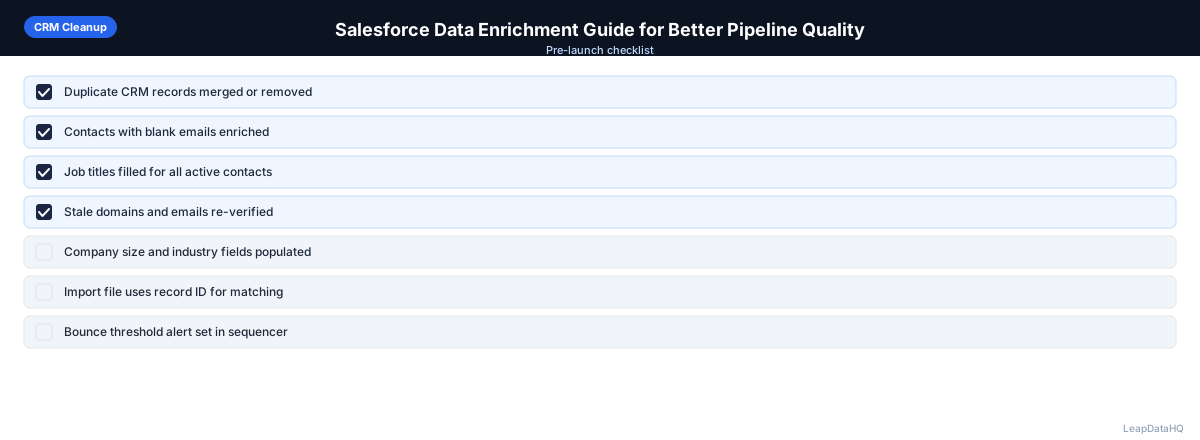
Salesforce Data Enrichment Checklist
- Salesforce audit reports created for each major gap category
- Records exported including Salesforce ID column
- Company domain included in export for maximum match rate
- Enrichment run with correct column mapping
- Results reviewed and filtered to high-confidence records
- Reimport configured as Update with Salesforce ID match key
- Import completed without errors (check Data Loader log)
- Audit reports re-run to confirm improvement
- Next enrichment pass scheduled (quarterly recommended)
Preventing Salesforce Data Quality Problems
- Add required fields to Lead and Contact creation: Email and Company at minimum
- Use Lead validation rules to enforce email format on entry
- Enable Salesforce Duplicate Management with matching rules on Email
- Set up monthly data quality reports tracking blank field rates by object
- Require domain to be populated before Lead can be converted to Contact/Account
Common Mistakes in Salesforce Enrichment
The most common mistake teams make when enriching Salesforce data is importing enriched results as new records instead of updating existing ones. This creates duplicate contacts with the enriched fields populated on the new record while the original record remains incomplete. Always export the Salesforce Record ID and use the Update operation in Data Loader to write enriched data to the correct existing record.
Another frequent issue is treating enrichment as a one-time project rather than an ongoing process. Data decays continuously — people change jobs, companies update their websites, email addresses go inactive. A single enrichment pass may bring data quality from 60% to 90% completeness, but without a regular cadence of re-enrichment, that number will drift back toward 60% over the following year. Quarterly enrichment passes maintain the gains and prevent gradual quality erosion.
When to Use LeapDataHQ
LeapDataHQ fits into Salesforce data enrichment as an external enrichment tool. Export your Salesforce records with gaps, run them through LeapDataHQ to fill missing emails and company data, filter to high-confidence results, and reimport using Salesforce Data Loader with the Update operation.
This works well as part of a quarterly Salesforce maintenance cycle: audit data quality, export problem records, enrich externally, reimport clean results. For teams without a dedicated RevOps resource to manage complex integrations, this CSV-based approach provides the enrichment benefits without the technical overhead.
Start Enriching LeadsFrequently Asked Questions
How do I import enriched data back into Salesforce without creating duplicates?
Use the Update operation in Salesforce Data Loader with the Salesforce Record ID (18-digit) as the External ID or match key. This updates the specific existing record rather than creating a new one. Never use Insert when reimporting enriched records for existing contacts.
What Salesforce edition do I need for Data Loader?
Salesforce Data Loader is available for Professional, Enterprise, Performance, Unlimited, and Developer editions. For Essentials edition, use the standard Import Wizard which supports files up to 50,000 records.
How do I find the company domain in Salesforce for enrichment?
For Accounts, use the Website field. For Leads and Contacts, use the Company field combined with a domain lookup step, or ask reps to populate a custom Website field when creating records. Domain is the most important field for enrichment accuracy.
Can I enrich Salesforce data in real time as new leads come in?
Yes, but it requires an API integration between your enrichment tool and Salesforce, typically through a workflow rule or process builder trigger. This is more complex than CSV-based enrichment but provides immediate enrichment for high-velocity inbound lead flows.
What's the difference between Salesforce enrichment and Salesforce data cleaning?
Enrichment adds missing data to existing records. Cleaning fixes existing data problems — removing duplicates, standardizing field formats, archiving stale records. Both are needed for a healthy Salesforce database, and they're typically done together in a maintenance cycle.