
HubSpot is one of the most widely used CRM and marketing automation platforms for B2B teams, but it has a well-known data quality challenge: records enter the system from multiple sources — form fills, imports, integrations, and manual entry — with inconsistent levels of completeness. A contact created from a web form might have only name and email. A contact imported from a LinkedIn export might have name and company but no email. A contact added manually might be missing company data entirely.
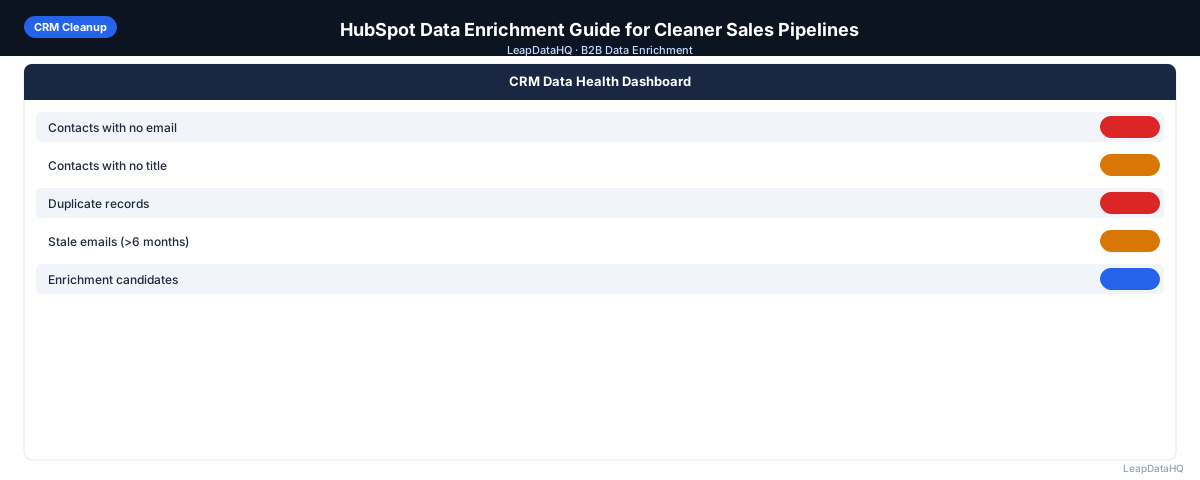
Over time, these gaps accumulate. Incomplete records can't be properly segmented. Contacts without emails can't receive outreach. Companies without industry or size data can't be filtered for account-based campaigns. The pipeline looks full, but the data quality underneath is inconsistent.
HubSpot data enrichment is the process of systematically filling those gaps — appending missing emails, job titles, company size, industry, and other fields to make your HubSpot contacts and companies useful for sales and marketing. This guide covers how to identify gaps, enrich records efficiently, and import results back into HubSpot without breaking existing data.
The approach described here is designed to be practical for teams without dedicated RevOps support. Rather than requiring a native HubSpot integration or an enterprise data platform, it works through HubSpot's standard CSV export and import functions — the same tools already available in any HubSpot subscription tier. This keeps the process accessible regardless of your plan level or technical resources.
The frequency of enrichment depends on how your data enters HubSpot. Teams with high inbound form volume may need monthly enrichment passes, while teams with mostly manual entry can run quarterly. The key is building enrichment into your regular workflow rather than treating it as a one-time cleanup that gets forgotten until data quality degrades again.
Common HubSpot Data Gaps
- Contacts missing email addresses (from LinkedIn exports or manual entry)
- Contacts missing job title or seniority
- Contacts without an associated company in HubSpot
- Companies missing industry, employee count, or revenue data
- Companies without a website domain (makes enrichment harder)
- Contacts added years ago with outdated email addresses or stale job titles
Step 1: Identify Records That Need Enrichment
In HubSpot, use the Contacts or Companies view with property filters to identify records with gaps. Create saved filters for:
- Contacts where Email is unknown
- Contacts where Job Title is unknown
- Contacts where Associated Company is unknown
- Companies where Number of Employees is unknown
- Companies where Industry is unknown
- Contacts with Last Activity Date more than 12 months ago
Export each filtered list as a CSV. These exports become your enrichment input files.
Step 2: Prepare Your Export for Enrichment
HubSpot exports include a Contact ID or Company ID column. This is important — you'll use it as the match key when reimporting to update existing records rather than create new ones. Keep this column in your export file throughout the enrichment process.
For contact enrichment, make sure your export includes: first name, last name, company name, and website (domain) if available. The domain column is the most reliable lookup key for email enrichment. If your export only has company names without domains, the match rate will be lower.
Step 3: Run Enrichment and Review Results
Upload your exported CSV to an enrichment tool. Map the columns — particularly making sure domain is mapped correctly. Run the enrichment and review the results before downloading.
Check the match rate (how many records returned enriched data) and the confidence score distribution. Filter to high-confidence results before downloading. A smaller export of high-confidence enriched records is more valuable than a large export with mixed quality.
Step 4: Import Enriched Data Back Into HubSpot
Ready to enrich your CSV list?
Upload a CSV, fill missing data, review confidence scores, and export clean records.
Upload a CSV — Start EnrichingHubSpot's import tool supports updating existing contacts and companies using a match key. For contacts, match on email address or HubSpot Contact ID. For companies, match on HubSpot Company ID or domain.
Go to Contacts or Companies > Import > Import a File. Choose "Update existing records." Map your CSV columns to HubSpot properties. For email enrichment, make sure "Update existing records only" is selected so you don't accidentally create duplicate contacts.
Step 5: Verify Enriched Data Quality in HubSpot
After import, spot-check 10–20 records to confirm the data was imported correctly. Look for: email addresses that follow a valid format, company size data that looks reasonable for the company type, job titles that match what you'd expect for that role and company.
Run your updated filtered views to see the improvement in completeness. This is also a useful data point for reporting the ROI of the enrichment effort.
Using Enriched Data in HubSpot Workflows
Once your records are enriched, use the new data for:
- List segmentation: create lists filtered by company size, industry, or job title for targeted campaigns
- Lead scoring: use company size and title seniority as scoring criteria for MQL qualification
- Workflows: trigger nurture sequences based on company type or industry
- Reporting: more complete data produces more accurate pipeline and attribution reports
- Sales sequences: route enriched contacts to appropriate rep territories or sequences based on company data
Preventing Future Data Gaps in HubSpot
- Set required properties on your HubSpot forms: at minimum, email and company name
- Use HubSpot's property validation to enforce email format on all input fields
- Set up a workflow that triggers enrichment (or flags for enrichment) when a contact is created without key fields
- Review new list imports before going live — check for completeness before contacts enter active workflows
- Schedule quarterly enrichment passes for contacts that haven't been updated in 6+ months
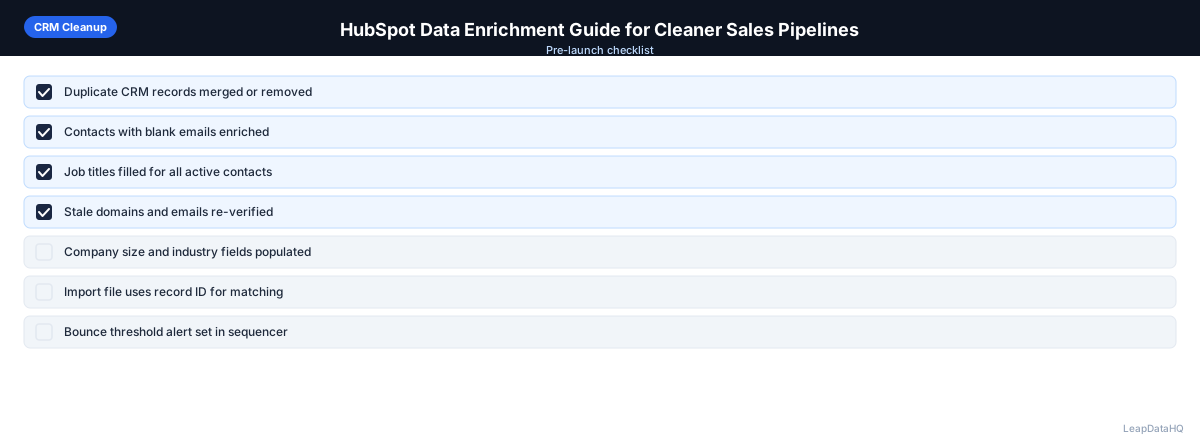
HubSpot Data Enrichment Checklist
- Identified records with missing fields using HubSpot property filters
- Exported gap records including HubSpot Contact/Company ID column
- Added company domain to export where missing (for higher match rates)
- Uploaded to enrichment tool with correct column mapping
- Reviewed match rate and confidence distribution before downloading
- Filtered to high-confidence results only
- Imported enriched CSV into HubSpot using Update Existing Records mode
- Spot-checked 10–20 records for import accuracy
- Updated filtered views to confirm gap improvement
- Scheduled next enrichment pass in 90 days
Ready to Enrich Your HubSpot Data?
LeapDataHQ works with HubSpot exports to fill missing email addresses, job titles, and company data. Export your incomplete records, upload to LeapDataHQ, review confidence scores, and reimport into HubSpot. See our features page or check pricing to get started.
When to Use LeapDataHQ
LeapDataHQ is a practical option for HubSpot users who need to fill gaps in existing records without committing to a full CRM data platform or enterprise contract. Export your incomplete contacts or companies from HubSpot, run them through LeapDataHQ for enrichment, filter to high-confidence results, and import back using HubSpot's update mode.
This fits well for quarterly enrichment passes on your HubSpot database — exporting the contacts that haven't been updated recently, enriching to check current emails and fill missing fields, and reimporting the results to keep your database fresh.
The credit-based pricing means you pay based on how many records you enrich, not a fixed monthly platform fee. This makes periodic enrichment passes affordable without maintaining an ongoing platform subscription.
Start Enriching LeadsFrequently Asked Questions
Does HubSpot have built-in data enrichment?
HubSpot offers some data enrichment through its Insights feature for company data (available on certain plans), and through integrations with data providers in the HubSpot marketplace. For comprehensive contact email enrichment, most teams use a dedicated enrichment tool alongside HubSpot.
How do I import enriched data back into HubSpot without creating duplicates?
Use HubSpot's import function with "Update existing contacts" selected. Match on email address (for contacts) or company domain (for companies) to update existing records rather than creating new ones. Keep the HubSpot Contact ID or Company ID in your enrichment file as a reliable match key.
What enriched fields are most useful in HubSpot?
Email address (enables outreach), job title (enables segmentation and personalization), company industry (enables list segmentation and lead scoring), and number of employees (enables company-size filtering). These four fields are the foundation of most HubSpot marketing and sales workflows.
Can I set up automatic enrichment in HubSpot?
Automatic enrichment typically requires a HubSpot integration or workflow connected to an enrichment API. Some enrichment tools offer native HubSpot integrations that trigger enrichment when new contacts are created. Alternatively, you can run periodic CSV-based enrichment passes as described in this guide.
What's the best way to enrich HubSpot company records?
Export companies with missing fields (industry, size, domain), upload to an enrichment tool with the company domain as the primary lookup key, enrich for firmographic data, and reimport using HubSpot company ID as the match key to update existing records.