
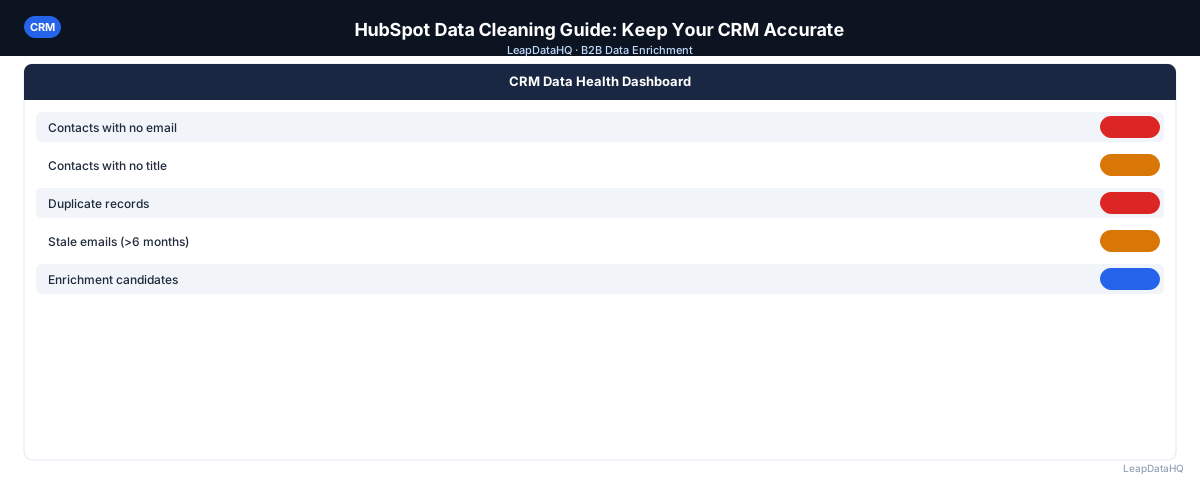
HubSpot's ease of data import is both its strength and its vulnerability for data quality. Over time, convenient imports accumulate into duplicate records, incomplete contacts, and inconsistent property values.
Bad HubSpot data affects everything downstream — email marketing bounce rates, sales rep efficiency, list segmentation accuracy, and revenue attribution. Cleaning it requires a systematic approach, not just a one-time import.
The teams that get the most value from HubSpot are the ones that invest in maintaining data quality as an ongoing practice. Clean data means marketing automation works correctly, sales sequences reach the right people, and reporting reflects reality. Dirty data means campaigns bounce, reps waste time, and leadership makes decisions based on inaccurate information.
HubSpot provides some built-in tools for data quality management, but they don't cover every issue. The Data Quality Assistant catches common problems, but deduplication of fuzzy matches, standardization of inconsistent values, and enrichment of incomplete records require additional steps and tools.
This guide walks through the HubSpot-specific data cleaning process, from using HubSpot's native tools to supplementing with enrichment for comprehensive data quality improvement.
Common HubSpot Data Quality Problems
HubSpot accumulates data quality issues from multiple sources: form fills that create duplicate contacts, list imports without validation, CRM syncs that introduce inconsistencies, and manual data entry that varies between team members.
- Duplicate contacts from form fills, list imports, and CRM syncs
- Contacts with email but no company association
- Companies without a domain property populated
- Lifecycle stage inconsistencies
- Old contacts from previous companies or campaigns never cleaned up
- Inconsistent property values across records
- Missing required fields on imported contacts
Step 1: Use HubSpot's Data Quality Tools
HubSpot's Operations Hub includes a Data Quality Assistant that identifies common issues: missing required properties, formatting errors, and enrolled records with data problems. Start here — it surfaces issues you can fix directly without exporting.
The Data Quality Assistant provides a dashboard view of your most pressing issues, ranked by impact. Address the highest-impact items first: missing email addresses on active contacts, formatting errors in key properties, and duplicate records that are causing double outreach.
Step 2: Merge Duplicate Contacts
In HubSpot, go to Contacts > Actions > Manage Duplicates. HubSpot surfaces likely duplicate pairs and lets you choose which record to keep as primary. Merge history, deals, and properties are preserved on the primary record.
When merging, review both records carefully. The primary record should be the one with more complete data, more recent activity, and associated deals or engagements. HubSpot's merge tool transfers most associated data automatically, but verify that notes, tasks, and deal associations transfer correctly.
What This Means for Your Team
Clean HubSpot data affects every team that uses the platform. Sales teams benefit from accurate contact information that means outreach reaches the right people. Marketing teams benefit from clean segmentation that ensures campaigns target the correct audiences. Leadership benefits from reliable reporting that reflects actual pipeline and revenue.
For marketing teams specifically, dirty data in HubSpot has direct cost implications. Sending campaigns to duplicate contacts wastes email sending credits. Bounced emails from invalid addresses damage sender reputation. Incorrect lifecycle stage data corrupts attribution reporting and makes it impossible to measure marketing's contribution to revenue accurately.
Who Should Use This HubSpot Cleaning Process
This cleaning process serves anyone responsible for data quality in a HubSpot instance:
- HubSpot administrators: responsible for maintaining instance health and data standards
- Marketing operations teams: whose campaign performance depends on clean contact data
- Sales operations: who need accurate CRM data for reporting and forecasting
- Revenue operations leaders: overseeing the full revenue technology stack including HubSpot
- Growth teams: running experiments that require clean segmentation and targeting data
- Customer success teams: using HubSpot to manage existing customer relationships
- Agencies managing HubSpot instances for multiple clients
Step 3: Fix Contact-Company Associations
Contacts without a company association won't appear correctly in company-level reporting. Export contacts with no associated company and either manually associate them, delete them if irrelevant, or enrich them to get company data needed for association.
For contacts where you have a company name but no formal association, enrichment can help. Enrich the contact to get the company domain, then use that domain to create or find the company record in HubSpot and establish the association. This is particularly important for B2B companies where account-level reporting is essential for pipeline analysis and territory management.
Step 4: Standardize Property Values
HubSpot's property filters are case-sensitive and exact-match. Audit high-value properties — industry, lifecycle stage, lead source, country — and standardize the values. Use HubSpot workflows to normalize properties going forward. For existing inconsistencies, export the affected records, standardize the values in a spreadsheet, and re-import.
For high-value fields like industry and country, converting free-text properties to dropdown menus with predefined values is the most effective long-term solution. This prevents new records from introducing the same inconsistencies you just cleaned up. HubSpot workflows can also auto-populate certain properties based on form submissions or other triggers, reducing manual data entry errors.
Step 5: Enrich Incomplete Contacts
For contacts missing email, phone, job title, or company data, export them and run through a CSV enrichment tool. Import enriched data back using HubSpot's contact import feature, matching on email address to update existing records. When importing enriched data, select "Update existing contacts" and match on a unique identifier like email address.
Preventing Future HubSpot Data Problems
Ready to enrich your CSV list?
Upload a CSV, fill missing data, review confidence scores, and export clean records.
Upload a CSV — Start EnrichingImplement these practices to maintain data quality going forward and prevent the same problems from recurring after your cleaning project is complete:
- Set required properties on forms — email and company at minimum
- Use HubSpot's property validation to enforce email format
- Review new list imports before they go live
- Set up a monthly workflow that flags contacts missing key properties
- Train anyone who manually creates contacts on your data standards
- Use HubSpot workflows to auto-assign lifecycle stages based on form submissions
The most effective prevention is making it easy to enter data correctly from the very start. Required fields and dropdown menus reduce the chance of errors at the point of entry by limiting what users can input to valid, pre-approved options only. Regular training ensures all team members understand your data standards and follow them consistently across the entire organization. Monthly automated checks catch problems early before they accumulate into major cleanup projects that require significant time and effort to resolve properly and completely.
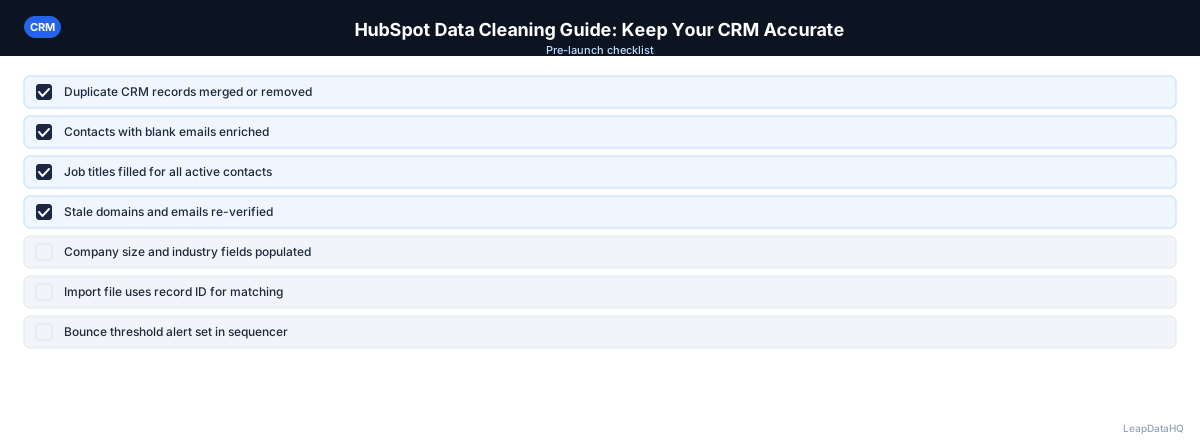
Checklist: HubSpot Data Cleaning
- Ran HubSpot Data Quality Assistant and reviewed flagged issues
- Merged duplicate contacts using Manage Duplicates tool
- Verified merge transferred all deals, notes, and associations correctly
- Exported contacts with no company association and resolved each
- Standardized property values for industry, lifecycle stage, lead source, and country
- Converted high-value free-text properties to dropdown menus
- Exported contacts with missing email, phone, or company data
- Ran enrichment on incomplete contacts and reviewed confidence scores
- Imported enriched data back matching on email to update existing records
- Set required properties on all active forms
- Enabled property validation rules for email format
- Created monthly workflow to flag contacts missing key properties
- Documented data entry standards for all team members
Common Mistakes to Avoid
- Not using the Data Quality Assistant first: HubSpot's built-in tool surfaces your most impactful issues quickly. Starting with a manual audit without using this tool wastes time on low-priority issues.
- Creating new records instead of updating existing ones: When importing enriched data, always select "Update existing contacts" and match on email. Creating new records introduces duplicates that you'll have to clean up later.
- Ignoring contact-company associations: Contacts without company associations break account-level reporting and segmentation. This is a common HubSpot issue that has outsized impact on reporting accuracy.
- Not converting free-text fields to dropdowns: Free-text fields for industry, country, and lifecycle stage will accumulate inconsistencies indefinitely. Convert to dropdowns after cleaning to prevent recurrence.
- Skipping the import review step: Always review a small test batch before running a full import. Import errors on large batches can corrupt hundreds or thousands of records simultaneously.
- Not setting up ongoing prevention: Cleaning without implementing required fields, validation rules, and regular audits means the same problems will recur within months.
Practical Examples
Example 1: Post-Import Duplicate Cleanup
A marketing team imports 2,000 contacts from a trade show list and discovers 300 duplicates with existing HubSpot records. They use the Manage Duplicates tool to merge each pair, keeping the record with more complete data and recent activity. The merge preserves all deal associations and engagement history.
Example 2: Lifecycle Stage Audit
A sales ops team discovers that 40% of contacts have incorrect lifecycle stages — leads marked as customers, marketing qualified leads in the subscriber stage, and so on. They export the affected records, correct the lifecycle stages based on deal history and engagement data, and re-import. They then set up a HubSpot workflow that auto-assigns lifecycle stages.
Example 3: Pre-Campaign Data Preparation
Before launching a major email campaign, a team discovers that 15% of their target contacts have missing email addresses. They export those records, enrich them through a CSV enrichment tool, and import the results back into HubSpot. The campaign launches with complete contact data.
Example 4: Company Association Fix
A B2B company finds that 500 contacts have no company association, breaking their account-level reporting. They export the orphaned contacts, enrich them to get company domains, create company records where needed, and establish the associations. The cleanup enables accurate company-level pipeline reporting.
Example 5: Ongoing Data Quality Maintenance
A HubSpot admin sets up a monthly workflow that flags contacts created in the past 30 days with missing required properties. The workflow sends a notification to the team lead, who reviews and either completes the record or archives it. This lightweight ongoing process prevents data quality issues from accumulating.
How LeapDataHQ Helps
LeapDataHQ fits into Step 5 of HubSpot data cleaning. Export contacts with missing email, phone, or company data as a CSV, upload to LeapDataHQ for enrichment, filter to high-confidence results, and re-import using HubSpot's contact import tool matched by email address. The enrichment fills gaps that HubSpot's native tools can't address.
For periodic re-enrichment, LeapDataHQ provides a practical way to refresh HubSpot contacts that have been in the database for a year or more without activity. Export inactive contacts, enrich them to check for current email addresses and job titles, and update your HubSpot records with verified information. This catches job changes and company updates before they cause bounce issues in your campaigns.
The credit-based pricing model makes periodic enrichment practical for HubSpot users who don't need continuous data platform access. Run enrichment batches as needed — quarterly refreshes, pre-campaign preparation, or post-import cleanup — paying only for the records you actually enrich. No monthly seat fees or annual commitments required. For agencies managing multiple HubSpot instances, LeapDataHQ provides a single enrichment tool that works across all client accounts without requiring separate subscriptions. Visit /crm-data-cleaning and /enrich-csv-file to learn more about integrating enrichment into your HubSpot data quality workflow.
Next Steps
Start by running HubSpot's Data Quality Assistant to identify your most pressing issues. Then work through the cleaning steps systematically: deduplicate, fix associations, standardize properties, and enrich incomplete records. For enrichment, test with a batch of 50-100 contacts missing key data to see match rates for your specific HubSpot instance. The results will show you exactly how much enrichment can improve your data quality and campaign performance.
When to Use LeapDataHQ
LeapDataHQ fits into Step 5 of HubSpot data cleaning. Export contacts with missing email, phone, or company data as a CSV, upload to LeapDataHQ for enrichment, filter to high-confidence results, and re-import using HubSpot's contact import tool matched by email address.
It also works for periodic re-enrichment of HubSpot contacts that have been in the database for a year or more without activity. Export inactive contacts, run them through enrichment, and update your HubSpot records with current email addresses and job titles to catch job changes and company updates.
For teams preparing major marketing campaigns in HubSpot, LeapDataHQ helps ensure target contact lists are complete before campaigns launch. Enriching contacts with missing emails prevents the bounce rate issues that damage sender reputation and reduce campaign effectiveness.
The credit-based pricing model is particularly well-suited for HubSpot users who need periodic enrichment rather than continuous data platform access. Run enrichment batches quarterly or before major campaigns, paying only for the records you actually enrich.
For agencies managing multiple HubSpot instances, LeapDataHQ provides a single enrichment tool that works across all client accounts without requiring separate subscriptions. Visit /features and /pricing to learn more about how LeapDataHQ supports your HubSpot data quality workflow.
Start Enriching LeadsFrequently Asked Questions
Does HubSpot have a native email verification tool?
HubSpot doesn't have a built-in email verification tool. It tracks email bounces and marks addresses as invalid after a hard bounce occurs during sending. For proactive verification before sending campaigns, use a third-party tool alongside HubSpot to catch invalid addresses before they damage your sender reputation. This is especially important before launching large campaigns to your full contact database.
How do I import enriched data back into HubSpot?
Go to Contacts > Import > Import a File. Map CSV columns to HubSpot properties. Select "Update existing contacts" and match on email address. HubSpot updates existing records rather than creating new ones. Always test with a small batch first to verify the mapping is correct.
What's the best way to clean up old marketing contacts in HubSpot?
Filter contacts by last engagement date (no opens or clicks in 12+ months), run a re-engagement campaign, then unsubscribe or delete contacts who don't engage. This approach gives contacts one last chance to engage before removal, which is more defensible than immediate deletion. For contacts who do engage, update their lifecycle stage and add them back to active nurture sequences. This process helps you maintain a clean, engaged contact database while giving every contact a fair opportunity to stay connected.
Can I prevent duplicates from being created in HubSpot?
HubSpot automatically deduplicates on email address for contacts — if a contact with the same email already exists, HubSpot updates the existing record rather than creating a new one. Enable duplicate management rules to catch name-based duplicates that enter without email. For company records, set up duplicate detection based on domain name to prevent company-level duplicates. Review new list imports before they go live to catch potential duplicates early.
How often should I audit my HubSpot data?
Monthly checks on new data quality and a quarterly full audit of your contact database is a sustainable cadence for most HubSpot users. Monthly checks catch issues early before they compound — review new imports, check for formatting errors, and verify that required fields are being populated. Quarterly audits address accumulated problems: run deduplication, re-enrich stale records, standardize property values, and review contact-company associations. This two-tier approach prevents small issues from becoming large cleanup projects.
What HubSpot properties should I prioritize for data quality?
Email address, company association, lifecycle stage, and lead source are the highest-priority properties. These directly affect campaign deliverability, reporting accuracy, and sales workflow automation. Clean these first before addressing secondary properties like phone number, job title, or custom fields. Without valid email addresses, your campaigns can't reach contacts. Without company associations, your account-level reporting breaks. Without correct lifecycle stages, your funnel metrics are unreliable.
How do I handle contacts with consumer email addresses in HubSpot?
Consumer email addresses (Gmail, Yahoo, Hotmail) in a B2B HubSpot instance often indicate incorrect data or contacts who used personal emails for form fills. For B2B outreach, enrich these contacts to find their work email addresses and update the records accordingly. Work emails are tied to the person's professional identity and current company, making them more appropriate and effective for business outreach than consumer addresses.