
Salesforce accumulates data quality problems faster than most teams realize. Duplicates from list imports, stale contacts who have changed companies, inconsistent field formats, and records created with minimum information all compound over time.
The result: reporting is unreliable, territory coverage is inaccurate, and reps waste time on leads that can't be reached. Salesforce data cleaning is maintenance that many teams postpone until the problems become undeniable — but it doesn't have to be a massive project if you have a systematic process.
The cost of dirty Salesforce data extends well beyond frustrated sales reps. Inaccurate reporting leads to poor forecasting. Duplicate records inflate pipeline numbers. Stale contacts mean outreach misses its targets. Territory assignments based on bad data create coverage gaps and conflicts. These aren't abstract problems — they directly affect revenue.
A systematic cleaning process addresses each category of data quality issue methodically: duplicates, stale records, formatting inconsistencies, missing fields, and orphaned records. By working through each category with specific tools and techniques, you can restore your Salesforce instance to a state where the data supports your sales process rather than undermining it.
This guide walks through that process, step by step.
Before You Start: Export and Assess
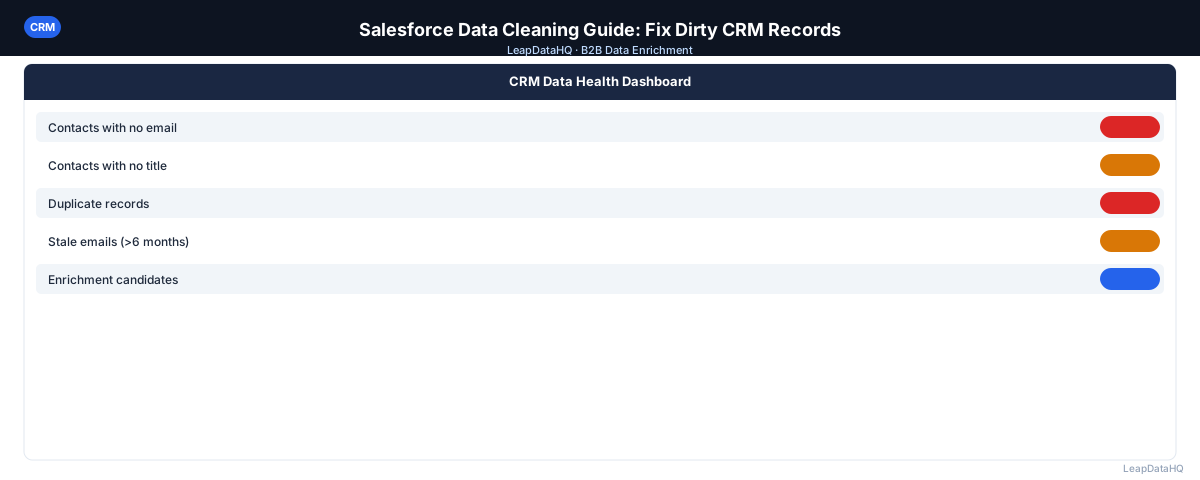
Export Leads and Contacts to separate CSV files. Open each in a spreadsheet tool and look for: blank email fields, duplicate records, last activity date (records with no activity in 12+ months), inconsistent field values, and records with test data or placeholder values.
This assessment phase is critical because it tells you the scope of the problem. Without understanding how many records are affected and which categories of issues are most prevalent, you can't prioritize your cleaning efforts effectively. Create a simple summary: total records, percentage with missing emails, estimated duplicate count, and records with no recent activity.
Deduplication in Salesforce
Using Salesforce's Native Duplicate Management
Go to Setup > Duplicate Management > Matching Rules and Duplicate Rules. Define rules that flag duplicate record creation based on email, name + company, or phone. For existing duplicates, run the Duplicate Record Sets report and use the Merge function to consolidate records.
When merging, be deliberate about which record to keep as the primary. The record with more complete data, more recent activity, and associated deals or tasks is usually the right choice. Make sure all related records — notes, attachments, open tasks — transfer to the primary record before completing the merge.
Handling Fuzzy Duplicates
Salesforce's native tool catches exact matches but may miss fuzzy duplicates — "John Smith" at "Acme Corp" and "John A. Smith" at "Acme Corporation". Export your contacts and use conditional formatting or a deduplication tool to find these manually.
What This Means for Your Sales Team
Clean Salesforce data directly impacts sales team productivity and revenue outcomes. When reps can trust the data in their CRM, they spend less time verifying information and more time selling. Accurate contact data means outreach reaches the right people. Clean company data means territory assignments and account routing work correctly.
For sales operations teams, clean data means reliable reporting. Forecasting based on accurate pipeline data produces better predictions. Territory performance analysis reflects reality rather than artifacts of duplicate records and stale data. Management decisions based on clean CRM data are better decisions.
Who Should Use This Salesforce Cleaning Process
This cleaning process is relevant for anyone responsible for Salesforce data quality within a B2B sales organization:
- Sales operations managers: responsible for CRM data quality and reporting accuracy
- RevOps teams: managing the full revenue technology stack including Salesforce hygiene
- Sales leaders and VPs: who rely on accurate CRM data for forecasting and territory planning
- Individual sales reps: who need clean data to do effective outreach and account management
- Marketing operations: whose campaigns depend on clean lead data flowing from Salesforce
- CRM administrators: tasked with maintaining Salesforce configuration and data standards
- Consultants and contractors: brought in for specific data cleaning or migration projects
Standardizing Field Values
Inconsistent field values break reporting and filtering. Common problems include country variations ("United States", "US", "USA"), state inconsistencies ("California" vs "CA"), and industry descriptions that differ across records. Export the problematic field, clean it in a spreadsheet using find-and-replace, then re-import using Salesforce Data Loader. Lock down the field with a picklist after cleaning.
Handling Stale Records
Records with no activity in 12-18 months likely have outdated contact information. Mark them as inactive or add a "Stale - Needs Verification" tag rather than deleting — this removes them from active rep queues without losing history. For stale records that might still be valuable, export them and run a re-enrichment pass to check whether the contact information is still current.
Enriching Incomplete Records in Salesforce
Export records with blank email fields, company domain, or missing industry. Run them through a CSV enrichment tool like LeapDataHQ, review confidence scores, and import the validated results back using Salesforce Data Loader. When importing enriched data, use the Salesforce record ID as the match key to update existing records rather than creating new ones.
Preventing Future Data Problems
Ready to enrich your CSV list?
Upload a CSV, fill missing data, review confidence scores, and export clean records.
Upload a CSV — Start Enriching- Make Email and Company required fields on the Lead and Contact objects
- Use validation rules to enforce email format
- Enable Duplicate Management rules on creation and edit
- Set up a monthly data quality report tracking blank field rates
- Require data entry before marking a lead as contacted
- Train all new users on data entry standards during onboarding
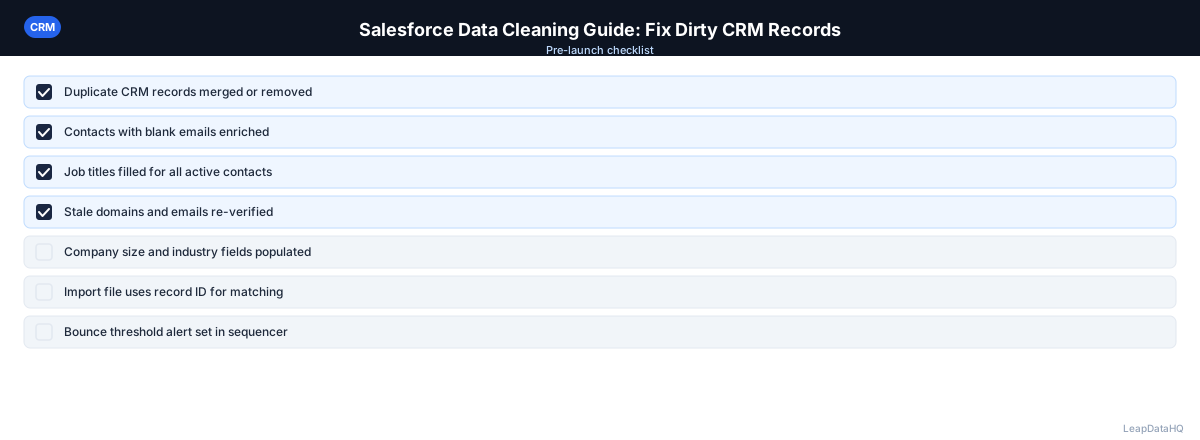
Checklist: Salesforce Data Cleaning
- Exported Leads and Contacts to CSV for assessment
- Quantified data quality issues (missing emails, duplicates, stale records)
- Ran Salesforce Duplicate Management to identify and merge exact duplicates
- Exported and resolved fuzzy duplicates manually
- Standardized country, state, industry, and phone number fields
- Converted high-value text fields to picklists to prevent future inconsistency
- Tagged or archived records with no activity in 12+ months
- Exported incomplete records for enrichment
- Ran enrichment on records with missing emails, domains, or company data
- Reviewed confidence scores and filtered to high-confidence results
- Imported enriched data back using Salesforce Data Loader with record ID matching
- Set up required fields and validation rules to prevent future quality issues
- Created monthly data quality report for ongoing monitoring
Common Mistakes to Avoid
- Deleting stale records instead of archiving: Deleting removes activity history, notes, and deal associations that may be valuable. Archive or tag stale records instead, preserving history while removing them from active views.
- Not using record IDs for re-import: When importing enriched data back into Salesforce, always match on record ID to update existing records. Matching on email or name can create new records instead of updating existing ones.
- Cleaning without preventing recurrence: A one-time cleaning project without ongoing practices will need to be repeated within months. Implement required fields, validation rules, and duplicate management to maintain quality.
- Ignoring fuzzy duplicates: Exact-match deduplication catches only a portion of duplicates. Fuzzy duplicates with slight name or company variations require manual review and represent a significant quality issue.
- Not standardizing before enriching: Enriching records with inconsistent company names or missing domains produces inconsistent results. Clean and standardize your input data before running enrichment.
- Importing all enriched records without review: Low-confidence enrichment results may introduce new bad data. Filter to high-confidence results before importing back into Salesforce.
Practical Examples
Example 1: Post-Migration Data Cleanup
A company migrates from a legacy CRM to Salesforce and discovers 5,000 duplicate contacts, 2,000 records with missing emails, and inconsistent industry values across 8,000 records. They follow the cleaning process: deduplicate using Salesforce native tools plus manual fuzzy matching, standardize industry values with find-and-replace, and enrich 2,000 records with missing emails. The cleaning takes two weeks but restores the database to a reliable state.
Example 2: Quarterly Data Health Check
A sales ops team runs a quarterly data quality audit. They export contacts with no activity in 6+ months (800 records), enrich them to check for job changes, and find that 20% have changed companies. They update the CRM with current information, archive records where contacts are unreachable, and refresh the remaining records with verified email addresses.
Example 3: Pre-Campaign List Preparation
Before launching a major outbound campaign, a team discovers that 30% of their target lead records have missing email addresses. They export those records, enrich them through LeapDataHQ, review confidence scores, and import 250 verified email addresses back into Salesforce. The campaign launches with complete contact data.
Example 4: Territory Realignment Project
A company realigns sales territories and discovers that inconsistent state and country values are causing incorrect territory assignments. They standardize all geographic fields, fix 400 records with incorrect state abbreviations, and re-run territory assignment rules. The cleanup ensures every account is assigned to the correct rep.
Example 5: Annual Database Review
During an annual review, a Salesforce admin identifies 3,000 records with no activity in 18+ months. They tag these as "Stale - Needs Verification," export them for enrichment, and find that 40% are still reachable with updated contact information. They re-import the verified records, archive the rest, and set up an automated quarterly process.
How LeapDataHQ Helps
LeapDataHQ fits into the enrichment step of Salesforce data cleaning. Export incomplete records as a CSV, upload to LeapDataHQ to fill missing emails and company data, filter to high-confidence results, and re-import using Salesforce Data Loader. The confidence scoring system helps you decide which enriched records are reliable enough to import.
For quarterly re-enrichment cycles, LeapDataHQ provides a practical way to refresh records that haven't been touched in 6-12 months. Export inactive contacts, run them through enrichment, and update your CRM with current email addresses and job titles. The credit-based pricing means you only pay for the records you enrich, making periodic refreshes cost-effective.
LeapDataHQ works alongside Salesforce's native tools rather than replacing them. Use Salesforce Duplicate Management for deduplication, validation rules for data entry standards, and LeapDataHQ for the enrichment layer that fills gaps in your existing records. Visit /crm-data-cleaning and /enrich-csv-file to learn more.
Next Steps
Start by exporting your Salesforce Leads and Contacts to CSV and running a quick assessment of data quality issues. Identify the categories with the most impact on your sales process — missing emails, duplicates, or stale records — and tackle those first. For enrichment, test with a batch of 50-100 incomplete records through LeapDataHQ to see match rates for your specific data.
When to Use LeapDataHQ
LeapDataHQ fits into the enrichment step of Salesforce data cleaning. Export incomplete records as a CSV, upload to LeapDataHQ to fill missing emails and company data, filter to high-confidence results, and re-import using Salesforce Data Loader.
This works particularly well for quarterly re-enrichment of inactive leads — refreshing records that haven't been touched in 6-12 months to see which contacts are still reachable. Export the stale records, enrich them, and import updated results back into Salesforce with current email addresses and company information.
For teams preparing for major campaigns, LeapDataHQ helps fill gaps in target lead records before outreach launches. Rather than running campaigns with incomplete data and accepting high bounce rates, enrich the records first to ensure every contact has a verified email address.
The credit-based pricing model makes periodic enrichment practical for ongoing data maintenance. Instead of committing to an expensive data platform subscription, you can run enrichment batches as needed — quarterly refreshes, pre-campaign preparation, or post-migration cleanup — paying only for the records you actually enrich.
For Salesforce administrators managing data quality across a growing database, LeapDataHQ provides the enrichment capability without requiring complex API integrations or developer resources. Visit /crm-data-cleaning and /features to explore how it fits your Salesforce maintenance workflow.
Start Enriching LeadsFrequently Asked Questions
How do I import enriched data back into Salesforce?
Use Salesforce Data Loader for large batches or the standard Import Wizard for smaller files. Map CSV columns to Salesforce fields and use the record ID as the match key to update existing records rather than creating new ones. Always test with a small batch first to verify the mapping is correct.
Should I clean Leads or Contacts first?
Leads first, because they tend to accumulate more garbage from imports, form fills, and integrations. Once you have a process working on Leads, apply the same approach to Contacts. Leads are also more likely to have missing data that enrichment can fill.
What Salesforce edition do I need for Duplicate Management?
Duplicate Management is available in Professional, Enterprise, Performance, Unlimited, and Developer editions. It's not available in Essentials. If you're on Essentials, you'll need to handle deduplication manually through exports or upgrade your edition.
How long does a Salesforce data cleaning project typically take?
For a database of 10,000-50,000 records, a thorough cleaning takes 1-2 weeks including export, deduplication, standardization, enrichment, and re-import. Larger databases take proportionally longer. Break the project into phases to make it manageable.
How do I prevent future data quality problems after cleaning?
Require fields on record creation, implement validation rules, turn on duplicate management, set up a recurring quarterly audit, and train reps on data entry standards. Prevention is always more cost-effective than repeated cleanup projects.
Should I delete or archive stale Salesforce records?
Archive rather than delete. Archiving preserves activity history, deal associations, and notes that may be valuable for understanding past relationships. Most Salesforce editions support custom archive solutions or you can use status fields to mark records as inactive.
How do I handle enrichment for records with only company names but no domains?
Company names alone produce lower enrichment match rates because names can be ambiguous. If possible, add domains before enriching. For records where you only have company names, enrichment may still return results but with lower confidence scores — review these carefully before importing.