
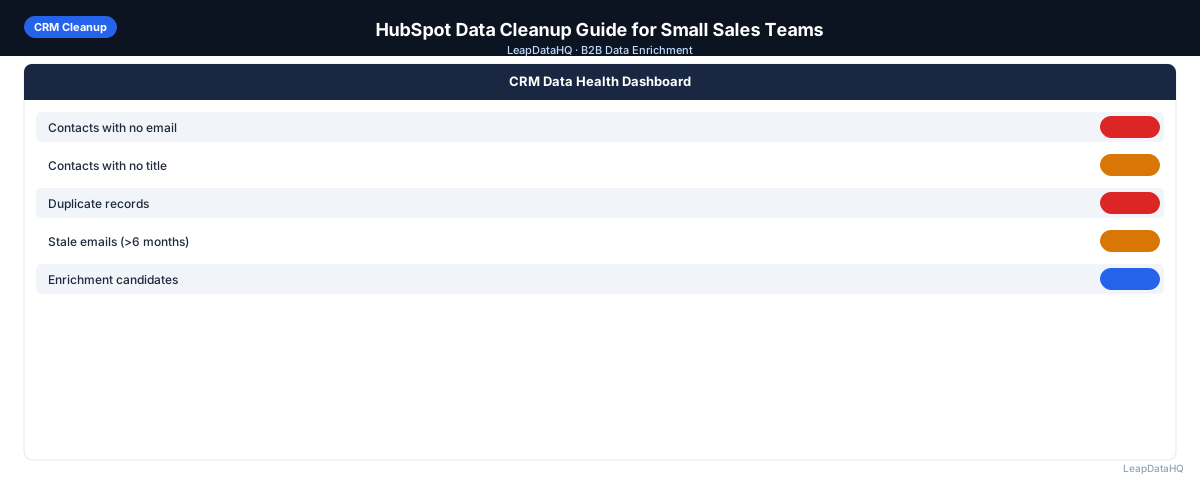
HubSpot accumulates messy data over time. Contacts imported from different sources with different field formats, contacts added manually by different team members, contacts synced from forms without complete information — the result is a CRM with inconsistent, incomplete records that are harder to use than they look.
For small sales teams without a dedicated CRM admin or RevOps function, HubSpot data cleanup often falls through the cracks. But messy HubSpot data creates real problems: personalization tokens that pull blank values, email campaigns with high bounce rates, and pipeline reports that don't reflect reality.
This guide walks through a practical HubSpot data cleanup workflow for small sales teams — focused on the most common problems and the fastest ways to fix them without needing HubSpot Operations Hub or expensive data services.
The workflow prioritizes speed and simplicity. Each step is designed to be completed by one person in a few hours, not a multi-day project requiring cross-team coordination. For small teams, the goal is not perfect data — it's data that is good enough to support accurate outreach, reliable reporting, and confident decision-making.
The cleanup pass described here typically takes one person 2–3 hours from start to finish for a database of 1,000–2,000 contacts. Larger databases should be split into segments — active contacts first, then dormant — to keep each pass manageable. The key is not to let perfection become the enemy of progress: cleaning 80% of your records in an afternoon beats planning a comprehensive cleanup that never happens.
The Most Common HubSpot Data Problems for Small Teams
- Missing email addresses: contacts added from business cards, LinkedIn, or referrals often lack confirmed work emails
- Blank job titles: critical for personalization and lead scoring, often not captured at contact creation
- Outdated contact data: people change jobs but HubSpot records stay the same
- Inconsistent company names: "Acme Corp", "ACME", and "Acme Corporation" as separate companies instead of one
- Duplicate contacts: the same person appearing multiple times with different data in each record
- Role-based email addresses: info@, support@, contact@ that were added from form submissions
- Mismatched lifecyle stages: contacts that have moved through the funnel but whose stage hasn't been updated
Step 1: Export HubSpot Contacts to CSV
In HubSpot, go to Contacts → Contacts. Use the export button to download all contacts, or filter to export a specific segment (e.g., contacts with blank email, contacts not active in 90 days). Include these columns in your export: First Name, Last Name, Email, Company Name, Company Domain, Job Title, Create Date, Last Activity Date.
Export format should be CSV. HubSpot's export includes HubSpot Contact ID — keep this column. You'll use it to match records during re-import so updates go to the correct contacts rather than creating new ones.
Step 2: Detect Missing and Problem Fields
Open the CSV in Google Sheets or Excel. Create a quick audit: count blank cells in each column using COUNTBLANK. Sort by Create Date to identify old records with the most missing data. Filter for role-based emails (rows where email starts with "info", "support", "contact", etc.).
This audit shows you where the biggest gaps are and helps prioritize which cleanup tasks to tackle first. Missing emails and blank titles usually have the most impact on outreach performance.
Step 3: Enrich Missing Contact Data
For contacts with missing email addresses, job titles, or company data, run enrichment using a CSV enrichment tool. Upload your exported file, map the columns (first name, last name, company domain), and request the missing fields.
LeapDataHQ accepts the exported HubSpot CSV directly. Upload it, select which fields to enrich, and download results with confidence scores. The output has your original HubSpot data plus new columns for the enriched fields.
Step 4: Review Confidence Scores and Clean Results
Before re-importing to HubSpot, review enriched results. Apply a confidence threshold — use high-confidence enriched data to fill blank fields, and set low-confidence results aside for manual review. Don't overwrite existing HubSpot values with low-confidence enriched values.
Ready to enrich your CSV list?
Upload a CSV, fill missing data, review confidence scores, and export clean records.
Upload a CSV — Start EnrichingRun email verification on any enriched email addresses before updating HubSpot. Updating a contact's email field with an unverified address can cause campaign deliverability problems on records that previously had good data.
Step 5: Handle Duplicates
HubSpot has a built-in duplicate management tool under Contacts → Actions → Manage Duplicates. Use it to merge obvious duplicates. For more complex cases, export duplicate candidates and manually decide which record to keep.
HubSpot merges keep the earliest-created contact as the primary record. Review what data will be preserved before confirming merges — some fields from the secondary record may be more accurate than those in the primary.
Step 6: Export a Clean Re-Import File
Prepare your re-import file with these columns: HubSpot Contact ID (for matching), and any fields you're updating. Include only rows where you're making a change — updating every row in your database when you're only fixing 20% of records wastes import capacity and risks accidental overwrites.
Step 7: Re-Import to HubSpot
In HubSpot, go to Contacts → Import. Choose "File from computer" → "Contacts" → "Update existing contacts." Map your columns to HubSpot properties. Use HubSpot Contact ID as the matching property to ensure updates go to the correct records.
After import, do a spot check: search for a few contacts you updated and verify the fields look correct in HubSpot. Check import history for any row-level errors.
HubSpot Data Cleanup Checklist for Small Teams
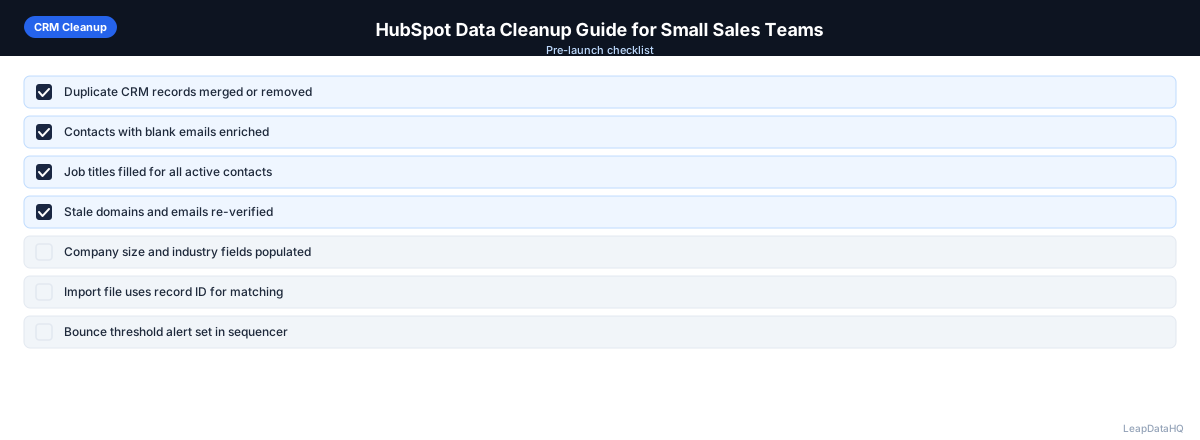
- Contacts exported with HubSpot Contact ID included
- Missing email contacts identified and sent to enrichment
- Role-based emails (info@, support@) removed or tagged
- Blank job titles enriched or manually filled for key contacts
- Duplicate contacts identified and merged in HubSpot
- Company name inconsistencies corrected before import
- Enriched emails verified before updating HubSpot email field
- Re-import uses Contact ID for matching (not email, to avoid conflicts)
- Post-import spot-check on 10 random contacts
- Active email campaigns paused during import to prevent mid-flight data conflicts
HubSpot-Specific Tips for Small Teams
Use HubSpot's required properties feature to prevent future blank-field problems: mark Email and Job Title as required on contact creation forms and manual entry screens. Use HubSpot workflows to automatically populate lifecycle stage based on form submissions or deal creation, reducing manual field maintenance. Schedule a quarterly export-and-audit cycle to catch data drift before it compounds.
When to Use LeapDataHQ
Use LeapDataHQ when you have exported HubSpot contacts that need missing fields filled. Upload the CSV, run enrichment to add emails, titles, and company data, review confidence scores, and prepare a re-import file for HubSpot. The credit-based model is practical for quarterly enrichment cycles where you don't need daily enrichment access.
LeapDataHQ doesn't integrate directly with HubSpot — it works at the CSV layer, which keeps the workflow simple: export from HubSpot, enrich in LeapDataHQ, re-import to HubSpot. No API setup required.
Start Enriching LeadsFrequently Asked Questions
Does HubSpot have a built-in data enrichment feature?
HubSpot offers data enrichment through its Breeze Intelligence add-on (formerly Clearbit integration), which requires additional paid access. For small teams looking for a more flexible or affordable option, the export-enrich-re-import workflow with a CSV enrichment tool is a practical alternative that works without any additional HubSpot add-ons.
How do I prevent creating duplicate contacts when re-importing to HubSpot?
Use HubSpot Contact ID as your match property in the import. This tells HubSpot to update the specific existing record rather than searching by email, which can cause issues if an email has changed. Contact ID is the safest deduplication key for update imports.
What HubSpot properties are most important to keep clean?
Email (required for all email marketing and sequences), Job Title (used in personalization tokens and lead scoring), Company Name (required for company association and reporting), and Lifecycle Stage (drives pipeline reporting and segmentation). These four properties have the highest downstream impact on sales and marketing operations.
Can I clean HubSpot data without exporting?
HubSpot Operations Hub Pro includes a data quality command center that catches and corrects some data issues natively. For basic gaps and enrichment, the export-and-re-import approach works without any additional HubSpot add-ons, which is practical for small teams on Starter or Professional tiers.
How long does a full HubSpot data cleanup take?
For a database of 1,000–2,000 contacts: export takes a few minutes, audit takes 20–30 minutes, enrichment takes a few minutes, review takes 30–60 minutes, and re-import takes a few minutes. Total: 2–3 hours. For larger databases, split into segments (active contacts first, then dormant) to make the review step manageable.