
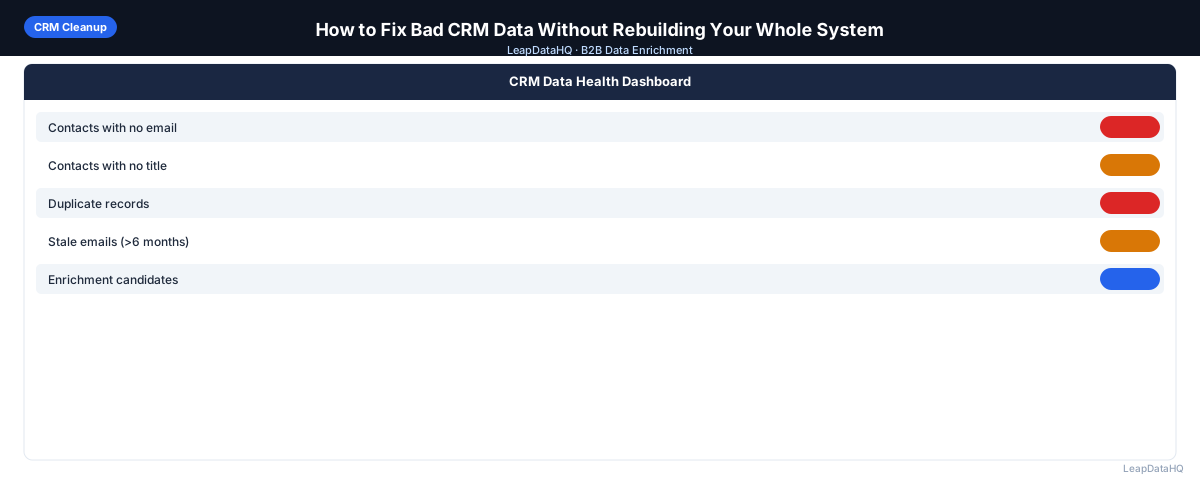
Bad CRM data is a problem that most sales teams recognize but don't know how to fix efficiently. The obvious solution — rebuilding the database from scratch — isn't realistic for teams with thousands of records, years of activity history, and ongoing campaigns that depend on the current data structure.
The practical approach is incremental: export the worst segments, fix them outside the CRM, and re-import the cleaned data. This approach improves data quality without disrupting your CRM configuration, active sequences, deal records, or activity history. It's also reversible — if something goes wrong with the import, the original data is still there.
This guide covers how to identify the most damaging CRM data problems, how to fix them without rebuilding the whole system, and how to prevent the same problems from accumulating again.
What Bad CRM Data Actually Looks Like
Bad CRM data takes several forms, each with different consequences:
- Missing email addresses: contacts that can't receive email outreach — the most common and most limiting gap
- Outdated job titles: contacts who changed roles but whose CRM record still shows their old title
- Duplicate records: the same contact appearing multiple times, often with different data on each version
- Blank required fields: company name, title, or other fields that were never filled during data entry
- Role-based email addresses: info@, support@ — wrong contacts for individual outreach
- Contacts at wrong companies: contacts who moved companies but whose CRM record still shows the old employer
- Orphaned records: contacts with no associated company, deal, or activity
- Inconsistent formatting: company names in all-caps, domains with http:// prefix, phone numbers in mixed formats
Why Bad CRM Data Is Hard to Ignore
The consequences show up in several places simultaneously. Campaign bounce rates are higher than expected. Personalization tokens pull blank values. Pipeline reports count the wrong things. Sales reps waste time on contacts who left their companies. Lead scoring misclassifies contacts because the data it scores on is wrong.
Each of these is a real performance cost. Fixing bad CRM data isn't maintenance for its own sake — it has direct impact on campaign results, sales rep efficiency, and reporting accuracy.
Step 1: Export the Problem Segments from Your CRM
Don't try to fix everything at once. Export the most important problem segments separately: contacts with blank email addresses (most urgent), contacts with blank job titles (important for personalization), contacts added before a specific date (stale data). Include the CRM record ID in every export — you'll use it to match records during re-import.
Step 2: Detect the Specific Problems in Each Segment
Open each export and audit the specific problems. For the blank-email segment: what else do they have (name, domain, title)? What does the enrichment potential look like? For the blank-title segment: do they have email? Can enrichment fill the title? Understanding the specific gaps tells you which fix to apply.
Step 3: Normalize and Clean Messy Fields First
Before enrichment, fix formatting problems in the exported file. These fixes improve enrichment match rates and ensure the re-imported data doesn't reintroduce formatting inconsistencies. Clean domains, normalize names, standardize title formatting.
Ready to enrich your CSV list?
Upload a CSV, fill missing data, review confidence scores, and export clean records.
Upload a CSV — Start EnrichingStep 4: Enrich Missing Contact and Company Data
Upload the cleaned export to an enrichment tool. For the blank-email segment: request email addresses. For the blank-title segment: request job title and department. For the stale-data segment: request current title, email (to catch job changes), and company size.
Review enriched results with confidence scores. High-confidence enriched data is safe to use for updating CRM records. Low-confidence enriched data should be reviewed manually for high-value contacts or excluded.
Step 5: Review Quality and Apply Confidence Threshold
Apply your confidence threshold. For CRM updates — where bad data updates existing records rather than just missing outreach — apply a stricter threshold than you would for new list enrichment. Updating an existing CRM email field with a low-confidence enriched address is riskier than adding a new contact with a low-confidence email.
Step 6: Fix Duplicates Before Re-Import
Run deduplication on the export before re-importing. Importing duplicates creates new duplicate records in the CRM on top of existing ones. In the CRM itself, use the built-in duplicate management tool to merge records that enrichment revealed are the same person with different data.
Step 7: Export the Clean Re-Import File
Prepare the re-import file: CRM record ID plus only the fields you're updating. Don't include fields you're not changing. Format field values to match CRM requirements (date formats, picklist values). Include only rows where a change is being made — importing unchanged rows wastes time and increases error risk.
Step 8: Re-Import Using Update Mode
Import the file using your CRM's update mode, matched by record ID. After import, check the error log for any failed rows. Spot-check 10–15 records in the CRM to confirm the updates applied correctly. Check that no active sequences were broken by the data update.
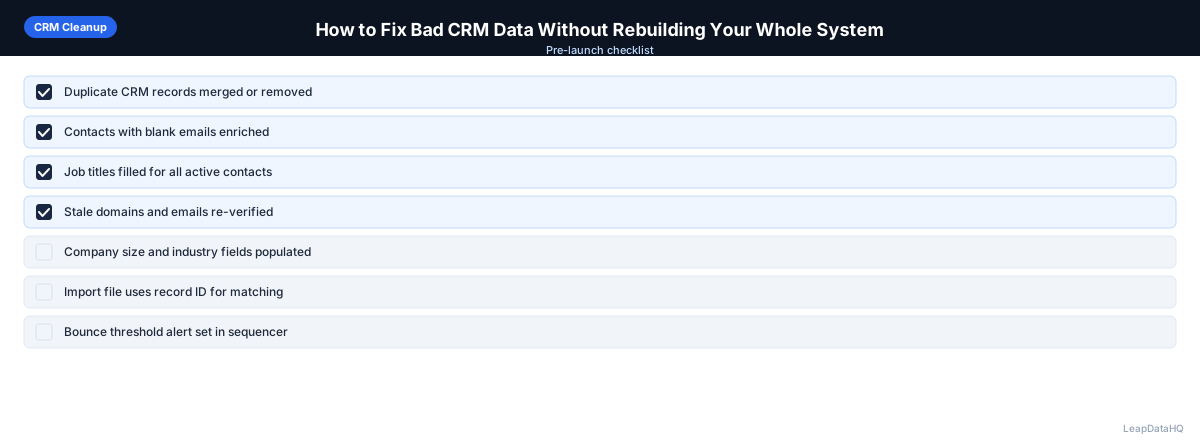
Bad CRM Data Fix Checklist
- ☐ Problem segments identified and prioritized
- ☐ Each segment exported with CRM record ID
- ☐ Formatting cleaned before enrichment (domains, names)
- ☐ Enrichment run on appropriate missing fields
- ☐ Confidence threshold applied (stricter for CRM updates than new lists)
- ☐ Email verification run on enriched email addresses before updating CRM email field
- ☐ Deduplication run before re-import
- ☐ Re-import file contains only record ID + changed fields
- ☐ Import run in update mode matched by record ID
- ☐ Import error log checked
- ☐ 10–15 records spot-checked in CRM post-import
- ☐ Active sequences checked for disruption
When to Use LeapDataHQ
LeapDataHQ handles the enrichment step in this CRM repair workflow. Export your problem segments, upload to LeapDataHQ to fill missing emails, titles, and company fields, review with confidence scores, and prepare a re-import file. The workflow doesn't require a CRM integration — it works at the CSV export/import layer, which is compatible with any CRM.
Start Enriching LeadsFrequently Asked Questions
Can I fix CRM data without exporting and re-importing?
Some CRMs have native enrichment integrations or data quality tools that update records in place. HubSpot has Breeze Intelligence; Salesforce has various AppExchange integrations. These can work without exporting. However, the export-enrich-re-import approach gives more control: you can review every change before it goes live in the CRM, which reduces the risk of enrichment errors propagating into live records.
What's the safest way to prevent accidentally overwriting good data during a CRM import?
Use your CRM's "update only blank fields" option if available. If not, only include the specific fields you're updating in the import file — don't include fields that already have good data. Use record ID matching rather than email matching (email may have changed). Test on a small batch of 10–20 records before running the full import.
How long does fixing CRM data take for a database of 2,000 contacts?
For 2,000 contacts with mixed problems: segment identification takes 30 minutes, export takes a few minutes, formatting cleanup takes 30–45 minutes, enrichment takes a few minutes (plus 1–2 hours of review), email verification takes 5–10 minutes, and re-import takes a few minutes. Total active work: 3–4 hours. Spread across a week to review carefully.
Should I clean all CRM records at once or segment by priority?
Segment by priority. Contacts in active deals or recent opportunities should be cleaned first — they have the highest immediate impact on sales activity. Dormant contacts from several years ago can wait. Prioritizing by recency and deal stage makes the cleanup effort more impactful and avoids spending time on records that won't be used in the near term.
How do I prevent bad data from accumulating in the CRM again?
Set required fields on contact creation forms and CRM entry screens. Add validation rules that catch obvious formatting errors. Set up workflows or automations that flag contacts with missing key fields for review. Run a quarterly enrichment and verification pass as a standing RevOps task. Bad data accumulates through a combination of incomplete data entry and natural data decay — prevention requires addressing both.