
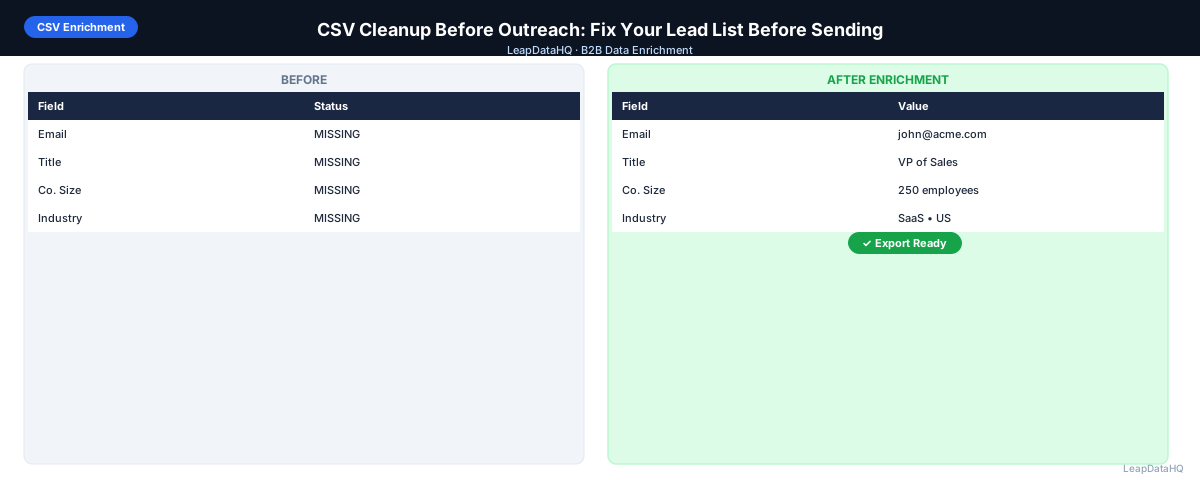
Every cold email campaign is only as good as the list it sends to. A CSV with duplicate contacts, invalid email addresses, broken formatting, and missing personalization fields produces campaigns that bounce, send to the wrong people, and fail to personalize. The fix is a structured CSV cleanup pass before every campaign — not after the first send reveals problems.
CSV cleanup before outreach is not the same as enrichment. Enrichment adds missing data. Cleanup fixes what's already there: bad formatting, duplicates, role-based addresses, contacts outside your ICP, and other problems that are present in the file already. Both are necessary. Cleanup typically comes first, then enrichment to fill remaining gaps.
This guide walks through the specific CSV cleanup steps that matter most before a cold email campaign, in the order they should happen.
What "Dirty" CSV Data Looks Like Before Outreach
- Duplicate rows: the same contact appearing twice, often from combining multiple export files
- Invalid email format: missing @ symbols, extra spaces, incorrect domain format, copy-paste artifacts
- Role-based addresses: info@, contact@, sales@, support@ — shared inboxes, not individuals
- Stale emails: addresses that were valid when added but belong to someone who has since left the company
- Inconsistent formatting: company names in all-caps, domains with "https://" prefix, phone numbers in mixed formats
- Missing personalization fields: blank first name, blank company name, blank job title
- Out-of-ICP contacts: contacts who don't fit your target profile, included because filters were too broad
- Merged export artifacts: columns that got combined when joining files from different sources
Why Bad CSV Data Hurts Outreach
Invalid emails cause hard bounces. A hard bounce rate above 2–3% triggers deliverability flags on your sending domain. Repeated violations lead to blacklisting — a recovery process that takes months. Duplicate contacts cause double outreach, which generates spam complaints. Broken personalization fields produce copy like "Hi [blank]!" or "As an at your company…" — immediate signals of bulk automation that kill reply rates.
Each of these problems is entirely preventable with a pre-campaign cleanup step. The time cost of cleanup is low compared to the campaign and reputation damage of sending to a bad list.
Step 1: Upload Your CSV and Do an Initial Review
Open the CSV in Google Sheets or Excel. Before touching anything, scroll through the first 50–100 rows. Most obvious problems are visible in a quick scan: columns that should have values but are blank, obvious formatting issues, emails that don't look like work emails. Note what you see before running systematic checks.
Step 2: Detect Missing and Problem Fields
Run systematic checks on key columns. Use COUNTBLANK to count empty cells in each column. Use COUNTIF to count role-based email patterns. Use conditional formatting to highlight cells matching known bad patterns. Create a summary of findings before starting cleanup so you can measure what you fixed.
Step 3: Normalize and Clean Messy Columns
Email Column
Run TRIM() on the email column to remove leading and trailing spaces. Use a regex-based format validator to flag malformed addresses. Convert to lowercase for consistency. Flag cells where the email domain doesn't match the company domain in another column.
Domain Column
Strip http://, https://, www. prefixes. Remove trailing slashes and URL paths. Verify the result is a clean bare domain (acme.com, not https://www.acme.com/about).
Name Fields
Ready to enrich your CSV list?
Upload a CSV, fill missing data, review confidence scores, and export clean records.
Upload a CSV — Start EnrichingApply PROPER() to normalize capitalization. Separate combined full-name fields into first and last name columns. Remove honorifics (Dr., Mr., Ms.) unless required for your outreach. Check for placeholder values ("Test", "NA", "Unknown") that slipped in during data collection.
Title Field
Apply PROPER() for consistent capitalization. Remove excessive abbreviations that will look odd in personalization copy. Flag titles that are clearly outside your ICP level (intern, coordinator) if you're targeting decision-makers.
Step 4: Enrich Missing Contact and Company Data
After cleaning what's there, fill what's missing. Upload to an enrichment tool to add email addresses for contacts that don't have them, job titles for contacts with blank title fields, and company data (size, industry) for contacts where that's blank. Enrichment addresses the gaps that formatting cleanup can't fix.
Step 5: Review Confidence and Quality on Enriched Data
Apply your confidence threshold to enriched results. High-confidence rows go to outreach. Low-confidence rows go to a secondary review queue. Spot-check a random sample of 20 rows across all confidence levels to calibrate your trust in the results.
Step 6: Fix Duplicates and Bad Rows
- Deduplicate: remove rows where email appears more than once
- Remove role-based addresses: filter rows matching info@, support@, sales@, admin@, contact@, hello@
- Remove placeholder emails: noreply@, donotreply@, test@
- Remove ICP mismatches: apply title level and company size filters to remove off-target contacts
- Remove contacts on your do-not-contact or unsubscribe list
Step 7: Export Clean Data
Export the cleaned file with a clear filename that includes the date and status. Include all original columns plus any enriched columns. If you're exporting segments (high-confidence vs. catch-all), name each segment clearly so downstream users know what they're working with.
Step 8: Use for Outreach
Run email verification on all addresses — even cleaned and enriched ones — before the campaign sends. Load the verified file into your sequencer. Set bounce threshold alerts (pause at >2%). Review the first 24 hours of sending for any unexpected bounce spikes before the full send volume goes out.
CSV Cleanup Checklist Before Outreach
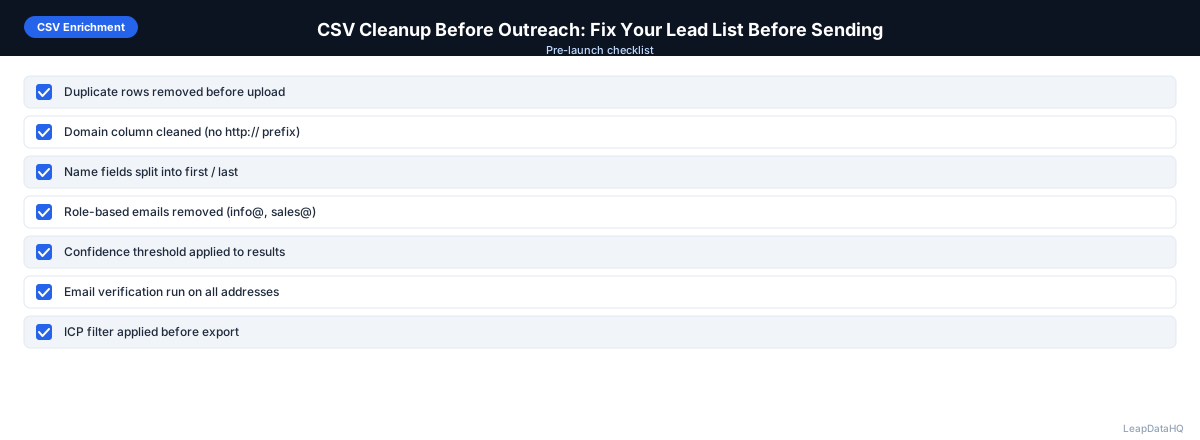
- ☐ Initial visual scan completed
- ☐ COUNTBLANK run on key columns
- ☐ Email column trimmed and format-validated
- ☐ Domain column stripped of http://, www., trailing content
- ☐ Name fields normalized with PROPER()
- ☐ Placeholder and test values removed
- ☐ Role-based addresses removed
- ☐ Deduplication run on email column
- ☐ Enrichment run for missing fields
- ☐ Confidence threshold applied
- ☐ ICP filter applied
- ☐ Unsubscribe list checked
- ☐ Email verification run
- ☐ File exported with date stamp
- ☐ Bounce threshold configured in sequencer
When to Use LeapDataHQ
Use LeapDataHQ for the enrichment step in this workflow. After cleaning your CSV with a spreadsheet tool, upload it to LeapDataHQ to fill missing email addresses, job titles, and company data. Review results with confidence scores and export a cleaner file ready for email verification and campaign launch.
The cleanup step (formatting, deduplication, role-based removal) is best done in a spreadsheet. The enrichment step (adding missing fields) is what LeapDataHQ handles. Together they cover the full pre-outreach preparation workflow.
Start Enriching LeadsFrequently Asked Questions
How long does CSV cleanup take before a campaign?
For a 200–300 contact list: initial review takes 10–15 minutes, formatting cleanup takes 15–20 minutes, enrichment takes a few minutes (plus 20–30 minutes to review results), and email verification takes a few minutes. Total: 60–90 minutes for a well-structured workflow. Larger lists or messier input files take proportionally longer.
Should I clean a CSV every time I use a list, even if I've used it before?
Yes. Data decays between uses. A list clean last quarter may have 5–10% address turnover since then. Always run at minimum a deduplication check and email verification before reusing a list, even if it went through full cleanup when you first built it.
What's the fastest way to find role-based emails in a CSV?
In Excel or Google Sheets, use a FILTER function or COUNTIF to find cells in the email column that start with "info", "support", "sales", "admin", "contact", "hello", "noreply". Alternatively, use conditional formatting to highlight cells matching these patterns. Most common role-based prefixes can be caught with a simple match on the first few characters before the @ symbol.
Do I need to clean a list that came from a reputable data provider?
Yes. Even reputable data providers have stale records, occasional formatting inconsistencies, and contacts that were added from various sources with different quality standards. Cleanup is a standard step regardless of data source.
What's the difference between CSV cleanup and email verification?
CSV cleanup fixes formatting problems, removes obvious bad data, and standardizes fields. Email verification confirms whether specific email addresses are currently deliverable. Both are necessary: cleanup removes obviously bad data before verification; verification confirms the remaining addresses are actually reachable. Verification can't catch all the formatting issues cleanup handles, and cleanup can't confirm live mailbox status the way verification does.