
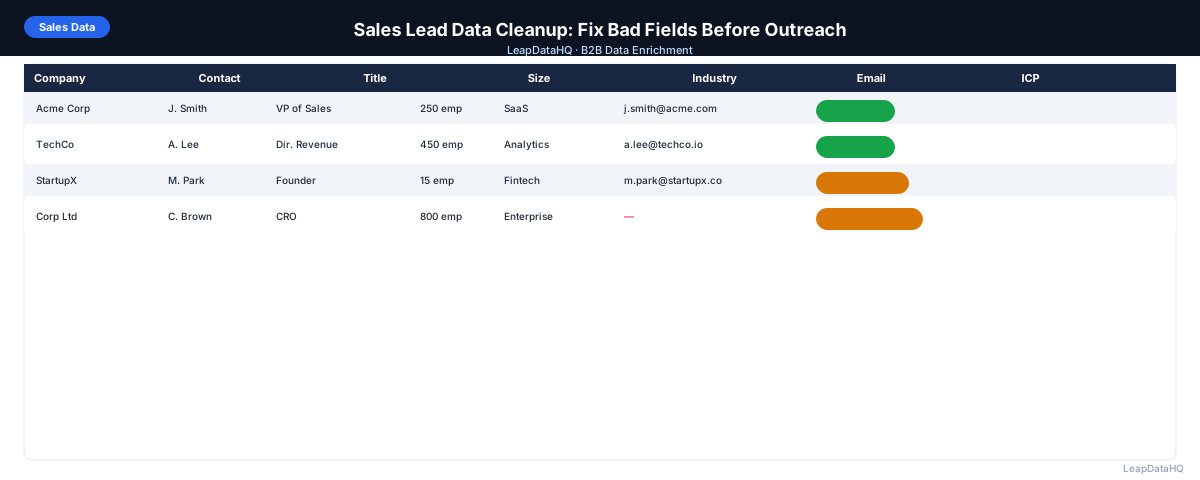
Sales lead data problems show up in three places: bounces when you send, broken personalization in your email copy, and CRM records that can't be used for reporting. Each of these traces back to the same root cause — bad data that wasn't caught before it entered your workflow.
Sales lead data cleanup is the process of reviewing and correcting lead records before they're used for outreach or CRM imports. It's not the same as enrichment (which adds missing data) or verification (which confirms email deliverability) — though both are often part of a complete cleanup workflow. Cleanup specifically means finding and fixing records that have incorrect, inconsistent, or unusable data.
This guide walks through the most common sales lead data problems, how to catch them, and how to fix them before they affect your outreach results.
Why Sales Lead Data Goes Bad
Lead data degrades from multiple sources. People change jobs, companies merge or rebrand, contact information gets manually entered with typos, different team members use different formatting conventions, and lists sourced from different places get combined without deduplication. The result is a list that looks complete but has dozens of small problems that compound into real outreach failures.
Common examples: an email address with a typo in the domain (acme.co instead of acme.com). A job title that's "VP OF SALES" in all caps instead of "VP of Sales." A company name with trailing whitespace that breaks CRM deduplication. A phone number with inconsistent formatting. These issues are individually minor but collectively they erode campaign performance and data quality.
The Most Common Sales Lead Data Problems
Invalid or Malformed Email Addresses
Emails with typos (missing @ symbol, wrong domain), extra spaces, or formatting characters from copy-paste operations. These will hard-bounce or fail import validation. Run a basic format check before uploading to any tool — a regex validation catches obvious malformed addresses before they become bounces.
Duplicate Contacts
The same contact appearing twice, sometimes with slightly different fields — different capitalizations, slightly different name spellings, or the same email at two rows. Duplicates lead to double outreach, which triggers spam complaints. Deduplication on email address or a combination of name plus domain catches most cases.
Role-Based Email Addresses
Addresses like info@, support@, sales@, admin@, hello@, noreply@. These are shared inboxes, not individual contacts. Cold email to these addresses rarely reaches a decision-maker and frequently generates spam complaints. Remove them before campaigns.
Incorrect or Missing Job Titles
Titles that are blank, clearly wrong (a contact at a 10-person startup listed as "C-Suite Executive"), or don't match your ICP target level. Incorrect titles break personalization — "Hi, as a [blank] at your company..." — and prevent proper ICP qualification.
Inconsistent Company Names or Domains
The same company appearing as "Acme Corp", "ACME Corporation", and "Acme" in different rows. Or domain values that include "https://" prefix, "www." prefix, or trailing paths. These inconsistencies cause matching failures in enrichment tools and deduplication logic.
Stale Contact Data
Contacts who have left the company since the list was built. Email addresses that no longer exist. Titles and companies that are outdated. Staleness is the hardest problem to detect without enrichment or verification — but it's also the most predictable. Lists older than six months have measurably higher bounce rates.
Step 1: Upload or Import Your CSV
Ready to enrich your CSV list?
Upload a CSV, fill missing data, review confidence scores, and export clean records.
Upload a CSV — Start EnrichingStart with your raw lead file. Open it in a spreadsheet tool before uploading to any outreach platform. A visual scan of the first 50 rows often reveals the most obvious problems — formatting inconsistencies, blank columns, and role-based emails are usually visible immediately.
Step 2: Detect Missing and Problem Fields
Use spreadsheet functions to identify problem rows. In Excel or Google Sheets: use COUNTIF to count blank cells in each column, use conditional formatting to highlight cells matching known bad patterns (noreply@, info@), and use EXACT to find near-duplicate rows. These checks take minutes and catch the most common cleanup issues.
Step 3: Enrich to Fill Missing Fields
After identifying what's missing, run enrichment to fill gaps. Enrichment adds missing emails, titles, and company data from external data sources. This is distinct from cleanup — you're not fixing incorrect data, you're adding data that was never present. Use a tool like LeapDataHQ to upload the file, request the missing fields, and review enriched results before merging them back.
Step 4: Review Quality of Enriched and Existing Data
After enrichment, review both the newly added fields and the original fields for quality problems. Sort by confidence score to identify low-confidence enriched records. Spot-check a random sample of high-confidence records to verify accuracy. Check that email domains match company domains.
Step 5: Fix Bad Rows Systematically
- Delete or correct malformed emails (missing @, wrong domain, extra spaces)
- Remove or consolidate duplicate rows
- Delete role-based addresses (info@, support@, noreply@)
- Standardize title formatting (proper case, remove all-caps)
- Standardize company name formatting
- Remove domain prefixes (http://, www.) from domain column
- Remove contacts outside your ICP based on enriched title or company size
Step 6: Export the Cleaned File
Export the cleaned list with a clear filename that indicates status and date: "prospect-list-cleaned-2025-08-04.csv". Keep the pre-cleanup version for reference. The clean version is what goes into your outreach tool or CRM.
Step 7: Use for Outreach or CRM Import
Run a final email verification pass on the cleaned list before launching outreach. Load the verified, cleaned file into your sequencer or CRM. Set bounce threshold alerts — if bounce rate exceeds 2% on a campaign using a cleaned list, investigate immediately. A well-cleaned list should produce hard bounces under 1%.
Sales Lead Data Cleanup Checklist
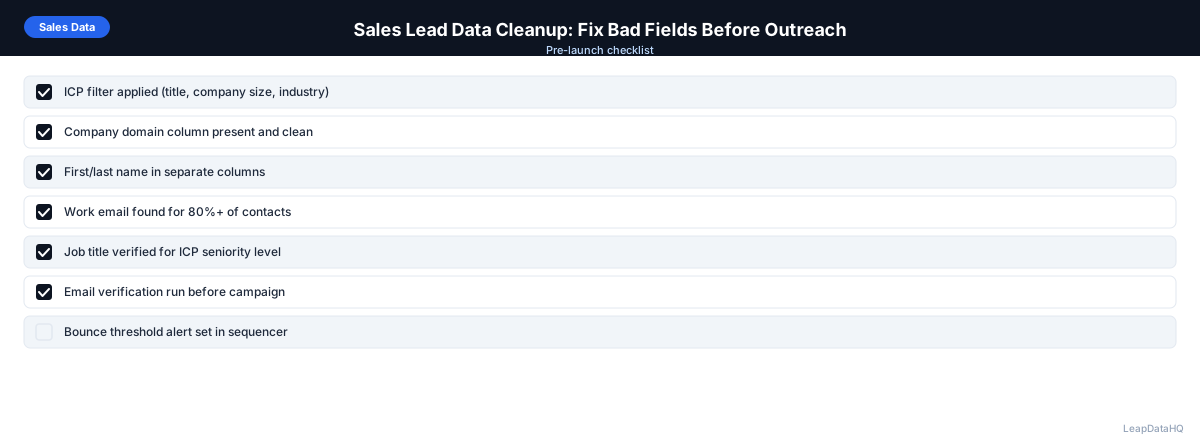
- Malformed emails identified and corrected or removed
- Duplicate rows removed (deduplication on email or name+domain)
- Role-based addresses removed (info@, support@, admin@, noreply@)
- Blank email rows sent to enrichment
- Job titles standardized and checked against ICP
- Company names standardized
- Domain values cleaned (no http://, www., trailing paths)
- Low-confidence enriched records filtered or reviewed
- Email verification run on all addresses
- File exported with date stamp
- Bounce threshold set in outreach tool before launch
Tools That Help With Sales Lead Cleanup
A complete sales lead cleanup workflow typically uses a spreadsheet tool for initial auditing, an enrichment tool for filling missing fields, and an email verification tool for confirming deliverability. LeapDataHQ combines enrichment and confidence review in one workflow, making it practical to fill gaps and flag quality issues in a single upload-and-review cycle rather than three separate tool workflows.
When to Use LeapDataHQ
Use LeapDataHQ as the enrichment step in your sales lead cleanup workflow. Upload a CSV with missing or incomplete fields, let the tool fill in email addresses and company data, review results with confidence scores, and export only the rows you trust. The built-in confidence review catches quality issues that would otherwise surface as bounces.
For sales teams that clean lead lists before each campaign cycle, LeapDataHQ handles the enrichment and quality review steps, leaving the formatting and deduplication work to your spreadsheet tool.
Start Enriching LeadsFrequently Asked Questions
How often should I clean sales lead data?
Before every outreach campaign. Don't use the same list twice without reviewing it — contacts change jobs, email addresses go inactive, and companies change between campaigns. For lists more than three months old, a full enrichment and verification pass is worth running before reuse.
Is it better to clean before or after enrichment?
Both. Do an initial cleanup before enrichment to remove obvious problems (duplicates, malformed emails, role-based addresses). Run enrichment on the cleaned file. Then do a post-enrichment quality review to catch any problems introduced by the enrichment process. Two passes catch more problems than one.
What's the fastest way to find duplicate contacts in a spreadsheet?
In Excel or Google Sheets, use the COUNTIF function on your email column to count how many times each email appears. Any count above 1 is a duplicate. Sort by the COUNTIF result to group duplicates together for easy removal. Most spreadsheet tools also have a built-in Remove Duplicates function.
Should I keep or delete low-confidence enriched records?
Keep them in a separate segment rather than deleting them. Low-confidence records may be worth a manual verification pass for high-value targets, or may be usable through non-email channels (LinkedIn, phone). Deleting them loses any useful data that was present in the original row.
What bounce rate signals a data quality problem in my lead list?
A hard bounce rate above 2% on a campaign typically signals a data quality problem. Common causes: stale emails, unverified enriched addresses, or role-based addresses included in the send. Investigate immediately — high bounce rates damage sender reputation and can lead to domain blacklisting.