
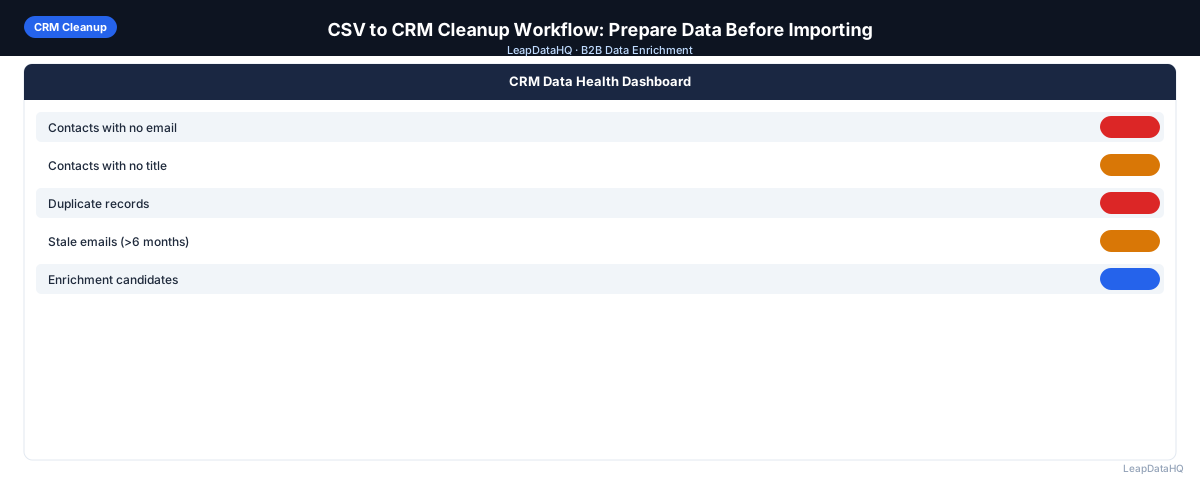
Importing a CSV into a CRM is one of the fastest ways to create a data quality problem that lasts for months. A CSV with formatting inconsistencies, missing required fields, and duplicate records becomes a CRM with exactly the same problems — except now they're harder to fix because they're entangled with activity history, deal records, and sequence enrollments.
The right time to fix data quality problems is before CRM import, not after. A CSV-to-CRM cleanup workflow addresses the most common problems at the source — in the file — where they're fastest and easiest to fix.
This guide covers the specific steps for cleaning a CSV before it's imported into a CRM. The workflow is tool-agnostic: it applies whether you're importing into HubSpot, Salesforce, Pipedrive, Close, Zoho, or any other CRM that accepts CSV import.
Why CRM Imports Create Lasting Data Problems
When you import a CSV with duplicate contacts, your CRM gets duplicate records. When you import with inconsistent company name formatting ("ACME" and "Acme Corp" as separate companies), your CRM creates separate company records for the same account. When you import contacts with blank required fields, those contacts become orphaned records that are easy to miss.
Each of these problems requires manual CRM cleanup to fix — merging records, standardizing field values, filling in blanks — that is significantly more labor-intensive than fixing the same problems in a CSV before import. The ten minutes spent cleaning a CSV prevents hours of CRM cleanup later.
What to Clean Before CRM Import
- Duplicate contacts: the same person appearing multiple times in the CSV
- Duplicate companies: the same company with different name formats across multiple rows
- Invalid email addresses: format errors, missing @ symbol, extra spaces
- Role-based email addresses: info@, sales@, support@
- Missing required CRM fields: fields your CRM requires but the CSV doesn't have (depends on your CRM setup)
- Inconsistent field formats: dates in different formats, phone numbers with different country codes, company names with different capitalization
- Contacts that are already in the CRM: importing them again creates duplicates unless your CRM is in update mode
Step 1: Upload and Audit the CSV
Open the CSV in a spreadsheet. Run COUNTBLANK on each key column. Create a list of which fields are missing and how often. Check for formatting inconsistencies in company name and domain columns. Note which fields are required in your CRM (check your CRM's import guide or field settings for this list).
Step 2: Detect Missing Required Fields
Before enrichment, identify which CRM-required fields are blank in the CSV. Required field blanks will cause import errors or empty records depending on how your CRM handles them. For fields that are blank in the CSV but available from enrichment, run enrichment first to fill them before the import — avoid creating CRM records with known data gaps.
Step 3: Normalize and Clean Messy Columns
Fix formatting before import. Email column: TRIM + LOWER. Domain column: strip http://, www., trailing paths. Name fields: PROPER + TRIM. Date fields: standardize to the format your CRM expects (most CRMs prefer YYYY-MM-DD or MM/DD/YYYY — check your CRM's documentation). Phone numbers: standardize to one format (with or without country code, consistent separator). Company names: normalize capitalization, decide whether to include or exclude "Inc", "LLC", "Corp" suffixes.
Ready to enrich your CSV list?
Upload a CSV, fill missing data, review confidence scores, and export clean records.
Upload a CSV — Start EnrichingStep 4: Enrich Missing Contact and Company Data
For contacts with missing required or high-value fields, run enrichment before import. Upload the cleaned CSV to LeapDataHQ or your enrichment tool, request missing fields (email, title, company size, industry), and add the enriched data to the CSV before the CRM import step. A contact entering the CRM with complete data from day one is easier to manage than a contact that needs retroactive enrichment after import.
Step 5: Review Confidence and Quality
Apply confidence thresholds to enriched data. For CRM import, use a stricter threshold than you would for a single-use campaign list — data that lands in the CRM will be used repeatedly and by multiple people. Low-confidence enriched data that's wrong creates trust problems in the CRM that take time to identify and fix.
Step 6: Fix Duplicates and Bad Rows
- Deduplicate: run Remove Duplicates on email column in the spreadsheet before import
- Check against existing CRM contacts: export CRM email list and cross-reference against CSV to find contacts already in the system
- Remove role-based emails
- Remove contacts where ICP criteria aren't met after enrichment reveals company size or industry
- Standardize company names across all rows that reference the same company — avoid creating duplicate company records in the CRM
Step 7: Export the Clean Import File
Export the final cleaned, enriched CSV. Name it clearly: "hubspot-import-CLEAN-2025-09-15.csv". Map column names to your CRM's field names before export — most CRMs match import columns by name, so "First Name" in the CSV should match the CRM's contact first name field name exactly. Check your CRM's import guide for the exact expected column names.
Step 8: Import in the Correct Mode
Import in the mode that matches your intent: "Create only" if these contacts should be new, "Update only" if these are existing contacts with field updates, "Create and update" if the list may contain a mix. Use contact record ID for update matching — more reliable than email matching if email fields are what you're updating. After import, check the error log for failed rows and spot-check 10 records in the CRM.
CSV to CRM Cleanup Checklist
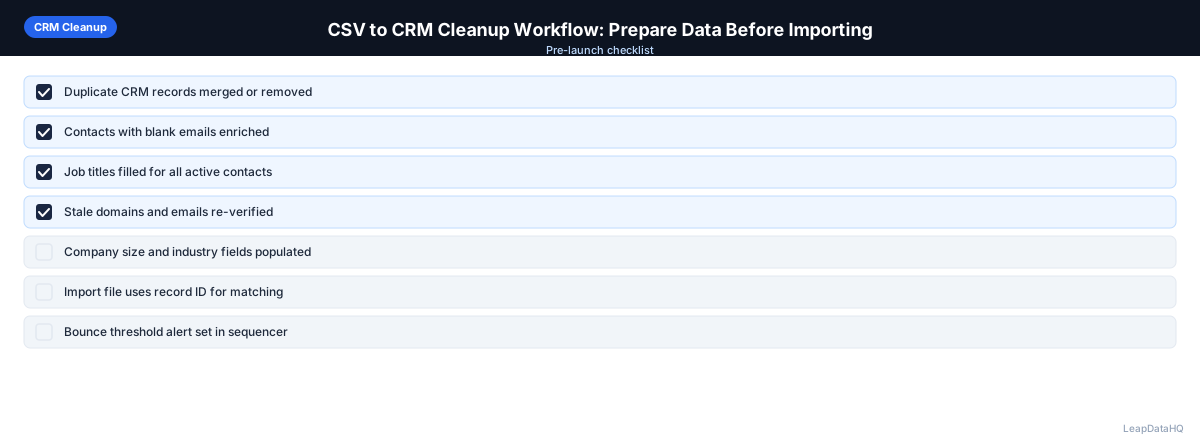
- ☐ CRM-required fields identified from CRM import documentation
- ☐ COUNTBLANK audit completed on all key columns
- ☐ Formatting cleaned: email (TRIM+LOWER), domain (stripped), names (PROPER+TRIM)
- ☐ Date and phone fields formatted to match CRM requirements
- ☐ Enrichment run for missing required and high-value fields
- ☐ Confidence threshold applied (strict for CRM import)
- ☐ Email verification run on all email addresses
- ☐ Deduplication within CSV complete
- ☐ Cross-check against existing CRM contacts complete
- ☐ Role-based emails removed
- ☐ Company names standardized across rows
- ☐ Column names matched to CRM field names
- ☐ Import mode selected correctly (create / update / create+update)
- ☐ Import error log reviewed post-import
- ☐ 10 records spot-checked in CRM post-import
When to Use LeapDataHQ
LeapDataHQ handles the enrichment step in your CSV-to-CRM workflow. After cleaning formatting in a spreadsheet, upload to LeapDataHQ to fill missing fields — email, title, company size, industry — before the CRM import. The enrichment step means contacts enter the CRM with more complete data from day one, reducing the need for retroactive enrichment later.
Works with any CRM that accepts CSV import: HubSpot, Salesforce, Pipedrive, Close, Zoho, and others.
Start Enriching LeadsFrequently Asked Questions
Should I clean the CSV before or after doing a test import?
Clean before the test import, not after. A test import with dirty data still creates partial records in the CRM that need to be deleted — and in some CRMs, mass-deleting test imports is cumbersome. Clean the file first, do a small test import with 10–20 rows to verify field mapping, and then run the full import with confidence.
How do I prevent the CRM from creating duplicate company records when I import contacts?
Standardize company names in the CSV before import: decide on one format ("Acme Corp" not "ACME" or "Acme Corporation") and apply it consistently across all rows. Check whether your CRM auto-associates contacts with company records by exact name match — if it does, consistent naming prevents duplicate company record creation. If your CRM uses company domain for deduplication, clean the domain column carefully.
What happens to contacts that fail CRM import validation?
They appear in the import error log as failed rows with an error reason. Common reasons: missing required field, duplicate record found (if your CRM is configured to reject duplicates rather than update), invalid field format (date format wrong, email format error), or field value not in allowed list (picklist field with a value not in the picklist). Fix the issues in the CSV and re-import the failed rows separately.
How do I import contacts that are already in the CRM with updates?
Export the existing CRM contacts to get their record IDs. Add the CRM record IDs to your update CSV. Import in "Update" mode, matched by record ID. This ensures updates apply to the right existing records rather than creating new duplicate records. Only include changed fields in the update file — don't re-import unchanged fields.
Should I import all contacts in one batch or multiple smaller batches?
Multiple smaller batches, especially for large imports. Smaller batches are easier to review for errors: if something goes wrong, you've only affected a fraction of the import. A 5,000-contact import done in five batches of 1,000 gives you checkpoints after each batch to verify before continuing. Most CRMs allow this easily through separate import sessions.