
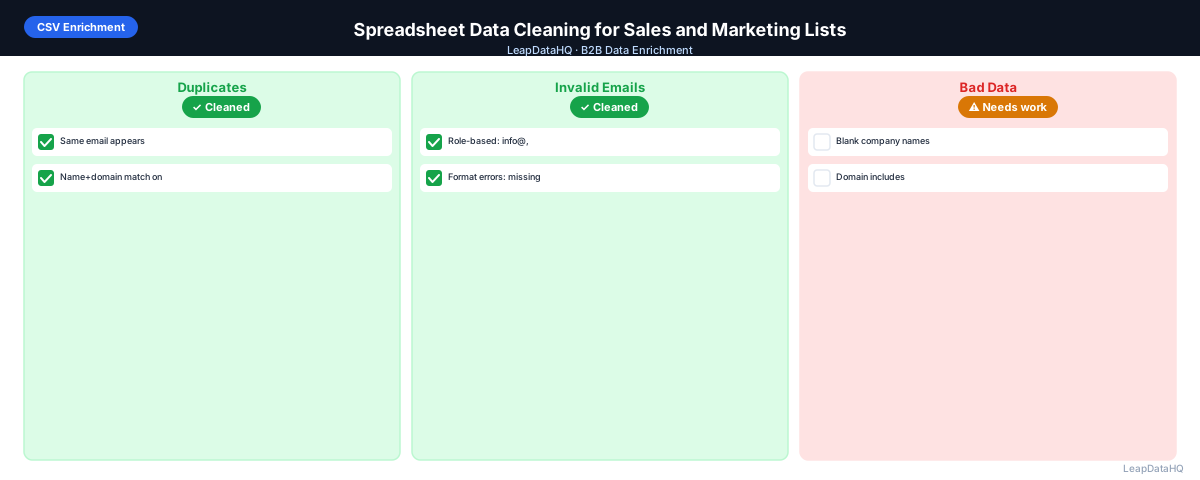
Most B2B contact list problems start as spreadsheet problems. A file with inconsistently formatted company names, email addresses that have extra spaces, first and last names combined in a single column, or domains that include "https://" prefixes — these problems need to be fixed in the spreadsheet before enrichment, verification, or CRM import can work reliably.
Spreadsheet data cleaning is the foundational step that everything else in the data preparation workflow depends on. It doesn't require expensive tools — Google Sheets or Excel with standard functions handles most cleaning tasks. What it requires is a systematic approach: knowing which problems to look for, in what order to fix them, and how to verify the fixes before moving to the next step.
This guide covers the most effective spreadsheet data cleaning techniques for B2B sales and marketing contact lists, in the order they should be applied.
Why Spreadsheet Cleaning Comes First
Enrichment tools match records based on the input data you provide. A domain with "https://" in it doesn't match the same way a clean bare domain does. A name with a trailing space doesn't match as reliably as a trimmed name. An email with formatting artifacts fails format validation before it reaches the enrichment step.
Cleaning the spreadsheet first improves enrichment match rates, reduces wasted credits on unmatchable rows, and ensures that when data lands in your CRM or sequencer, it arrives in a usable format. It's not optional hygiene — it's the preparation step that makes every downstream workflow more effective.
Step 1: Upload or Open the Spreadsheet
Open the file in Google Sheets or Excel. If working with a CSV, open it directly — don't let the spreadsheet application auto-convert dates or other values before you can review them. Make a copy of the original before cleaning so you have a reference if something goes wrong during cleanup.
Step 2: Detect Missing and Problem Fields
Run a systematic audit before touching anything. Add a column next to each key field to count blanks: =COUNTBLANK(A:A) gives the total blank cells in column A. Note which columns have the most blanks — these are your enrichment priorities. Check for columns with obvious formatting problems by scanning the first 50 rows.
Step 3: Normalize and Clean Messy Columns
Email Column
Apply =TRIM(LOWER(A2)) to each email cell to remove spaces and normalize to lowercase. Run a format check — in Google Sheets, =ISNUMBER(MATCH("*@*.*", A2, 0)) returns TRUE for addresses that contain "@" and "." in a valid position. Flag cells returning FALSE for review.
Domain Column
Strip the URL prefix. In Google Sheets: =SUBSTITUTE(SUBSTITUTE(SUBSTITUTE(TRIM(A2), "https://www.", ""), "http://www.", ""), "https://", "") removes common prefixes. Then use =LEFT(A2, FIND("/", A2&"/") - 1) to strip trailing URL paths. The result should be a bare domain like "acme.com".
Name Fields
Apply =PROPER(TRIM(A2)) to first name and last name fields to normalize capitalization and remove spaces. If names are combined in a single column (First Last), use =LEFT(A2, FIND(" ", A2) - 1) for first name and =MID(A2, FIND(" ", A2) + 1, LEN(A2)) for last name. Check results for names with multiple words (compound first names, names with middle initials).
Ready to enrich your CSV list?
Upload a CSV, fill missing data, review confidence scores, and export clean records.
Upload a CSV — Start EnrichingJob Title Column
Apply =PROPER(TRIM(A2)) for consistent capitalization. Check for obviously wrong values: "N/A", "TBD", "Unknown", "Employee" — these should be blanked out so enrichment fills them properly rather than carrying forward a bad placeholder value.
Company Name Column
Standardize company names consistently. Companies that appear in multiple formats ("Acme Corp", "ACME", "Acme Corporation") should use one consistent form across all rows. Inconsistency in company names breaks account-level CRM deduplication.
Step 4: Enrich Missing Contact and Company Data
After cleaning what's there, use enrichment to fill what's missing. Export the cleaned spreadsheet as CSV and upload to your enrichment tool. Map the cleaned columns to enrichment fields. The cleaned input produces better match rates than the uncleaned original.
Step 5: Review Confidence and Quality
After enrichment returns results, paste the enriched data back into your spreadsheet for review. Sort by confidence score. Apply your threshold using a filter or =IF(confidence > 70, "Include", "Review"). Review the "Review" rows and make manual decisions on them.
Step 6: Fix Duplicates and Bad Rows
In Excel or Google Sheets: use Remove Duplicates on the email column (Excel: Data → Remove Duplicates; Sheets: Data → Data cleanup → Remove duplicates). For more control, use =COUNTIF(email column, current cell) in a helper column — any value greater than 1 is a duplicate. Filter for duplicates, review each, and remove the lower-quality version.
Step 7: Export the Cleaned Spreadsheet as CSV
Export as CSV (UTF-8 encoding). Check that date columns didn't get reformatted by the spreadsheet application. Verify that the exported file looks correct by opening it in a text editor or re-importing it — what you see in the spreadsheet view and what's actually in the CSV can sometimes differ for date and number fields.
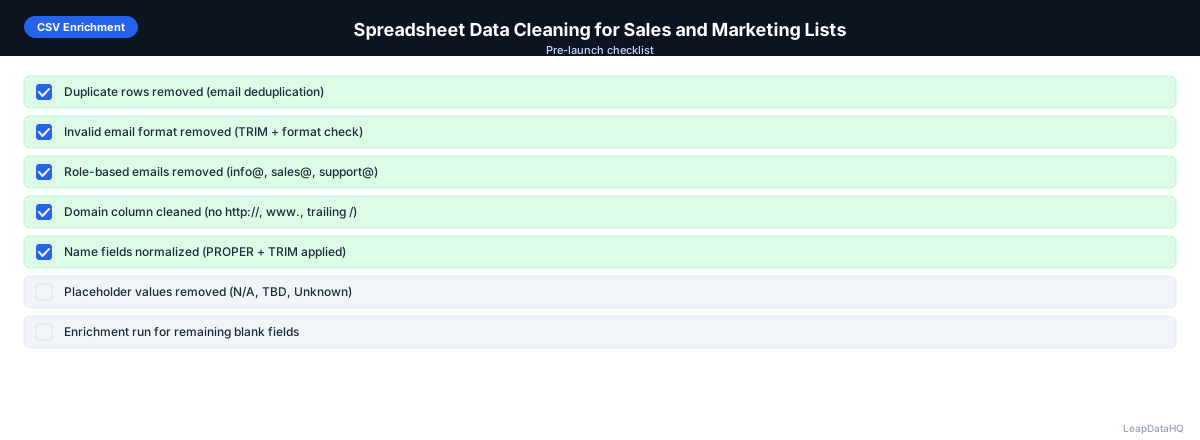
Spreadsheet Data Cleaning Checklist
- ☐ Copy of original file saved before cleaning starts
- ☐ COUNTBLANK audit completed on all key columns
- ☐ Email column: TRIM, LOWER applied
- ☐ Email format validation run (flagged invalids reviewed)
- ☐ Domain column: http/www/path prefixes stripped
- ☐ Name fields: TRIM, PROPER applied, split if combined
- ☐ Title column: placeholder values (N/A, TBD) blanked
- ☐ Company name: standardized across all rows
- ☐ Deduplication run on email column
- ☐ Enrichment run on cleaned file for missing fields
- ☐ Confidence threshold applied to enriched results
- ☐ Re-merged enriched data back into spreadsheet
- ☐ Final export as UTF-8 CSV
- ☐ Exported CSV spot-checked in text editor
When to Use LeapDataHQ
After cleaning your spreadsheet, upload to LeapDataHQ for enrichment. The cleaning step produces better match rates in LeapDataHQ because the lookup keys (domain, names) are clean and standardized. LeapDataHQ then fills the missing fields and returns results with confidence scores, completing the preparation workflow before your final email verification and outreach steps.
Start Enriching LeadsFrequently Asked Questions
What spreadsheet functions are most useful for data cleaning?
TRIM() removes leading/trailing spaces. LOWER() normalizes to lowercase. PROPER() normalizes capitalization. COUNTBLANK() counts empty cells. COUNTIF() counts occurrences (useful for duplicate detection). SUBSTITUTE() replaces text (useful for stripping domain prefixes). These six functions handle most common B2B contact list cleaning tasks without any scripting or add-ons.
Should I clean in Excel or Google Sheets?
Either works for standard cleaning tasks. Google Sheets has the advantage of collaboration and no file size limits for most contact lists. Excel has more advanced data transformation options and handles very large files better. For most B2B contact list cleaning (under 10,000 rows), Google Sheets is sufficient and more convenient for sharing with teammates.
How do I clean a spreadsheet with columns from different sources merged together?
Start by standardizing column names across all merged segments. Look for duplicate column names (two "Email" columns from different sources) and consolidate. Check for rows from one source where certain columns that the other source provides are blank — these may need enrichment rather than cleaning. Sort by source identifier if you have one to group same-origin rows before auditing.
What causes date columns to break in CSV exports?
Spreadsheet applications often auto-format date cells, and the underlying data format may not match what you expect when exported as CSV. A date displayed as "January 15, 2025" in Sheets may export as "1/15/25" in CSV. If your CRM requires a specific date format (YYYY-MM-DD is most common), use =TEXT(A2, "YYYY-MM-DD") to format dates before export.
How many rows can I clean in a spreadsheet before needing a different tool?
Google Sheets handles up to 10 million cells reliably. For most B2B contact lists, that's well above any practical limit. Excel handles larger files but can slow significantly on files with complex formulas above 100,000 rows. For files larger than that, consider Python (pandas) or a data cleaning tool that handles large batches more efficiently.