
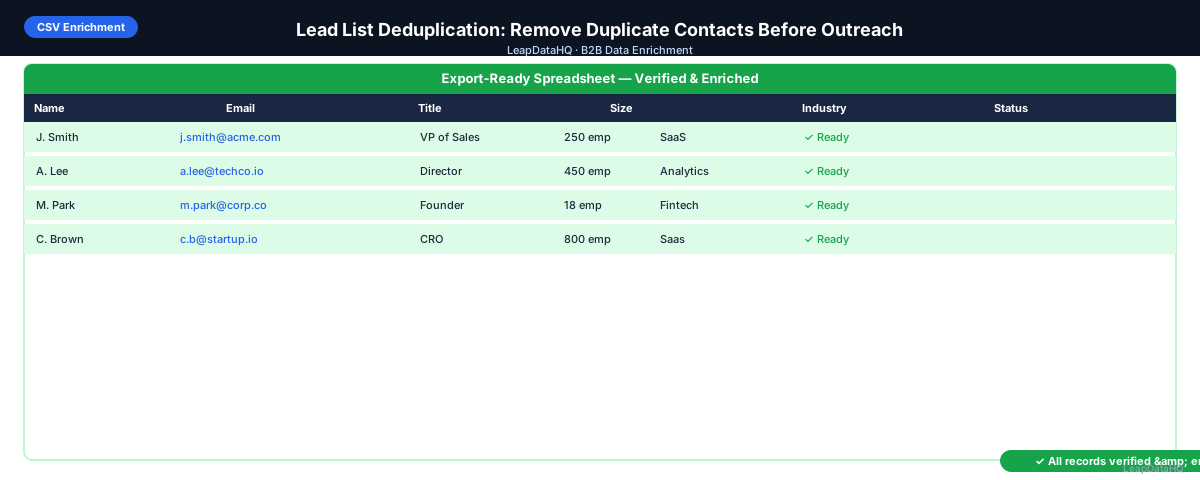
Duplicate contacts in a lead list are one of the most common and damaging data quality problems for B2B outreach. When the same contact appears twice in a list loaded into a sequencer, they receive the same email twice. In a best case, they're annoyed. In a worse case, they mark the message as spam — damaging your sender reputation with a complaint that counts against your domain.
Lead list deduplication is the process of finding and removing (or consolidating) duplicate contact records before any campaign runs. It's a required step in every list preparation workflow, not an optional cleanup task. A list that skips deduplication is a list that will generate double sends.
This guide covers how to find duplicates in different scenarios, which record to keep when you find duplicates with different data, and how to prevent duplicates from accumulating in the first place.
The cost of duplicates goes beyond annoyance. Each duplicate that makes it into a campaign generates a second send to the same inbox — and each second send carries a disproportionately high risk of a spam complaint. Building deduplication into your standard list preparation workflow is one of the highest-impact, lowest-effort improvements you can make to campaign performance.
Where Lead List Duplicates Come From
- Multiple export files combined without deduplication: exporting the same source multiple times and merging rows
- Same contact in multiple search filters: a person who fits "VP of Sales in SaaS" and "VP of Sales in New York" both, exported from each search
- Same contact from different data sources: one list from Apollo, another from ZoomInfo, same person in both
- CRM export with duplicates already in the CRM: duplicate CRM records export as duplicate rows
- Manual additions of contacts already in the file: someone adds a contact to a spreadsheet that already includes them from an earlier export
- Email variations of the same person: john.smith@acme.com and j.smith@acme.com for the same individual
Types of Duplicates to Find
Exact Email Duplicates
The same email address appearing on multiple rows. This is the most important category — same email means same inbox, and sending to it twice guarantees double outreach. Find with COUNTIF on the email column: any row where COUNTIF returns > 1 is a duplicate.
Same Person, Different Email Addresses
First name + last name + company match, but email differs (different format variations, personal vs. work email). Harder to catch with a single column check — requires matching on multiple fields. Common when the same person was sourced from different tools using different email pattern formats.
Same Person, Different Companies
The same individual appearing once at their old company and once at their new company — a data staleness artifact. Catching this requires checking whether the person is the same individual despite different company associations.
Step 1: Upload or Open Your Lead List
Before deduplication, make a copy of the original. Deduplication removes rows — you want to be able to recover rows that were incorrectly removed if your deduplication logic has errors.
Step 2: Detect Duplicate Fields
In Excel or Google Sheets: add a helper column with =COUNTIF($B$2:$B$1000, B2) next to the email column (where B is the email column). Values greater than 1 are on rows with duplicate emails. Sort by this column descending to group all duplicates together for easy review.
Step 3: Choose Which Record to Keep
Ready to enrich your CSV list?
Upload a CSV, fill missing data, review confidence scores, and export clean records.
Upload a CSV — Start EnrichingWhen you find duplicate rows, decide which one to keep. General rules:
- Keep the row with the most complete data (more fields populated)
- If completeness is equal, keep the row from the more recently verified source
- If one row has a verified email and the other doesn't, keep the one with the verified email
- Merge unique fields from the discarded row into the kept row before deleting
Step 4: Enrich Remaining Records After Deduplication
After deduplication, run enrichment on the cleaned list. Deduplication before enrichment prevents paying to enrich the same contact twice. The deduplicated list is a cleaner, more efficient input for the enrichment step.
Step 5: Review Confidence and Quality Post-Enrichment
After enrichment adds missing fields, check that the consolidated (kept) record now has all the fields needed for outreach. If the kept record was lower quality than the removed record, re-check whether merging the right fields is possible from the removed row before proceeding.
Step 6: Fix Bad Rows After Deduplication
After deduplication and enrichment, do a final cleanup pass: remove role-based addresses, remove contacts outside ICP, remove contacts on do-not-contact lists. These steps are more efficient after deduplication — you're not duplicating the effort by cleaning the same contact twice.
Step 7: Export Deduplicated, Clean List
Export the deduplicated, enriched, cleaned list. In the filename, note the deduplication has been done: "lead-list-deduped-2025-09-11.csv". This prevents confusion when the same file is reused or shared.
Step 8: Check Against Existing CRM or Sequence Contacts
Before loading into a sequencer or CRM: check whether any contacts in your list are already in active sequences or have been contacted recently. Most sequencers have an option to skip contacts already enrolled. If not, export your active sequence contacts and cross-reference against your list before loading.
Lead List Deduplication Checklist
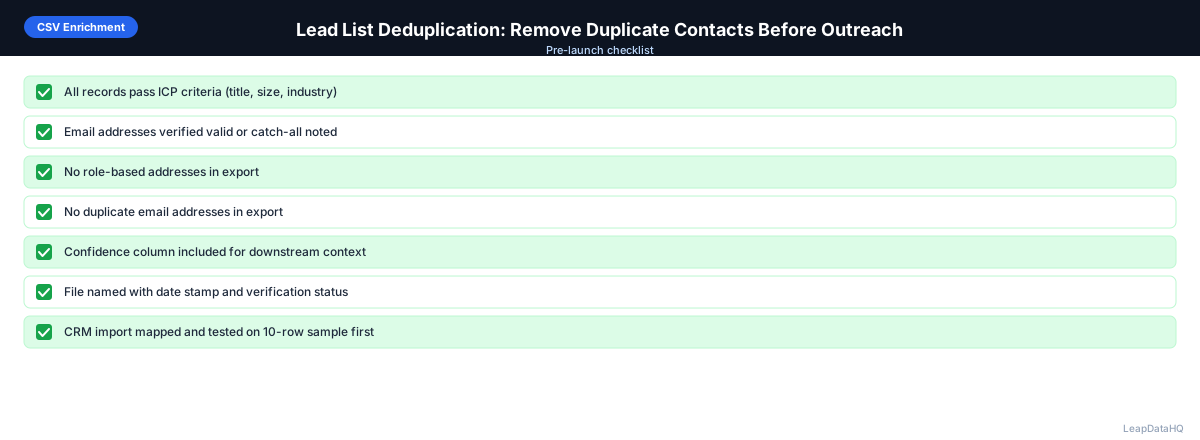
- ☐ Original file copied before deduplication starts
- ☐ COUNTIF helper column added to email field
- ☐ All rows with COUNTIF > 1 identified
- ☐ Duplicate pairs reviewed — best record selected for each pair
- ☐ Unique fields from removed rows merged into kept rows where relevant
- ☐ Deduplication run before (not after) enrichment
- ☐ Post-enrichment check: kept records have needed fields
- ☐ Role-based addresses removed after dedup
- ☐ Active CRM/sequence contacts cross-referenced
- ☐ File exported with dedup-noted filename
When to Use LeapDataHQ
LeapDataHQ enriches after you deduplicate. Run deduplication in your spreadsheet first to remove duplicate contacts, then upload the cleaned file to LeapDataHQ to fill missing fields. This order ensures you're not paying to enrich the same contact twice, and the enriched output applies to a clean, unique set of contacts.
Start Enriching LeadsFrequently Asked Questions
What's the fastest way to deduplicate a large lead list?
In Excel: Data → Remove Duplicates → select the email column. This removes all rows where the email appears more than once (keeping the first occurrence). In Google Sheets: Data → Data cleanup → Remove duplicates → select the email column. For more control over which row to keep, use the COUNTIF helper column approach and filter manually.
What should I do if duplicate contacts have different emails but are the same person?
Use the higher-confidence or more recently verified email. Check the company domain for both emails — the email whose domain matches the company's current domain is likely the more current address. If unsure, run both through email verification and keep the one that returns valid. Tag the other as an alternative email if your CRM supports that.
Should I deduplicate before or after checking against my CRM?
Deduplicate first (within the new list), then check against the CRM. Deduplication within the list ensures you're comparing a clean list against your CRM, not a list with internal duplicates. After deduplication, compare the clean list against CRM contacts to find contacts who already exist in your system.
How do I prevent duplicates when combining lists from different sources?
Before combining: run deduplication on each source list separately. After combining: run deduplication again on the combined list. Use email as the deduplication key across all sources. If different sources use different email variations for the same person (pattern differences), you'll need to do a name+company match pass after the email dedup.
What happens if I send to a duplicate contact in a campaign?
They receive the same email twice — potentially within minutes of each other. This generates spam complaints at a high rate (recipients who receive the same message twice are much more likely to click "mark as spam" than those who receive it once). Spam complaints damage your sending domain's reputation with inbox providers and can lead to decreased deliverability across all future campaigns.